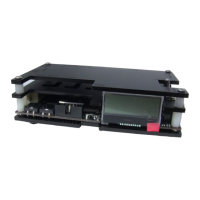
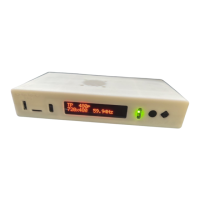
You can connect almost any video source to the OSSC Pro. All analogue video formats are
supported as well as most digital formats (excluding 4k). More information on connecting different
types of hardware is covered on the wiki.
Once you have connected your hardware, power on the OSSC Pro and select the appropriate input
using the remote. Now, power on your console, PCB or vintage computer hardware. You should
now see it displayed on your TV or monitor.
Scanlines
Vintage games consoles such as the Sega Megadrive and Nintendo SNES used a special screen
mode which resulted in alternating lines on a CRT display being left blank. Typically when people
in the retro-gaming communities refer to scanlines, they mean the blank lines between parts of an
image on a CRT that were a result of this screen mode. OSSC Pro allows you to simulate these
scanlines, making the image look more authentic. You can enable or disable post-processing
scanlines on the OSSC Pro by pressing the Menu button on the remote and navigating to “Scanline
opt.”
You can also configure various scanline settings by using the SL buttons on the remote.
In scaler mode, the OSSC Pro also supports custom scaling algorithms (see page 15 for more
information). Some of these may add scanlines to the image as the image is scaled. In this case,
post-processing scanlines should be turned off.
How pronounced the scanlines would look on a real CRT varies greatly between displays, so set the
scanline strength to your taste.
Setting output resolutions
In line multiplication mode the OSSC Pro takes in one scanline and outputs two or more, resulting
in a lag free conversion of 240p to 480p, 720p or higher.
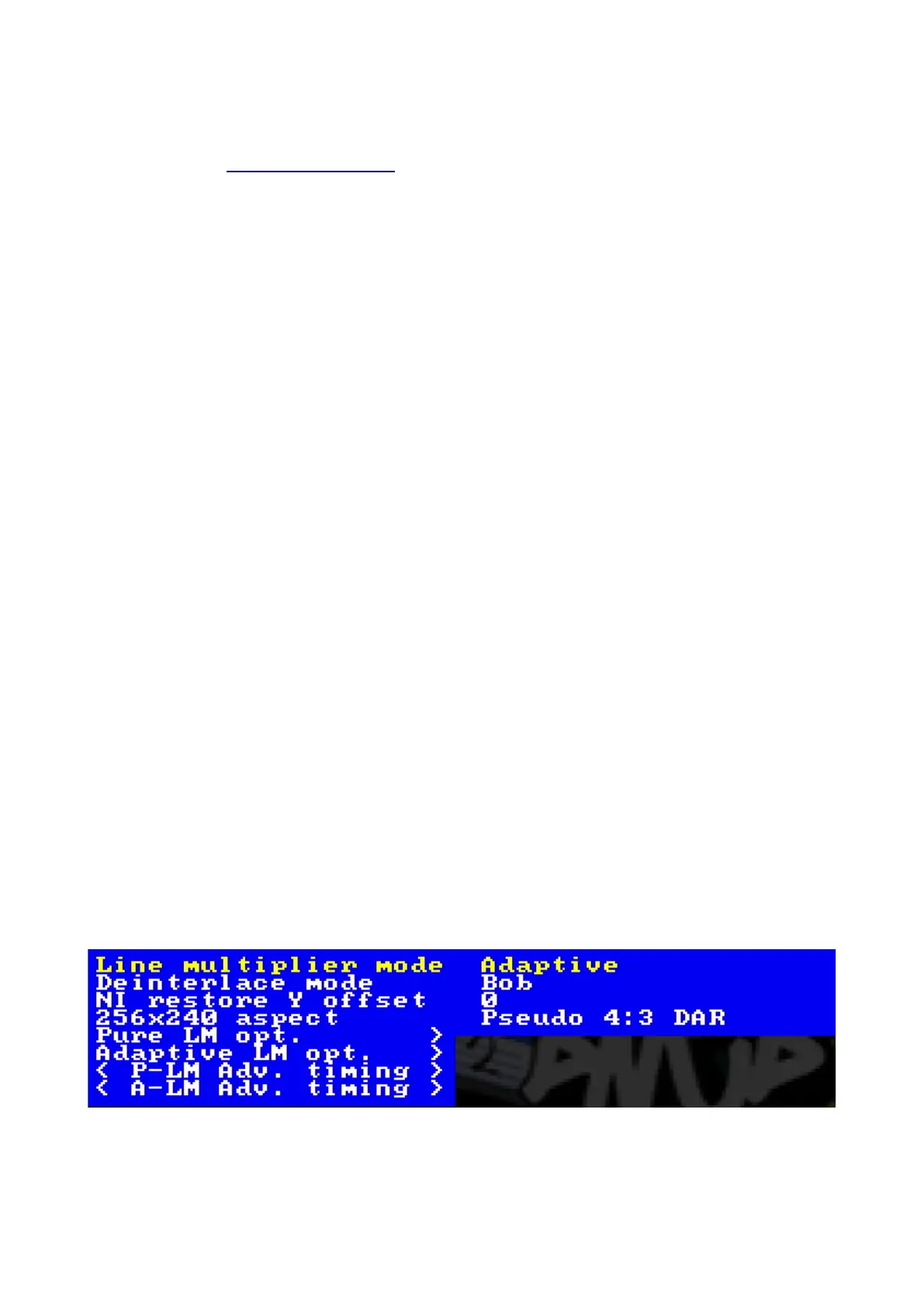
To change the line multiplication output resolution, press the Menu button so that the on screen
menu is displayed and use the Return button if necessary to navigate to the top menu. Select “Line
multiplier opt” and press “OK”. The menu shown below will be displayed.
Choose “Pure LM opt.” or “Adaptive LM opt.” depending on the mode you are in, for this example
we will assume adaptive mode. The menu shown below will then appear.


 To Next Page