Remote control
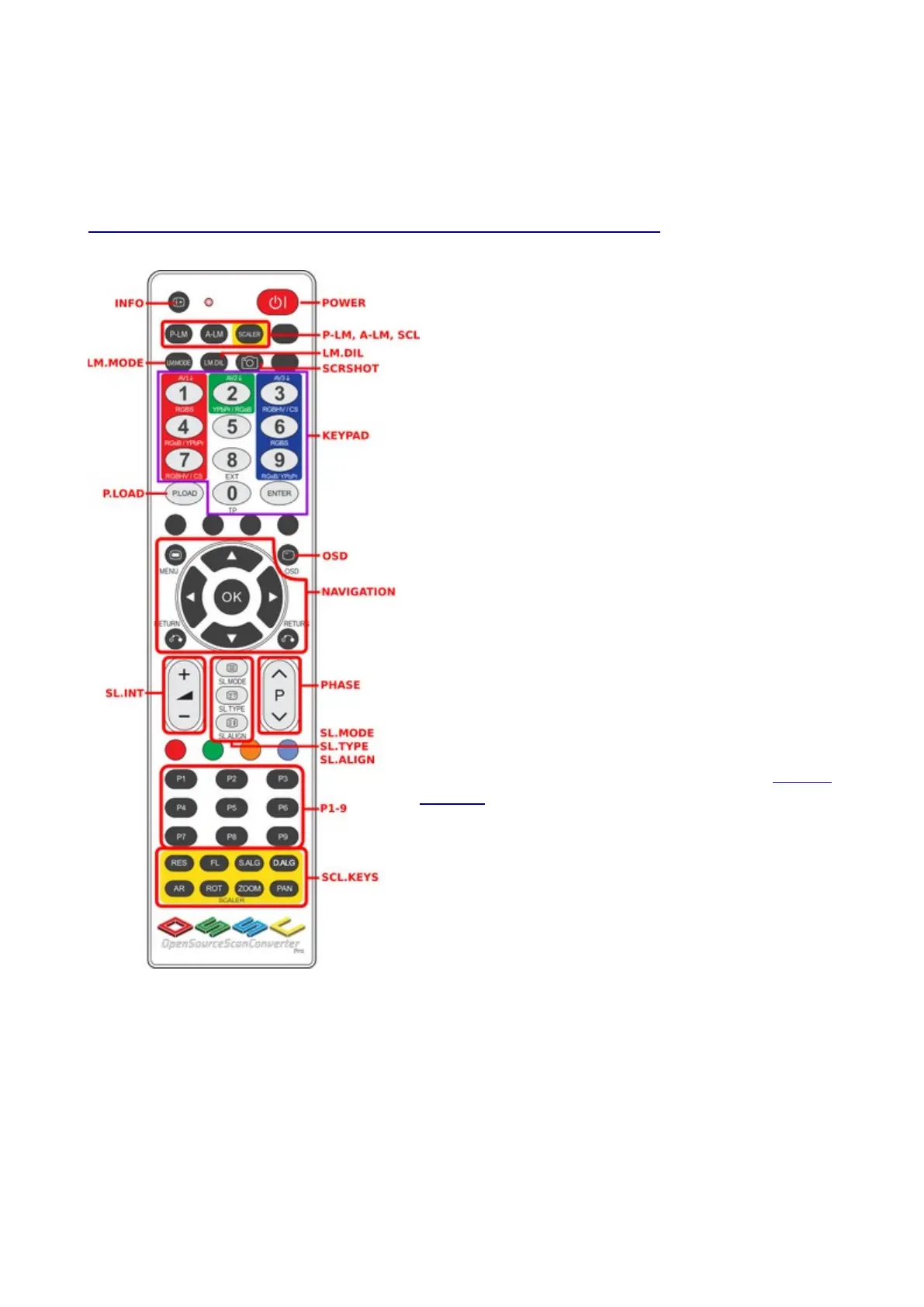
The OSSC Pro uses a new, larger remote control to control all of its functions. We will cover the
most important functions in this guide, while you can learn about other features by visiting the
OSSC Pro Wiki page (https://junkerhq.net/xrgb/index.php?title=OSSC_Pro).
Info – Display information about the current active
source and output mode.
Power – Toggles between On and Standby modes.
P-LM, A-LM, Scaler – Use these buttons to toggle
between the OSSC Pro’s three operating modes.
Keypad – Select the active input using these button
controls.
P.Load – Profile load. Use this button, followed by a
number on the keypad, to instantly load a display
profile.
Navigation – Use the Menu button to call up the OSSC
Pro’s menu. Use the directional arrows to navigate the
menu. Use the OK button to choose a menu option, or
enter a sub menu. Use the “Return” button to go back
up to the previous menu.
Scanline controls – Use these controls to adjust the
post processing scanlines, or to adjust image phase on
optimal profiles. For more information on this, consult
the wiki.
P1 to P9 – These buttons are reserved for future use.
Scaler keys – These keys provide various shortcuts
when in scaler mode. The AR key can be pressed to
quickly select a new aspect ratio. The Zoom and Pan
buttons can be used to adjust the size of the image, or
move the image if it is off centre.


 To Next Page