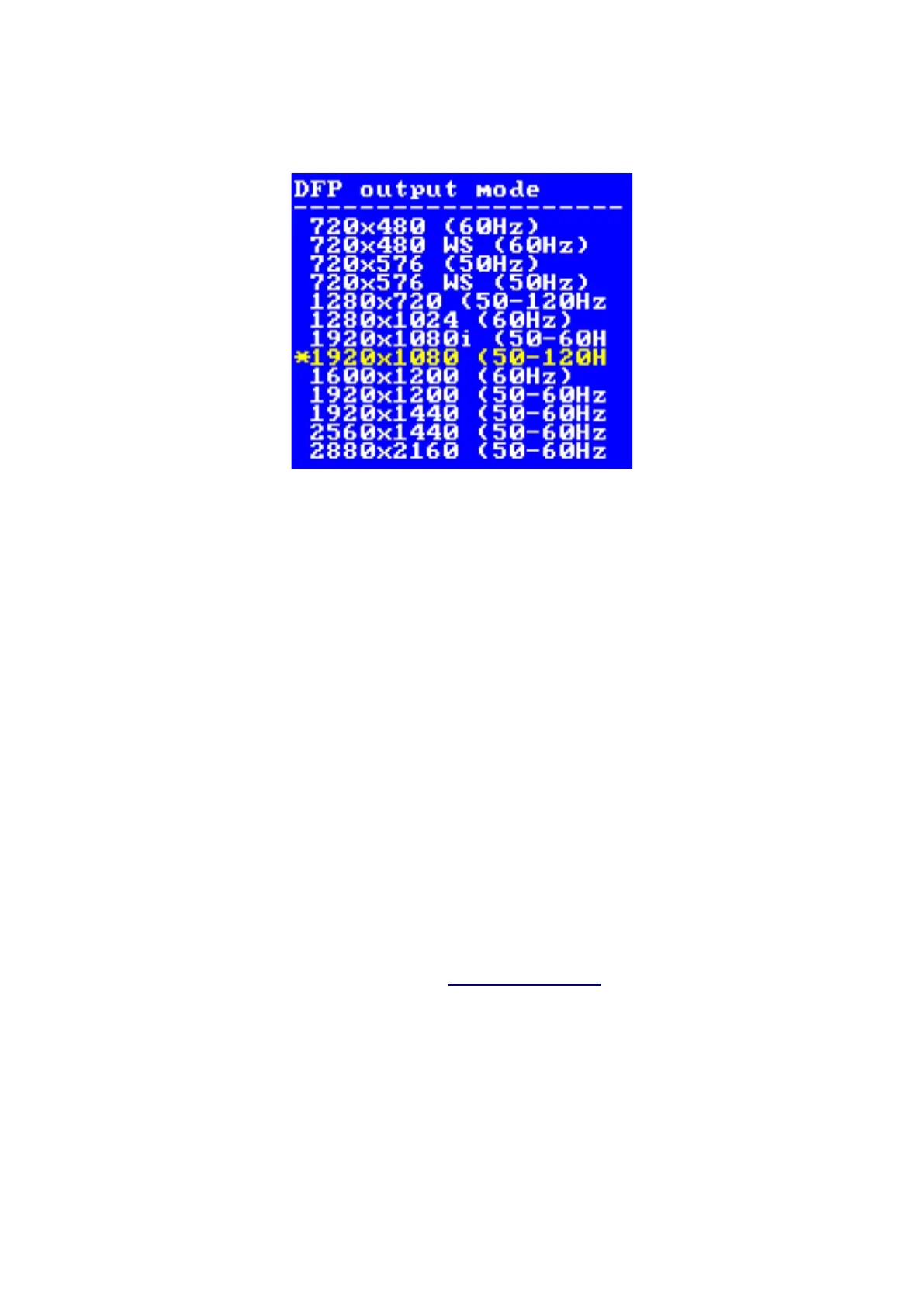
Ensure “DFP output mode” is selected, then use the left and right buttons on the remote to change
the resolution. You can also press “OK” to see a list of all supported resolutions.
Usually the best results in scaler mode are obtained by choosing the highest resolution supported by
your display. If you do not get a picture, or the picture intermittently disappears or blanks, choose a
lower resolution.
Framelock
Framelock (the fourth option down in the Scaler opt menu) is an important option to understand.
When Framelock is on, output refresh rate is matched to the input. This results in a smooth image
with no judder. While this is desirable, it may be necessary to turn Framelock off for the purpose of
compatibility or if your game title uses multiple screen modes (such as a game which uses interlace
in the menu screens but progressive modes during gameplay). In these cases, choose “Off (50hz)”
for PAL material or “Off (60hz)” for NTSC.
In line multipler modes, framelock is always on and cannot be disabled.
Scaling algorithm
You can use this option to change the appearance of the scaled image. Generally, it is just a matter
of choosing which option you personally think looks the best. For more information on these
options or to use the custom scaling algorithms, please visit the wiki.
Interlace video and the OSSC Pro
Certain retro consoles and computers (e.g Sony PS2, Nintendo Gamecube) output in interlace
modes. These modes send alternating scanlines to the display in each frame and were how standard
definition analogue television was broadcast. To display interlace video on modern displays, it must
be deinterlaced first.
In line multiplication mode, the OSSC Pro can deinterlace content like this with no input lag.


 To Next Page