OSSC Pro Quick Start Guide VideoGamePerfection.com
Connecting your OSSC Pro
Connect a suitable power supply (5 volts, 2.5 amp positive tip) to the OSSC Pro’s power connector.
Connect a DVI or HDMI cable between the video out on the OSSC and your display. Almost any
display that supports HDMI or DVI-D can be used, but please remember some output modes do not
adhere fully to DVI/HDMI specifications so compatibility cannot be guaranteed. For displays that
only have analogue inputs, a converter is required. OSSC Pro does not use HDCP, so any basic
converter should work.
Ensure the PSU is turned on at the wall, the red Standby light should then illuminate on the front of
the unit. Power on your OSSC Pro using the power button on the remote control or by holding the
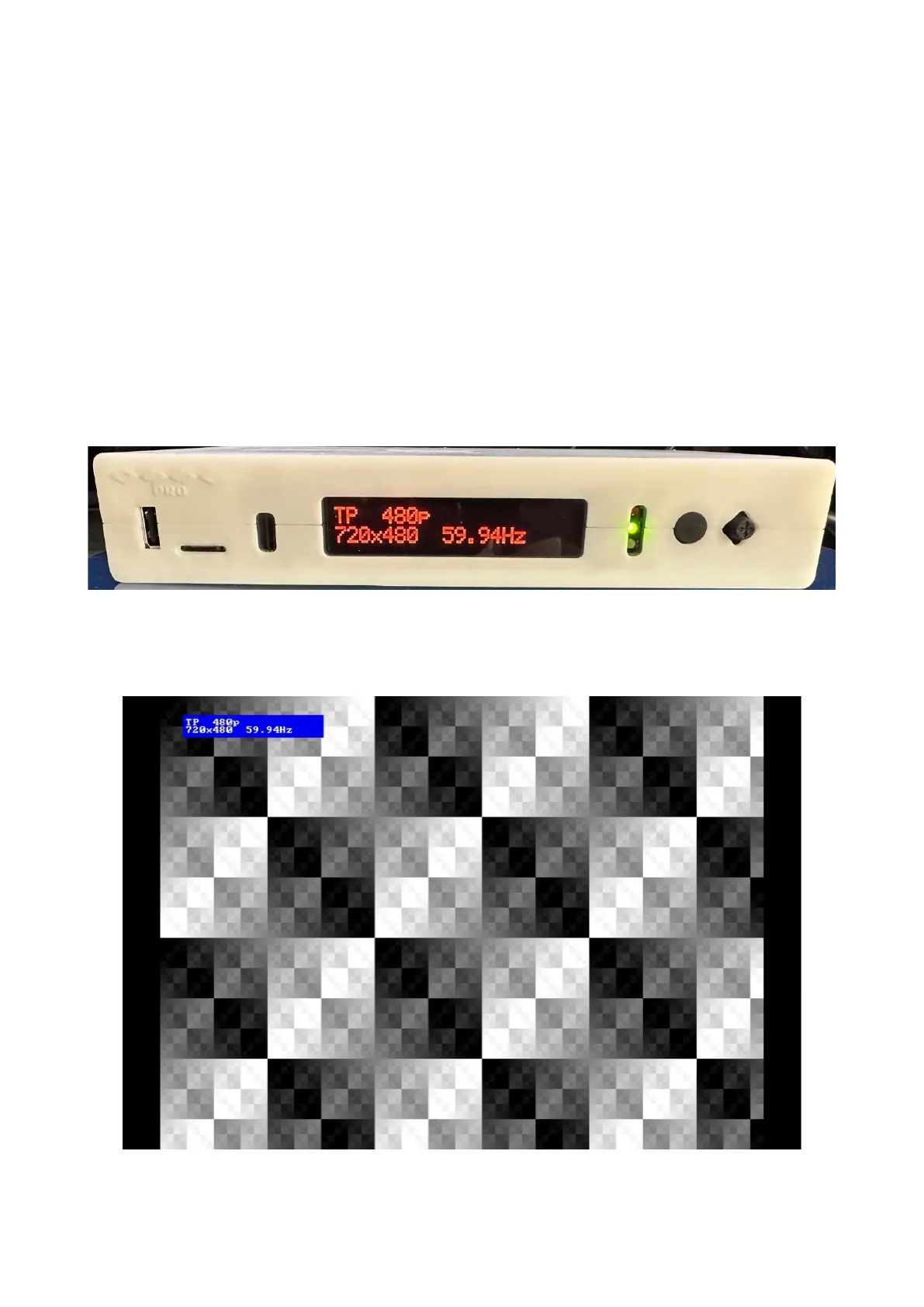
menu button on the front of the unit. The OLED display on the front of the unit should light up and
display “TP 480p”, as shown in the picture.
Switch your display to the correct input. If everything is working correctly, a grey test card pattern
should appear.
Page 8


 To Next Page