Configuring the Network Settings
Note: Before starting, make sure that VNSetup.exe is installed on the configuring PC\workstation. Installation
is done using the SurveyorVFT Software CD included.
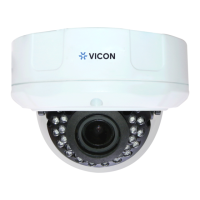
There are two ways to change the IP dome network settings:
• Activating the camera for the first time: via VNSetup.exe application.
• Camera connects to an active Nucleus: via ViconNet application.
Using the VNSetup
1. Make sure the MAC address of the camera is available.
2. Verify that the camera is physically connected to the network.
3. Run the VNSetup application (double click on VNSetup.exe)
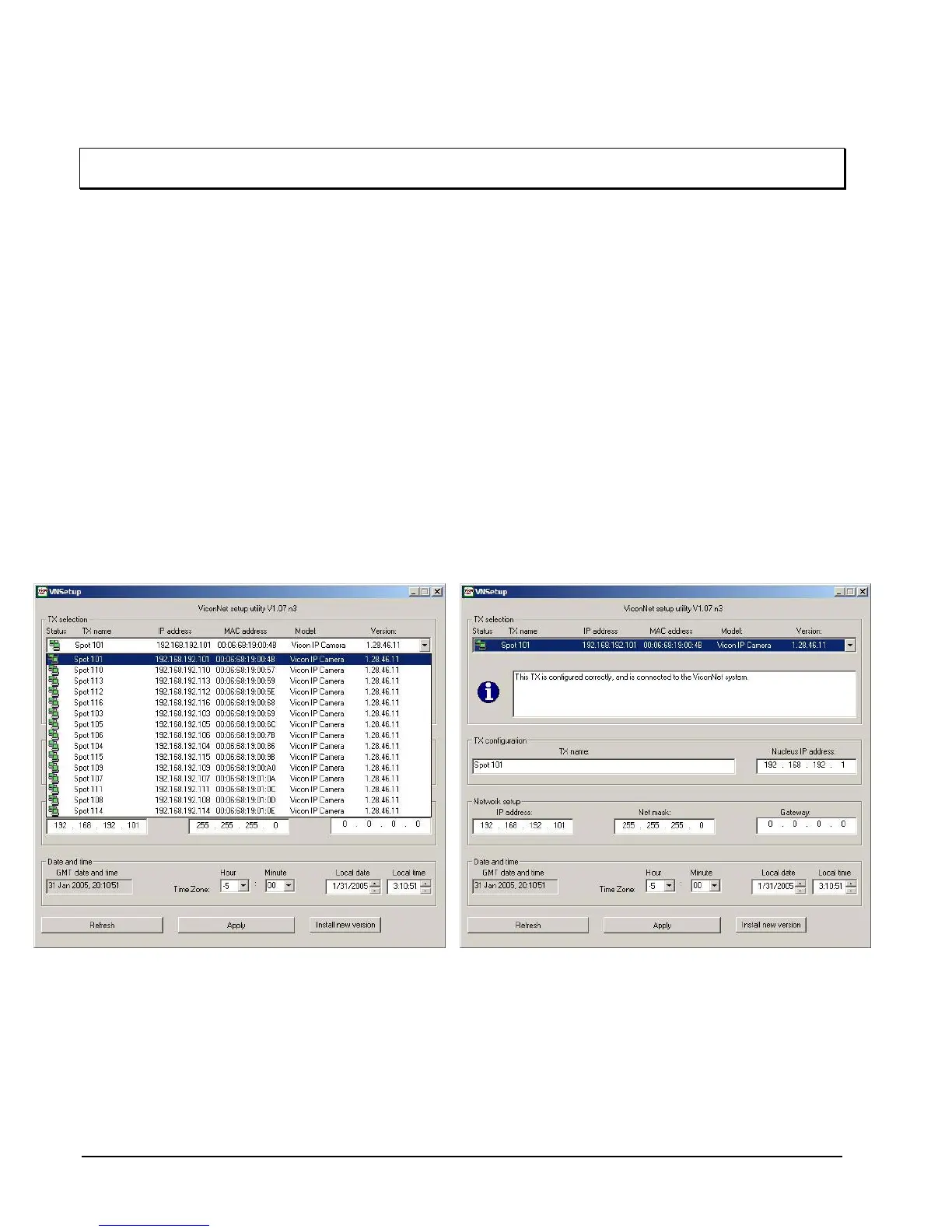
4. Using the camera's MAC address, select it from the TX Selection list (See Figure below).
5. Enter the Nucleus IP address.
6. Enter the following network parameters: IP Address, Net Mask and Gateway (See Figure below).
7. If the network operation is fixed IP address method, do the following:
• Open the network settings window (refer to the "Using the ViconNet application" section).
• Select the "Specify an IP address" option.
• Enter the network parameters (see your IT administrator).
• Click OK. Application in the camera should restart.
8. To set the date and time perform the following steps:
• Set the time zone (the actual number of hours offset from the local time to GMT time).
• Set the local date.
• Set the local time.
Transmitter (TX) Selection List Screen Network Configuration Screen
42 • Configuration XX134-01-00 Rev 205 SurveyorVFT Camera Dome System


 To Next Page