ViconNet Configuration
After the camera dome has been setup with the proper IP address, configuration features from a remote
workstation, server or recorder are available as follows.
• A network settings screen is used to modify the camera dome’s IP parameters. This allows great
flexibility in network setup.
Note: This setup can be performed from any VN1000/VN5000 workstation connected to the IP dome and to
the Nucleus.
1. Verify that the camera is connected to the network and that it is active.
2. From the workstation desktop, run the ViconNet application.
3. After logging in, open the site setup selection window.
4. Select the IP dome camera setup.
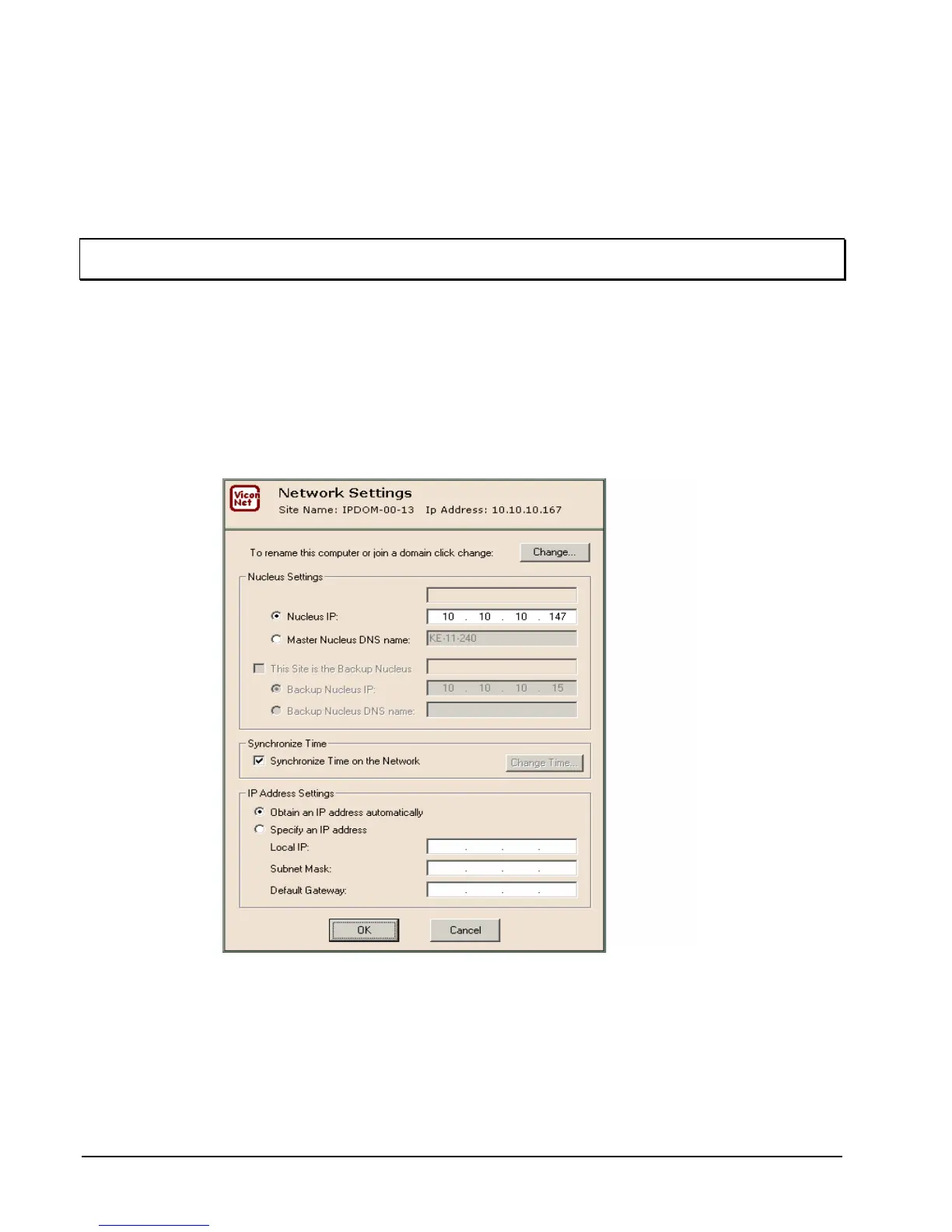
5. Open the “Network Setup and Site Name” setup window. Network Settings window will display.
See Figure below.
6. Change the required parameters and click OK. (See your IT administrator for specific network
parameters.) Application of the camera will restart.
Network Settings Window
• An Authorization screen is used to establish authority levels, by user group. Functions such as PTZ
and video view, record and playback can be set for authority level.
• A priority screen is used to establish video quality and FPS levels.
44 • Configuration XX134-01-00 Rev 205 SurveyorVFT Camera Dome System


 To Next Page