21
11. to quit the "Time program".
Copying the time program to other days of the week
The procedure is explained using the example of room
heating for heating/cooling circuit 1.
Example:
You want to copy the "Monday" "Time program" over
to "Thursday" and "Friday".
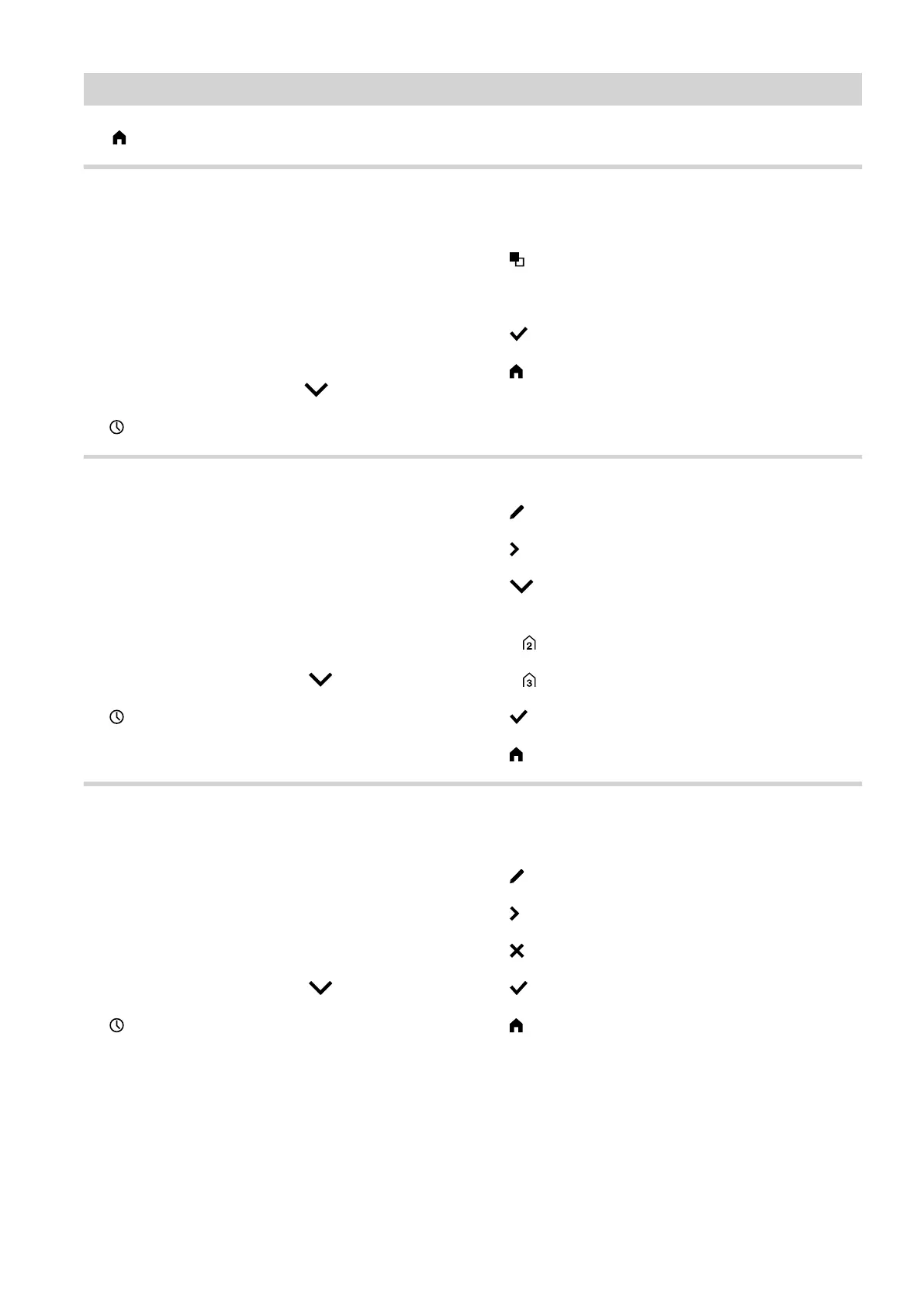
Tap the following buttons:
1. "Heating/cooling circuit 1" in the menu bar
2.
3. "Mo"
4.
5. "Th", "Fr"
6. to confirm
7. to quit the time program.
Changing time phases
The procedure is explained using the example of room
heating for heating/cooling circuit 1.
Example:
For "Monday" you want to change the start point
"Start" for time phase 2 to 19:00 h.
Tap the following buttons:
1. "Heating/cooling circuit 1" in the menu bar
2.
3. "Mo"
4.
5. for time phase 2
6. for the start point of time phase 2.
The bar in the time diagram is adjusted.
7.
■
"Normal" for standard room temperature
or
■
"Comfort" for comfort room temperature
8. to confirm
9. to quit the time program.
Deleting time phases
The procedure is explained using the example of room
heating for heating/cooling circuit 1.
Example:
For Monday you want to delete time phase 2.
Tap the following buttons:
1. "Heating/cooling circuit 1" in the menu bar
2.
3. "Mo" to select the required day
4.
5. for time phase 2
6. to delete the time phase.
7. to confirm
8. to quit the time program.
Operation
Procedure for setting a time program (cont.)
6171827







 To Next Page