37
5. Enter your contractor’s contact details into the indi-
vidual boxes.
6. to confirm
Setting the home screen
You can choose from the following default displays as
your home screen:
■
"Indoor environment"
■
"DHW"
■
"System overview"
■
"Energy cockpit"
■
"Favourites"
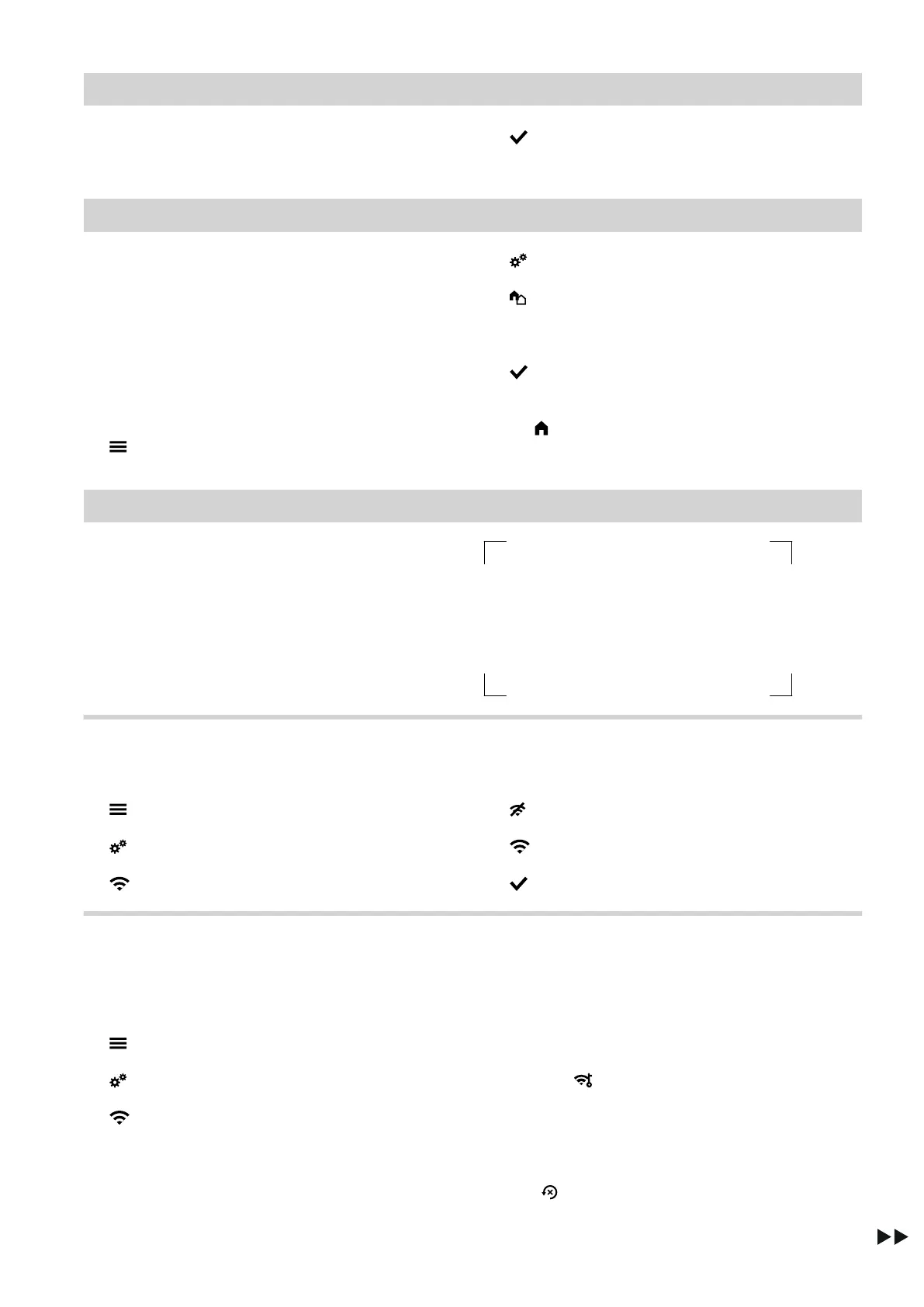
Tap the following on-screen buttons:
1.
2. "Settings"
3. "Selecting the default display"
4. Required display
5. to confirm
Note
Tap on to call up the selected home screen.
Switching internet access on or off
You can control your system remotely via the internet
using an app. To do this, establish an internet connec-
tion via WiFi (2.4 gigahertz): See the following chapter.
The required credentials for internet access to the con-
trol unit via app can be found on the adjacent label:
Switching WiFi on/off
Tap the following buttons:
1.
2. "Settings"
3. "Internet"
4. "WiFi operation mode"
5. "OFF" if you want to switch off the WiFi.
Or
"Internet" if you want to switch on the WiFi.
6. to confirm
Establishing a WiFi connection
Prerequisite: WiFi is switched on.
Tap the following buttons:
1.
2. "Settings"
3. "Internet"
4. "Network selection"
■
Available WiFi networks are displayed.
Note
If a connection already exists, "Connected" is
shown for the relevant network.
■
If you want to use an invisible WiFi network:
Tap on and enter the name of WiFi (SSID)
and the password.
5. Select WiFi.
Note
Use to refresh the list of available WiFi net-
works.
Further adjustments
Entering the contractor's contact details (cont.)
6171827





 To Next Page