EasyManua.ls Logo

ViewSonic PLED-W500 - User Manual

ViewSonic PLED-W500
79 pages
Print Icon
To Next Page IconTo Next Page
Loading...
MPORTANT: Please read this User Guide to obtain important information on installing
and using your product in a safe manner, as well as registering your product for future
service. Warranty information contained in this User Guide will describe your limited
coverage from ViewSonic Corporation, which is also found on our web site at
KWWSZZZYLHZVRQLFFRP LQ (QJOLVK RU LQ VSHFL¿F ODQJXDJHV XVLQJ WKH 5HJLRQDO
selection box in the upper right corner of our website. “Antes de operar su equipo lea cu
idadosamente las instrucciones en este manual”
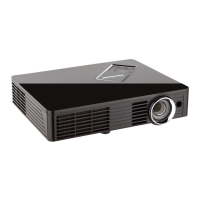
PLED-W500
LED Projector
User Guide
Model No. VS14048

Table of Contents

Other manuals for ViewSonic PLED-W500

Questions and Answers

  • M
    melissa05Sep 10, 2025
    How to correct slanted image on ViewSonic PLED-W500 Projector?
    • D
      David RiceSep 10, 2025
      If the image on your ViewSonic Projector has slanted sides, try repositioning the projector so that it is centered on the screen and below the bottom of the screen, if possible. You can also use 'SCREEN' --> 'V Keystone' from the OSD to make adjustments.
  • M
    Martha EvansSep 9, 2025
    Why can’t I open a media file on my ViewSonic Projector?
    • S
      sherri94Sep 9, 2025
      If a media file is not found or can’t be opened in the file list on your ViewSonic Projector, the files may be of an unsupported codec. Please check the media support table in this manual again.
  • A
    amaldonadoSep 8, 2025
    How to remove vertical flickering bar on ViewSonic PLED-W500 Projector image?
    • S
      Selena AllisonSep 8, 2025
      If the image from your ViewSonic Projector has a vertical flickering bar, use the 'Clock' setting to make an adjustment. Also, check and reconfigure the display mode of your graphic card to make it compatible with the product.
  • A
    Allen WoodAug 22, 2025
    How to fix no image on ViewSonic Projector?
    • W
      William WilliamsAug 23, 2025
      If no image appears on the screen of your ViewSonic Projector, ensure all cables and power connections are correctly and securely connected as described in the 'Installation' section. Also, check that the connector pins are not crooked or broken, the projection lamp is securely installed, and the lens cap has been removed, ensuring the projector is switched on.
  • N
    Nicholas CooperSep 5, 2025
    What to do if ViewSonic PLED-W500 Projector stops responding?
    • J
      Juan CarlsonSep 5, 2025
      If the projector stops responding to all controls, turn it off, unplug the power cord, and wait at least 20 seconds before reconnecting the power.
  • M
    Michael CostaSep 4, 2025
    How to correct a reversed image on a ViewSonic Projector?
    • E
      Elizabeth SimonSep 4, 2025
      If the image is reversed, and the projector is mounted on the ceiling, select 'SCREEN' --> 'Auto Ceil Mount' from the OSD and adjust the projection direction. If the projector is placed on the desk, select 'SETTING' --> 'Orientation' from the OSD and adjust the projection direction.
  • G
    Gerald HarrisSep 3, 2025
    How to fix slanted sides on ViewSonic PLED-W500 Projector image?
    • C
      Carol Lee DDSSep 3, 2025
      If the image has slanted sides, reposition the projector so that it is centered on the screen and below the bottom of the screen, if possible. You can also use 'SCREEN' --> 'V Keystone' from the OSD to make an adjustment.
  • L
    Linda GardnerSep 2, 2025
    ViewSonic PLED-W500 not responding, how to fix?
    • T
      Timothy MarquezSep 2, 2025
      If your ViewSonic Projector stops responding to all controls, turn off the projector, unplug the power cord, and wait at least 20 seconds before reconnecting the power.
  • M
    Mary FuentesSep 1, 2025
    What to do if ViewSonic PLED-W500 image is reversed?
    • E
      estradamariahSep 1, 2025
      If the image on your ViewSonic Projector is reversed, and the projector is mounted on the ceiling, select 'SCREEN' --> 'Auto Ceil Mount' from the OSD and adjust the projection direction. If the projector is placed on a desk, select 'SETTING' --> 'Orientation' from the OSD and adjust the projection direction.
  • L
    landryveronicaAug 30, 2025
    Why is my ViewSonic Projector image blurry?
    • J
      Joshua PetersenAug 30, 2025
      If the image from your ViewSonic Projector is out of focus, first ensure that the lens cap is removed. Then, adjust the 'Focus Ring' on the projector lens. Also, ensure that the projection screen is within the required distance of 1.71-9.84 feet (0.52-3.00 meters) from the projector.

Summary

Compliance Information

FCC Statement

Details regulatory compliance for the device based on FCC rules.

For Canada

States compliance with Canadian ICES-003 standards.

CE Conformity for European Countries

Confirms compliance with EMC and Low Voltage Directives for Europe.

Important Safety Instructions

Declaration of RoHS Compliance

Control Panel

Connection Ports

Remote Control

Installation

Connecting to Computer;Notebook

Explains how to connect the projector to a computer or notebook.

Connecting to Video Sources

Details connecting video sources like DVD players and set-top boxes.

Powering On;Off the Projector

Powering On the Projector

Step-by-step instructions for turning the projector on.

Powering Off the Projector

Step-by-step instructions for turning the projector off.

LED Indicator Messages

Explains the meaning of different LED status indicators on the projector.

Adjusting the Projected Image

Adjusting the Projectors Height

Instructions on using the elevator foot to adjust image height.

Adjusting the Projectors Focus

How to adjust the projector's focus for a clear image.

Adjusting Projection Image Size

Guidance on determining screen size and projection distance.

User Controls

Using the Control Panel

Describes the functions of the projector's control panel buttons.

Using the Remote Control

Explains the functions of each button on the remote control.

On-screen Display Menus

PICTURE

PICTURE | Advanced

Input Source Selection

Enables/disables input sources and selects desired ones.

SCREEN

Aspect Ratio

Automatically selects display format or sets specific ratios like 4:3, 16:9.

SETTING

Signal

Adjusts signal timing and frequency for display synchronization.

SETTING | Signal (RGB)

SETTING | Advanced

SETTING | Advanced | Security

Security

Enables or disables password verification for projector startup.

Change Password

Instructions for setting or changing the security password.

OPTIONS

OPTIONS | LED Settings

OPTIONS | Advanced

Media Arena

SETUP

Firmware Upgrade

Instructions for upgrading the projector's firmware.

SETUP | Firmware Upgrade

Projection with Wireless Presentation

Projection with MobiShow

MobiShow Utility for iPhone

Instructions for using MobiShow with iPhones for projection.

MobiShow Utility for Android

Instructions for using MobiShow with Android devices for projection.

Using the PtG2 Converter

Appendices

Troubleshooting

Provides solutions for common projector problems.

Image Problems

Specific solutions for various image display issues.

Projector Problems

Troubleshooting steps for projector-wide control issues.

Multi-media Problems

Solutions for issues with USB, SD card, or media file playback.

On Screen Messages

Explains common on-screen messages and their meanings.

Compatibility Modes

Multi-media Format Supported

Ceiling Mount Installation

Specifications

Customer Support

Limited Warranty

Mexico Limited Warranty

ViewSonic PLED-W500 Specifications

General IconGeneral
Matrix size0.45 \
Number of colors16.78 million colors
Projection distance0.91 - 2.4 m
Vertical scan range48 - 120 Hz
Horizontal scan range31 - 100 kHz
Projection technologyDLP
Contrast ratio (typical)6000:1
Screen size compatibility30 - 80 \
Projector native resolutionWXGA (1280x800)
Keystone correction, vertical-40 - 40 °
Aspect ratio16:10
RS-232 ports-
Network readyNo
Dimensions (WxDxH)214 x 164 x 42 mm
Connectivity technologyWired
Maximum analog resolution1680 x 1050 pixels
Maximum digital resolution1920 x 1080 pixels
FocusManual
Focal length range- mm
Lamps quantity1 lamp(s)
Light source typeLED
Service life of light source20000 h
PC Audio inYes
USB connector typeUSB Type-A
USB 2.0 ports quantity2
S-Video inputs quantity1
Ethernet LAN (RJ-45) ports0
Supported video modes1080i, 1080p, 480i, 480p, 576i, 576p, 720p
Analog signal format systemNTSC, PAL, SECAM
Supported graphics resolutions1440 x 1050, 1680 x 1050 (WSXGA+), 640 x 480 (VGA)
RMS rated power2 W
Audio formats supportedMP3
Video formats supportedH.264, MPEG2, MPEG4
Product colorBlack
Market positioningPortable
AC input voltage100 - 240 V
AC input frequency50 - 60 Hz
Power consumption (standby)0.5 W
Power consumption (typical)144 W
Compatible memory cardsSD
Internal storage capacity0.5 GB
Noise level38 dB
CertificationCE, CB, UL, cUL, FCC (including ICES-003), NOM, TUV-S Argentina, RoHS
Operating temperature (T-T)0 - 40 °C
Operating relative humidity (H-H)10 - 90 %
Cables includedVGA
Weight and Dimensions IconWeight and Dimensions
Weight1180 g

Related product manuals