ConguringClientSettings
Conguring System Settings
35
4.2.2 Available Settings at a Glance
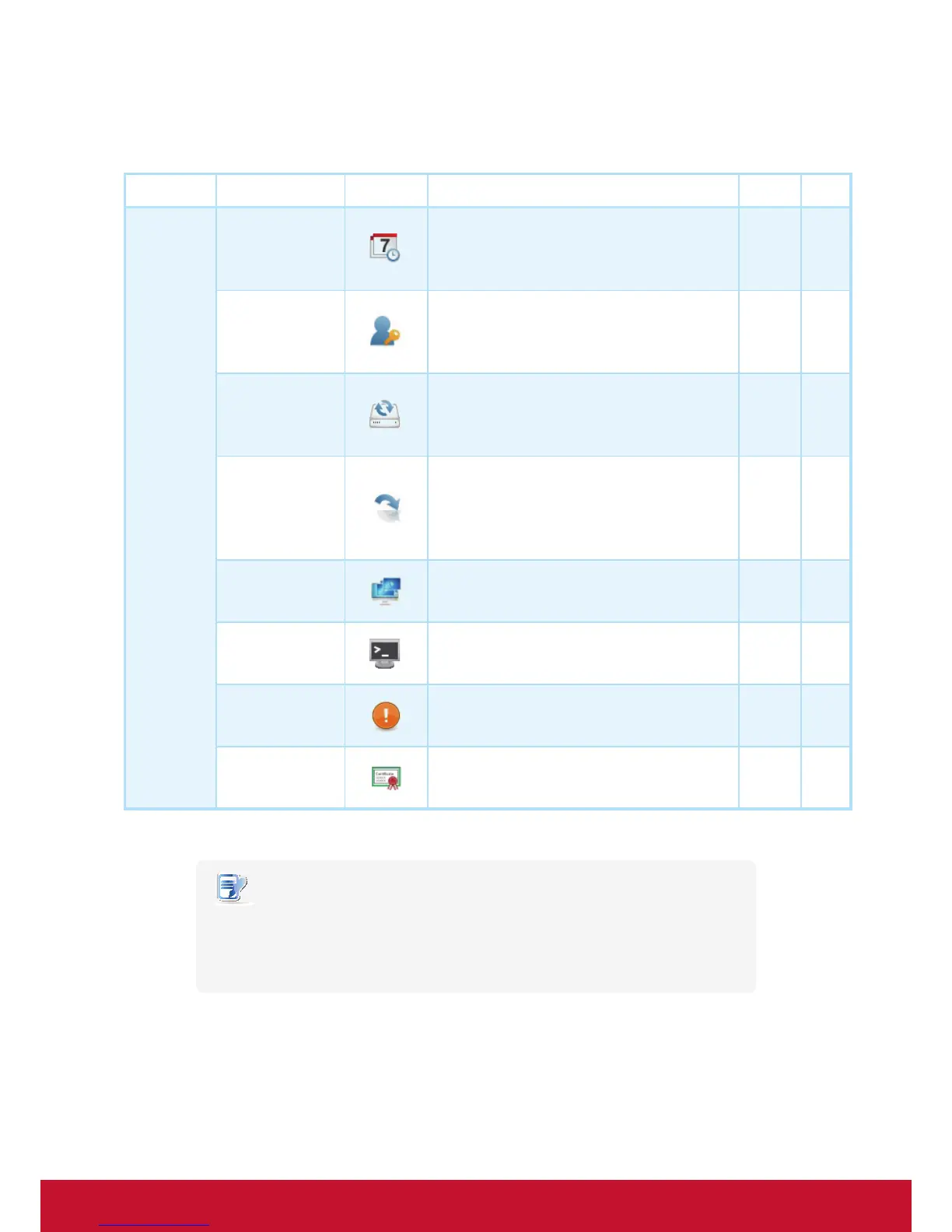
Tab Setting Icon Description Section Page
System
TimeZone
Clicktocongurethetimezoneandtimeserver
for your SC-T35.
4.2.3 36
Password
Clicktoconguretheaccessprivilegesof
ViewSonic Client Setup for SC-T35 users.
Clicktoconguresettingsforremoteassistance.
4.2.4
4.2.5
37
39
Firmware Update
Clicktoupdatermwarethroughthenetwork.
This feature is applicable to the client only when
the client is managed by the remote ViewSonic
Device Manager console.
4.2.6 41
Appliance Mode
Click to enable/disable the Appliance mode to
allow/disallow the automatic RDP / ICA / View
sessions. In Appliance mode, the client starts up
with the desired RDP / ICA / View session and
shuts down when the user logs out.
4.2.7 43
Quick Connection
Click to enable/disable the Quick Connection
mode after system startup.
4.2.8 47
Terminal
Click to enable/disable the execution of the
text-based (command-line) functions.
4.2.9 49
Error Report
Click to collect error log and launch the screen
capturing program for error reporting.
4.2.10 50
CerticateManager
Clicktoimportormanagecerticatesfor
remote computers.
4.2.11 52
NOTE
• ViewSonic Device Manager is a remote and mass client management console,
helping you remotely manage a large number of endpoint devices in a desktop
virtualization infrastructure. For more information about ViewSonic Device Manager,
please refer to the User’s Manual for ViewSonic Device Manager.



 To Next Page