SCANNING FROM THE PAPERPORT SOFTWARE 25
SCANNING USING THE VISIONEER SCAN MANAGER
The instructions in this section are for scanning with the Visioneer Scan
Manager (the PaperPort TWAIN application). If your computer is
running Windows XP, you can also scan with the Windows Image
Acquisition (WIA). See “Scanning Using the Windows Image
Acquisition (WIA)” on page 32.
To scan an item using the Visioneer Scan Manager:
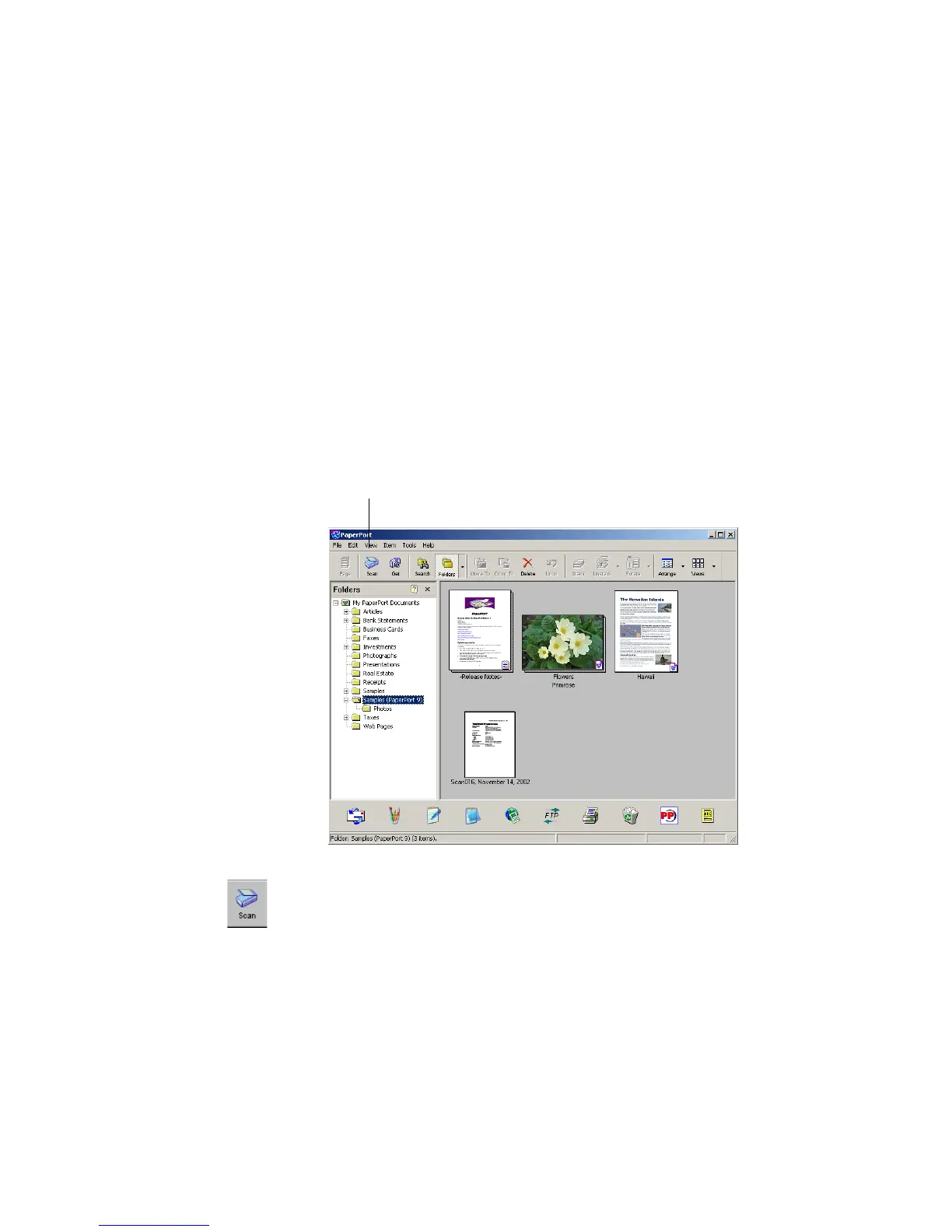
1. On the Windows taskbar, click Start, point to Programs, point to
ScanSoft PaperPort 9.0, and then click PaperPort.
The PaperPort desktop opens.
2. Click the Scan icon on the PaperPort command bar.
The Folders pane (which shows folders for organizing your scanned
images) is replaced by the Scan pane.
Scan icon












 To Next Page