EasyManua.ls Logo

Visioneer STROBE 500 - User Manual

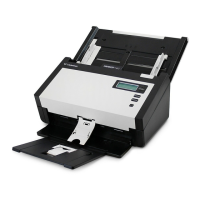
Visioneer STROBE 500
200 pages
Print Icon
To Next Page IconTo Next Page
Loading...
Users Guide
Strobe 50
0

Table of Contents

Other manuals for Visioneer STROBE 500

Questions and Answers

  • Z
    zkellyAug 14, 2025
    Why won't my Visioneer Scanner scan?
    • L
      Linda PayneAug 14, 2025
      If your Visioneer Scanner isn’t scanning, check these potential solutions: * Ensure the cable connections are secure. * Verify the scanner's power is on and plugged into a working electrical outlet. * Restart your computer to ensure all software files have loaded correctly. * If using a USB hub, make sure it has its own power supply; otherwise, plug the scanner directly into a USB port on the computer. * In the PaperPort software, confirm that Visioneer Strobe 500 is selected as the scanner.
  • V
    Vincent CisnerosAug 17, 2025
    What to do if the ADF on my Visioneer scanner jams?
    • R
      rachel00Aug 17, 2025
      If the paper jams in the ADF (Automatic Document Feeder) of your Visioneer scanner: * Smooth and straighten the paper before scanning, and adjust the guides to the paper size. Paper fed at an angle can cause jams. * Clean the roller with a soft cloth dampened with Isopropyl rubbing alcohol to remove any excessive dust.
  • T
    Teresa SantosAug 20, 2025
    What to do if the USB cable is disconnected during a scan of Visioneer scanner?
    • E
      Emily LawrenceAug 20, 2025
      If the USB cable is disconnected from your Visioneer scanner during a scan, try these steps to reconnect: * Unplug the power cable from the scanner, and then plug it back in. * Restart your computer.
  • D
    David CalhounAug 25, 2025
    How to fix crooked scans from the input tray on my Visioneer scanner?
    • R
      Reginald WallAug 25, 2025
      To correct crooked scans from the input tray of your Visioneer scanner, make sure to align the paper guides to the edges of the paper.
  • D
    Denise HarrisAug 27, 2025
    What to do if the Visioneer scanner installation does not complete?
    • A
      Anne MitchellAug 27, 2025
      If the installation of your Visioneer Strobe 500 scanner does not complete successfully, or if the OneTouch options do not work properly after installation, it may be due to existing driver programs for another scanner on your computer. You need to remove those other drivers and reinstall your Visioneer Strobe 500 scanner.
  • S
    Samantha ChaneyAug 31, 2025
    What to do if my Visioneer scanner ADF won’t feed pages properly?
    • C
      Christine FloresAug 31, 2025
      If the ADF on your Visioneer scanner isn’t feeding pages correctly, try cleaning the roller first. If that doesn’t solve the problem, the pad assembly may need to be replaced, as the issue could be a dirty or worn ADF pad assembly or dirt on the roller.
  • C
    Chad SanchezSep 3, 2025
    What to do if my Visioneer scanner is giving me out of hard drive space error messages?
    • K
      Kelly CruzSep 3, 2025
      If your computer is displaying out of hard drive space error messages while using the Visioneer scanner, free up some space on your hard drive. This will allow the software to save the scanned images.
  • P
    Peter MorrisonSep 6, 2025
    Why does my Visioneer scanner paper jam when scanning from the input tray?
    • K
      Kelli WilliamsSep 6, 2025
      If paper jams when you begin scanning from the input tray of your Visioneer scanner, make sure the front feed tray is closed and that there isn’t an item already fed into the scanner from the front.
  • T
    Theresa PenaSep 9, 2025
    Why am I getting blank pages with my Visioneer scanner?
    • J
      jkaiserSep 10, 2025
      If you are getting blank pages, or pages with lines, when Crop to Original is selected on your Visioneer scanner, the pages were probably scanned in crooked, or skewed. Adjust the paper guides on the scanner so pages feed in straight.

Summary

System Requirements

Scanner Setup

Unpack and Assemble the Scanner

Instructions for unboxing and assembling the scanner unit.

Connect Power and USB Cables

Steps to connect the scanner to power and computer.

Installation

Install Software and Connect Hardware

Process for installing the scanner software and initial hardware connection.

Install Visioneer OneTouch Software

Steps to install the OneTouch software for scanner button functionality.

Loading Documents to Scan

Scanning and Configuring OneTouch

Changing OneTouch Button Settings

Steps to customize OneTouch button destinations, formats, and configurations.

Scanning with Optical Character Recognition (OCR)

Process for converting scanned text into editable text using OCR.

Hardware Properties and Interface Behavior

Scanning from TWAIN and WIA

Maintenance

Safety Precautions

Important safety guidelines to follow when servicing the scanner.

Clearing Paper Jams

Steps to resolve paper jams within the Automatic Document Feeder.

Troubleshooting

Scanner Wont Scan

Common causes and solutions when the scanner fails to scan.

Paper Jams in ADF

Solutions for frequent paper jams in the Automatic Document Feeder.

The Visioneer Strobe 500 Scanner Specifications

The Visioneer Strobe 500 Parts List

Visioneer STROBE 500 Specifications

General IconGeneral
Film scanningNo
Color scanningYes
Input color depth24 bit
Maximum scan size216 x 356 mm
Optical scanning resolution600 x 600 DPI
Flatbed scan speed (b/w, A4)4 sec/page
Scanner typeFlatbed scanner
Sensor type-
Scan driversTWAIN
Maximum duty cycle15500 pages per month
ISO A-series sizes (A0...A9)A4
Auto document feeder (ADF) input capacity20 sheets
USB version2.0
Standard interfacesUSB 2.0
Dimensions (WxDxH)297 x 71 x 84 mm
Recommended media weight75 g/m²
Minimum RAM512 MB
Minimum processorPentium IV
Minimum storage drive space350 MB
Minimum system requirementsDVD-ROM, USB
Compatible operating systemsWindows 7/Vista/XP, Mac OS X v10.4, v10.5 +.
Sustainability certificatesENERGY STAR
Weight and Dimensions IconWeight and Dimensions
Depth71 mm
Width297 mm
Height84 mm
Weight1000 g

Related product manuals