INSTALLATION
27
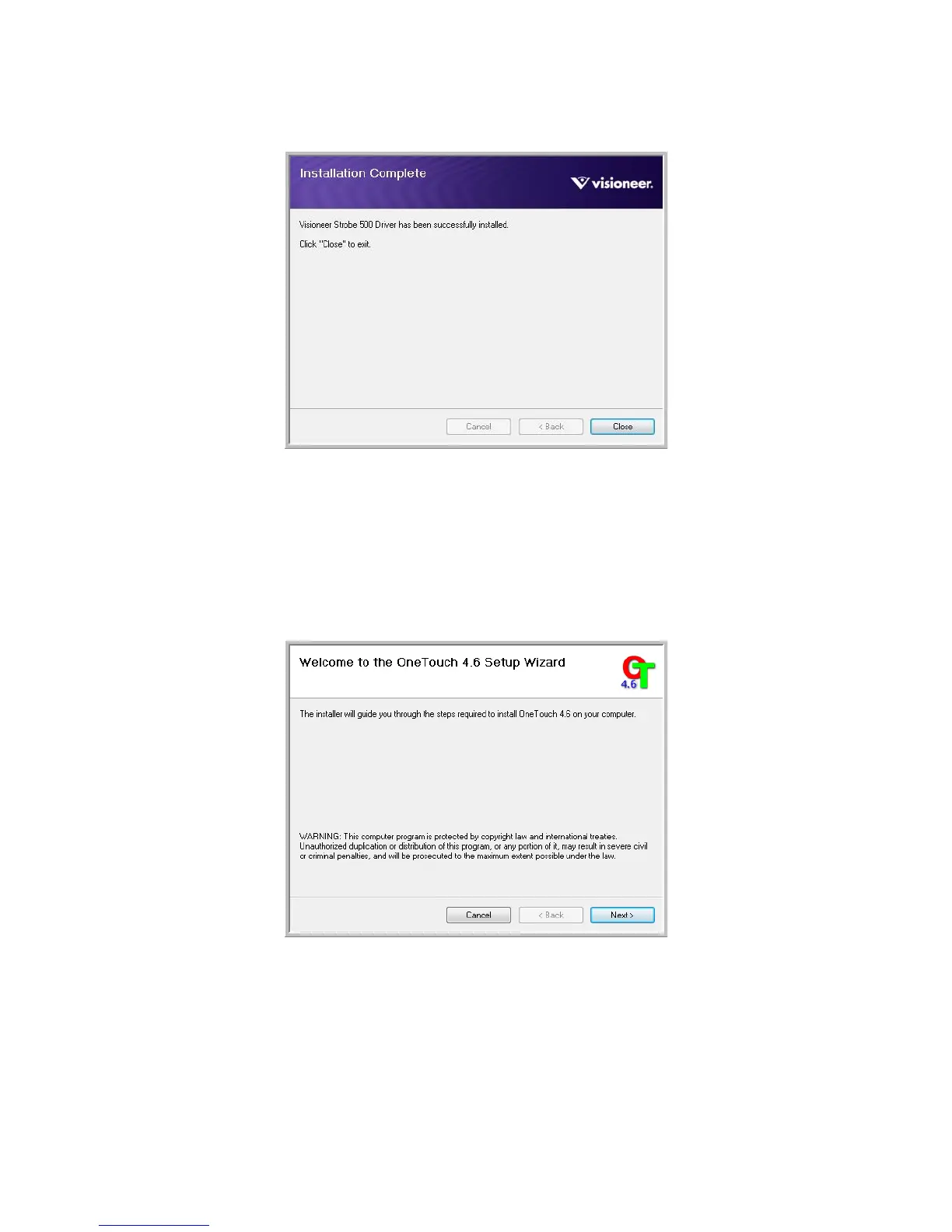
6. Click Close on the Installation Complete window to close and exit the driver installer.
INSTALLING VISIONEER ONETOUCH
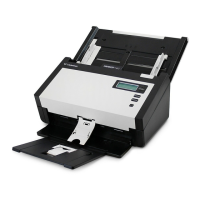
The Visioneer OneTouch software installation will start automatically after you click Close on the driver
Installation Complete window. OneTouch is the software needed for the buttons on the scanner to work.
1. Click Next on the Welcome to the OneTouch Setup Wizard.
2. On the Visioneer License Agreement window, read the license agreement. If you accept the terms, select I
Agree then click Next.
If you choose not to accept the license agreement, the installation will terminate and OneTouch will not be
installed.
3. Click Close on the Installation Complete window to close and exit the software installer.












 To Next Page