VISIONEER STROBE 500 SCANNER USER’S GUIDE
106
SCANNING WITH JOB SEPARATION
Use job separation to have OneTouch create a new file each time a separator is detected when scanning a
multiple page batch. For example, if you want to scan financial statements from several different banks, you can
place a stack of statements in the scanner and OneTouch will separate each statement into a different file based
on your selected job separator.
1. Open the OneTouch Properties window.
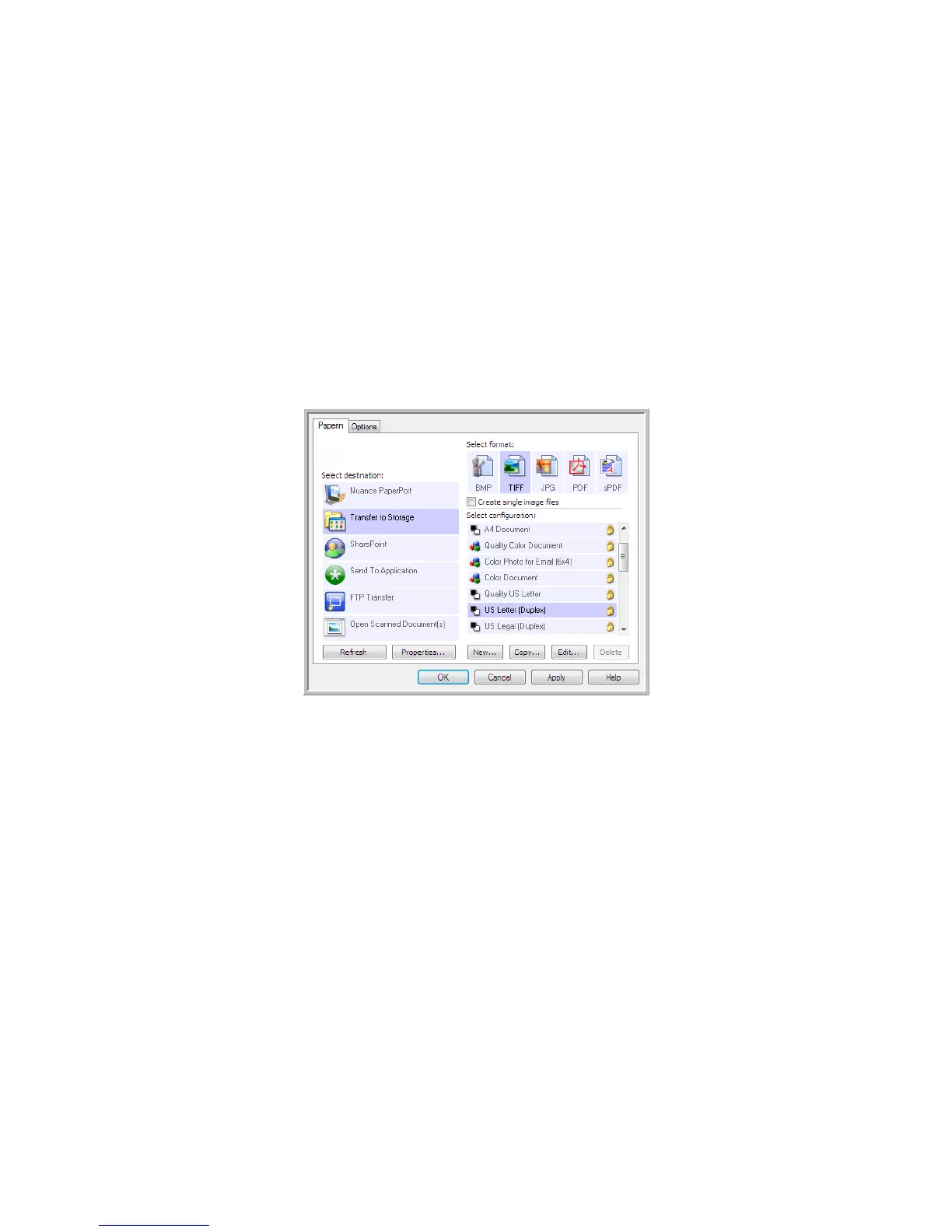
2. Select the Destination Application, File Format, and Scan Configuration applicable to your scanning batch.
Make sure the option Create single image files is not selected. If this option is selected, the job separation
features on the Options tab will be disabled.
3. Click on the Options tab in the OneTouch Properties window.
4. Click on the down arrow next to the Select Button list to select the button you want to modify.
Note that the options in this window are specific to each OneTouch button.












 To Next Page