VISIONEER STROBE 500 SCANNER USER’S GUIDE
82
• Password—input the password for the user account name you specified.
• Destination folder—input the folder path, on the remote FTP server, where you want the scanned
documents sent. This path would appear in your web browser after the host name. For example, marketing/
shared documents/data sheets.
Because the destination configuration is done through the scan configuration, you can set each configuration to
scan to a different FTP server, destination folder, and so on. This is the same process used as when scanning to
different folders using the Transfer to Storage destination, as described in detail starting on page 68.
FTP LINK LOG VIEWER
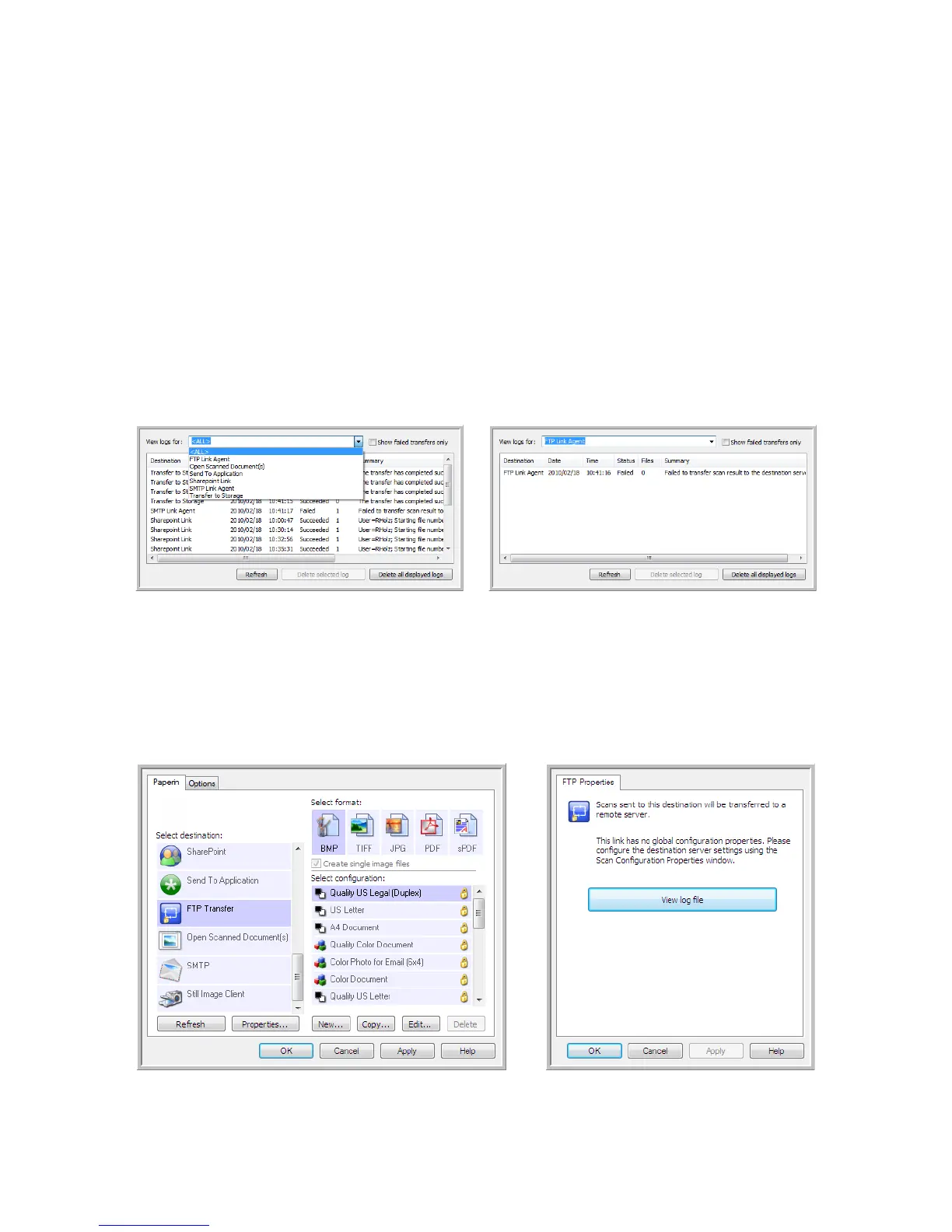
The OneTouch Link Log Viewer opens automatically when scanning is complete. Click on the menu arrow next to
View logs for and select FTP Link Agent from the list to display the transfer history for the FTP link only.
Double-click on any of the line items to open the selected log file in the Log File Detail View. If you open a failed
transfer, the log file may contain the information you need to determine why the transfer failed. After you address
the failure indicated in this log file, you can click the Retry button to resend the document to the server.
Click on the Properties button to open the Log Viewer from the FTP OneTouch Link Properties window. There are
no global configuration properties for the FTP destination application, all configuration is done using the Scan
Configuration Properties window as described in the previous section.












 To Next Page