VISIONEER STROBE 500 SCANNER USER’S GUIDE
110
TEXT FORMATS
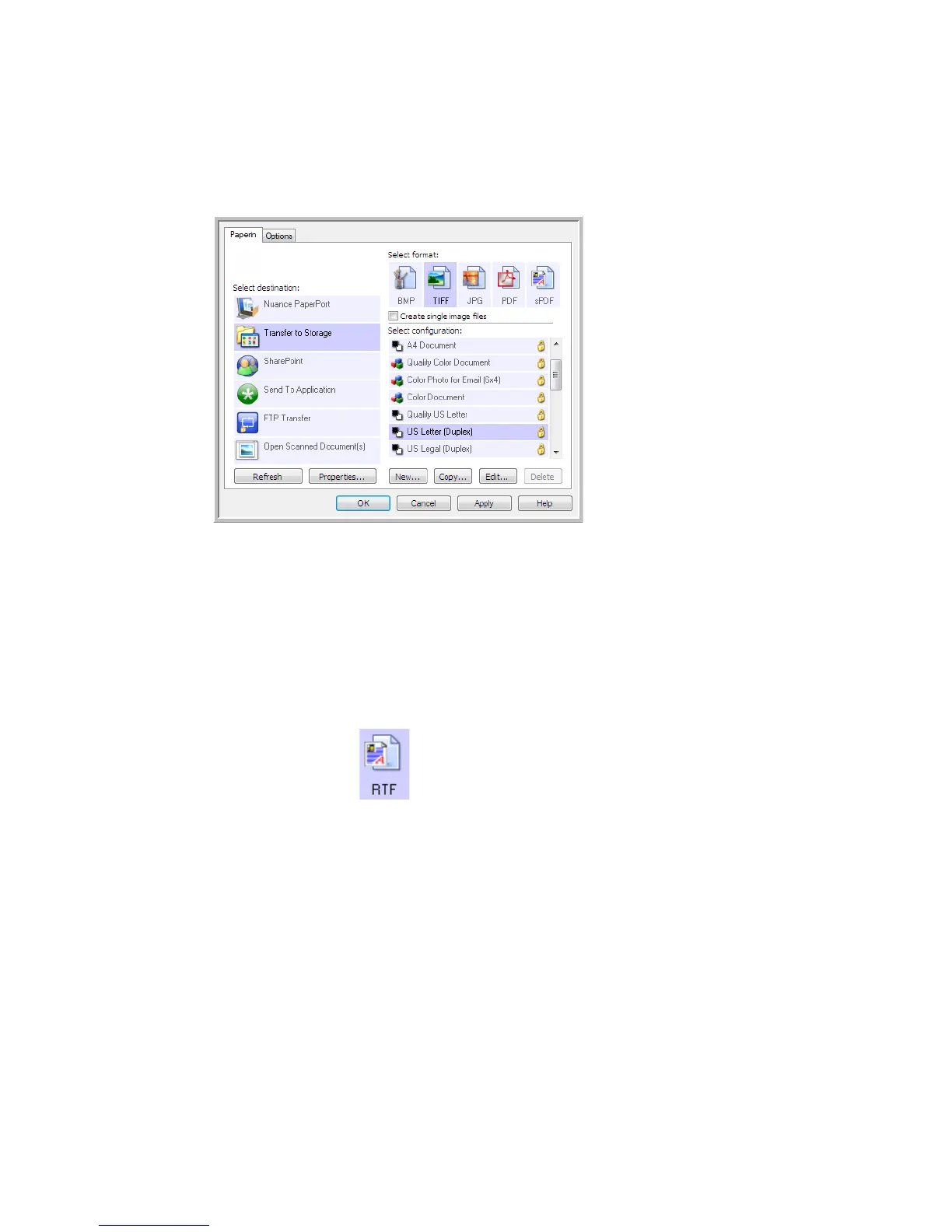
You select the text format option by clicking on the text icon on the OneTouch Properties window.
Selecting the text format option also selects OCR processing as an automatic step for scanning. Therefore, when
you scan a document with the text format selected, the text portions of the document are automatically
converted to editable text.
As you select Destination Applications that are text applications, the text format icon changes to match the file
type of the application. In some cases, the Destination Application supports several file types, and you can right-
click on the icon to choose the particular file type for that application.
The specific file format is the file name extension on the text format icon.
TO SELECT A FILE TYPE FOR THE TEXT FORMAT:
1. Select the Destination Application.
This is the text format
icon. This example of
the text format icon is
sPDF.
The specific text format;
this example is for Rich
Text Format (.rtf).












 To Next Page