SCANNING AND CONFIGURING ONETOUCH
53
Contrast—the difference between the lighter and darker portions of the image. Increasing the contrast
emphasizes the difference between the lighter and darker portions, decreasing the contrast de-emphasizes that
difference.
Key and Lock icon—if you want to lock the configuration, click the key icon to change it from a Key to a Lock.
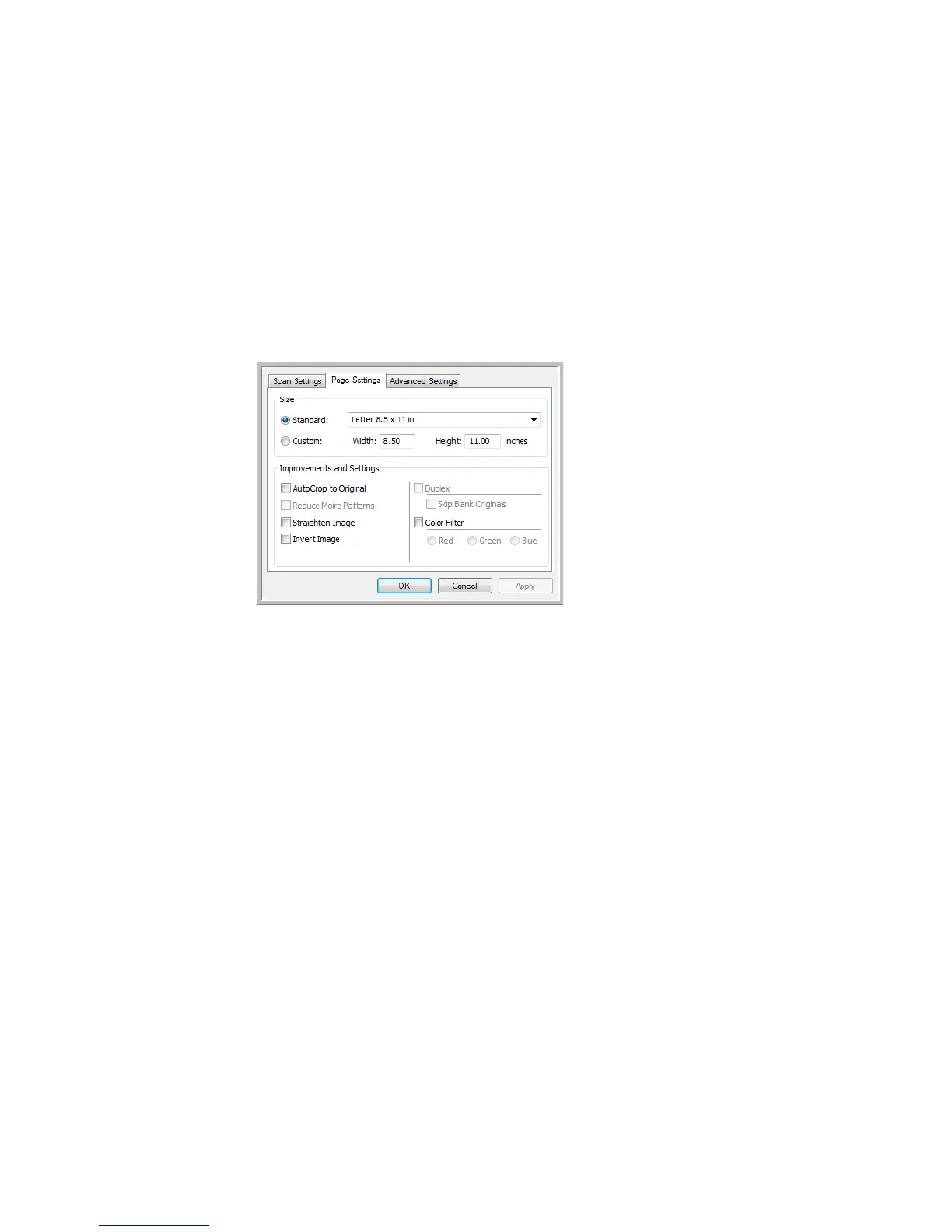
PAGE SETTINGS TAB
The options on the Page Settings tab will be available based on either the selected color mode (Black & White,
Grayscale, or Color), or based on whether or not the scanner hardware supports the feature.
Standard—click the menu arrow and choose a page size from the list.
Custom—enter the horizontal and vertical page dimensions in the boxes. Click the name of the units, inches or
millimeters, to toggle between them.
Improvements and Settings—it is indicated in the feature description if there is a software or hardware
dependency for the option to be available.
• Duplex—scan both sides of the page. This option is only available if the scanner supports this feature.
The Simplex and Duplex buttons on the scanner take precedence over the One Touch settings. In other
words, if the LED number on the scanner is configured to scan as Duplex, but you press the Simplex button,
the scanner scans in Simplex, and vice versa.
• Reduce Moiré patterns—moiré patterns are wavy, rippled lines that sometimes appear on the scanned
images of photographs or illustrations, particularly newspaper and magazine illustrations. Selecting Reduce
moiré patterns will limit or eliminate moiré patterns in the scanned image. This option is only available
when scanning in Color or Grayscale at lower resolutions, and when the scanner supports this feature.
Click the name to
toggle between
inches and
millimeters.












 To Next Page