30 VISIONEER STROBE XP 200 SCANNER INSTALLATION GUIDE
THE SINGLE PAGE ITEMS CHECK BOX
The Single page items check box provides the option to add additional
items to a scanning job and scan double-sided items. If the check box is
selected, scanned items immediately appear on the PaperPort desktop.
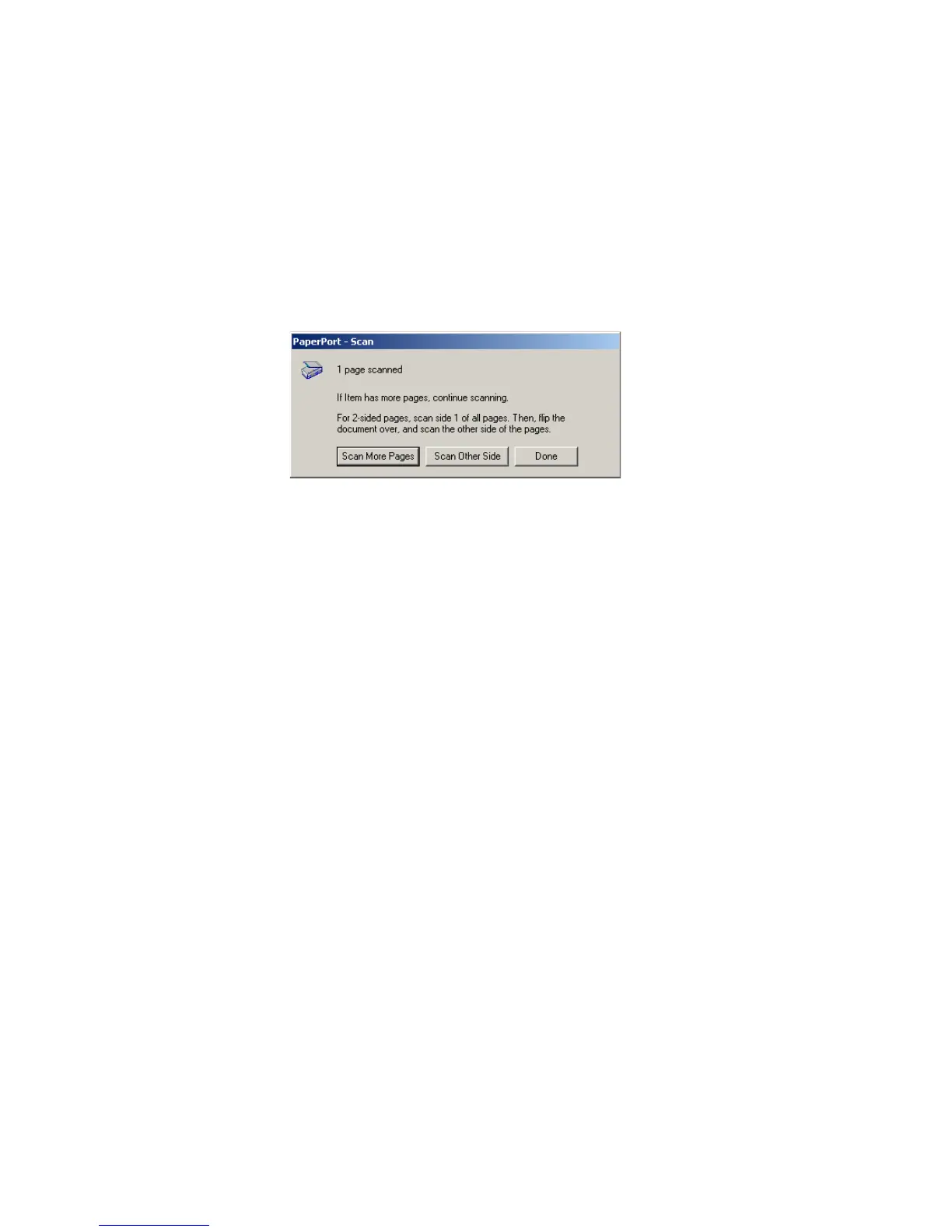
If the check box is not selected (this is the default), the following
message box appears when you close the Scan Manager.
■ Click Scan More Pages to scan additional pages and add them to the
stack of items placed on the PaperPort desktop.
■ Click Scan Other Side to reload and scan the other side of
previously scanned pages. This option is only available once.
■ Click Done if you are finished scanning. The scanned items are
placed on the PaperPort desktop.
To learn more about the PaperPort software please see the ScanSoft
PaperPort User’s Guide on the Installation CD.
CREATING A NEW VISIONEER SCAN MANAGER PROFILE
You cannot change the settings of the three preset (custom) profiles in
the Visioneer Scan Manager. However you can create new profiles and
save them in the Scan Setup list for future use.
To create a new profile:
1. On the Visioneer Scan Manager, select one of the three Custom
profiles from the Scan Setup list (for example, Black&White
Configurations>Custom).
2. Adjust the settings as required and then click the Save As button.
3. On the Save Profile window, enter a name for the profile.












 To Next Page