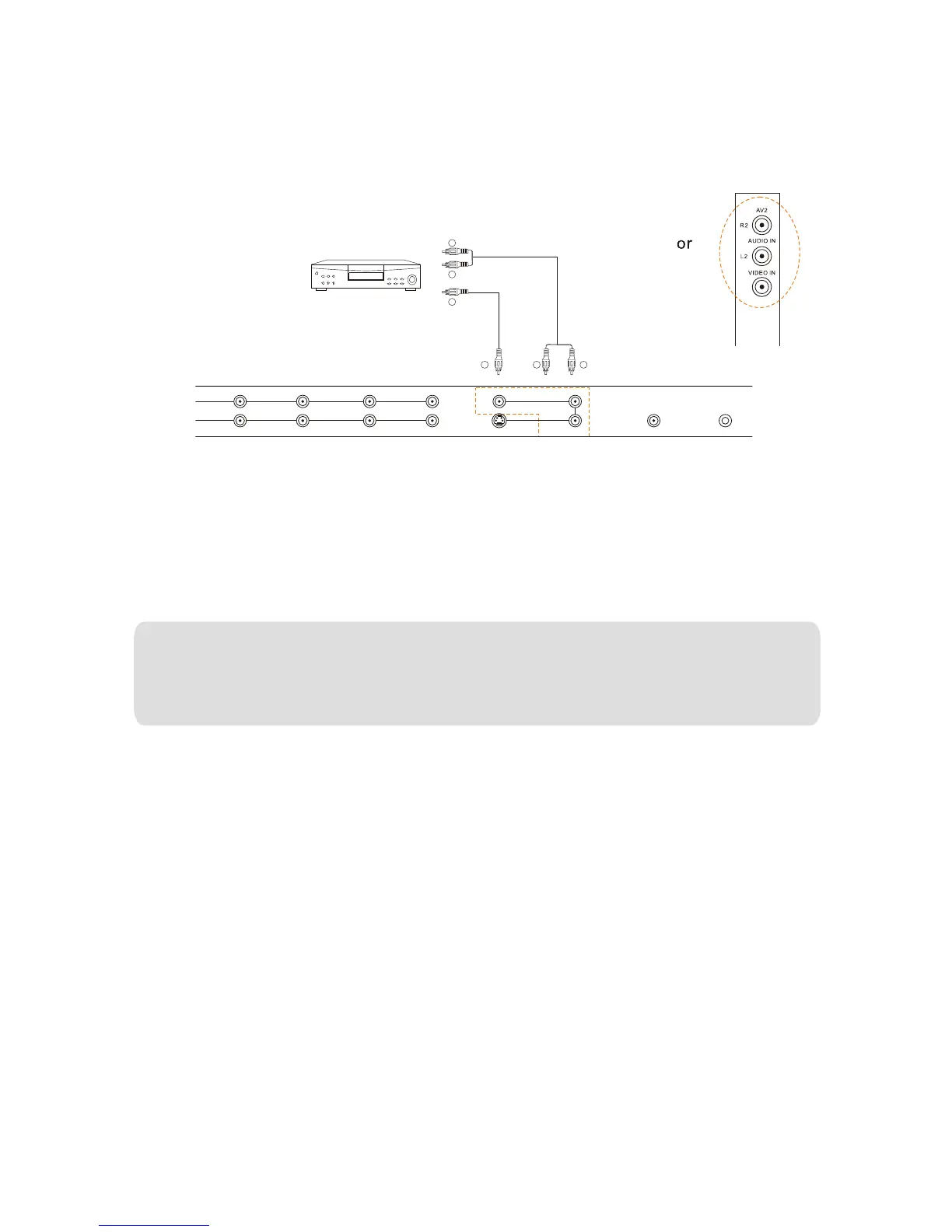
2.2.4 - Using Composite (AV) Video
Connecting DVD Player (Good):
1.Turn off the power to the LCD TV and DVD player.
2.Connect the Video(yellow color) connector on the rear of your DVD player to the Video connector in the
Composite (yellow color) in the rear of your LCD TV.
3.Connect the R(red color) and L(white color) audio connectors on the rear of your DVD player to the R(red
color) and L(White color) audio input connectors in the rear of your LCD TV.
4.Turn on the power to the LCD TV and DVD player.
5.Select AV1(Composite1) using the INPUT button on the Remote Control or the front of your LCD TV,
or directly by pressing the AV button on the Remote Control.
VIDEO EQUIPMENT
with terminal
To Video
inputs
W
R
W R
To audio
inputs
Y
Y
WWW.VISIONQUESTCE.COM
21
Note:
a) If you are already using the AV1(Composite1) input for another Composite video, or you do not want
to use the AV1(Composite1) input for the DVD player, you can connect the DVD player to the
AV2(Composite2) connections.
b) Refer to your DVD player user manual for more information about the video output requirements of
the product.


 To Next Page