Page.26.
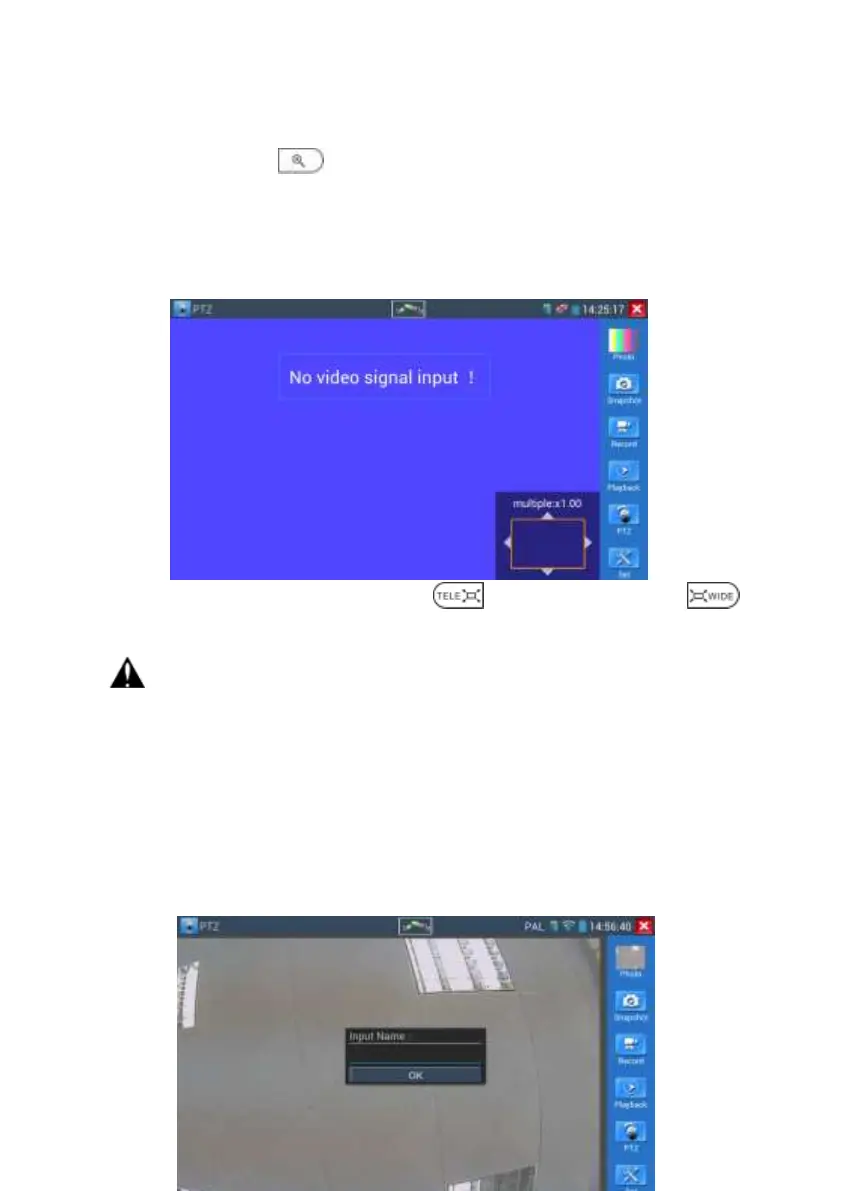
When image input, press to enter “zoom”, press it again to quit.
Using the touch screen to control PTZ camera movement:
Tap left, right, upward or downward on the video image to move the PTZ camera in a desired
direction. Stretch two fingers outward or inward on the touch screen to zoom the image in or
out.
If not use touch screen to operate, press the key to zoom out , press the key
to zoom in, press upward and downward key to move the image
For analogue video input, as the resolution is 720*480, it is normal that the zoom in
image is not clear. But for network digital video input, as it supports resolution up to 1280*960,
the zoom in image is still very clear. This is very helpful for IP camera installation.
(4) Snapshot
Click the icon “Snapshot “, when the video in, to take a picture and save the current video
frame in the SD card as JPEG file.
If the unit is set to the manual mode an “Input Name” pop up box will appear and you can enter
a title for the snapshot. If the unit is set up to automatically set file names, this box will not pop
up.


 To Next Page