5 First Steps
5.1 Auto-Detection of the Camera
If the camera was detected successfully and is operational, the camera’s status LED
should be on permanently. If the status LED continues to blink, this indicates that the
camera was not successfully detected or is not supplied with enough power. In this
case, check that the software was installed correctly or try using a different USB port
that supplies more power.
For a detailed description of the status LED, refer to 7.5 on page 38.
5.2 Starting CamLab
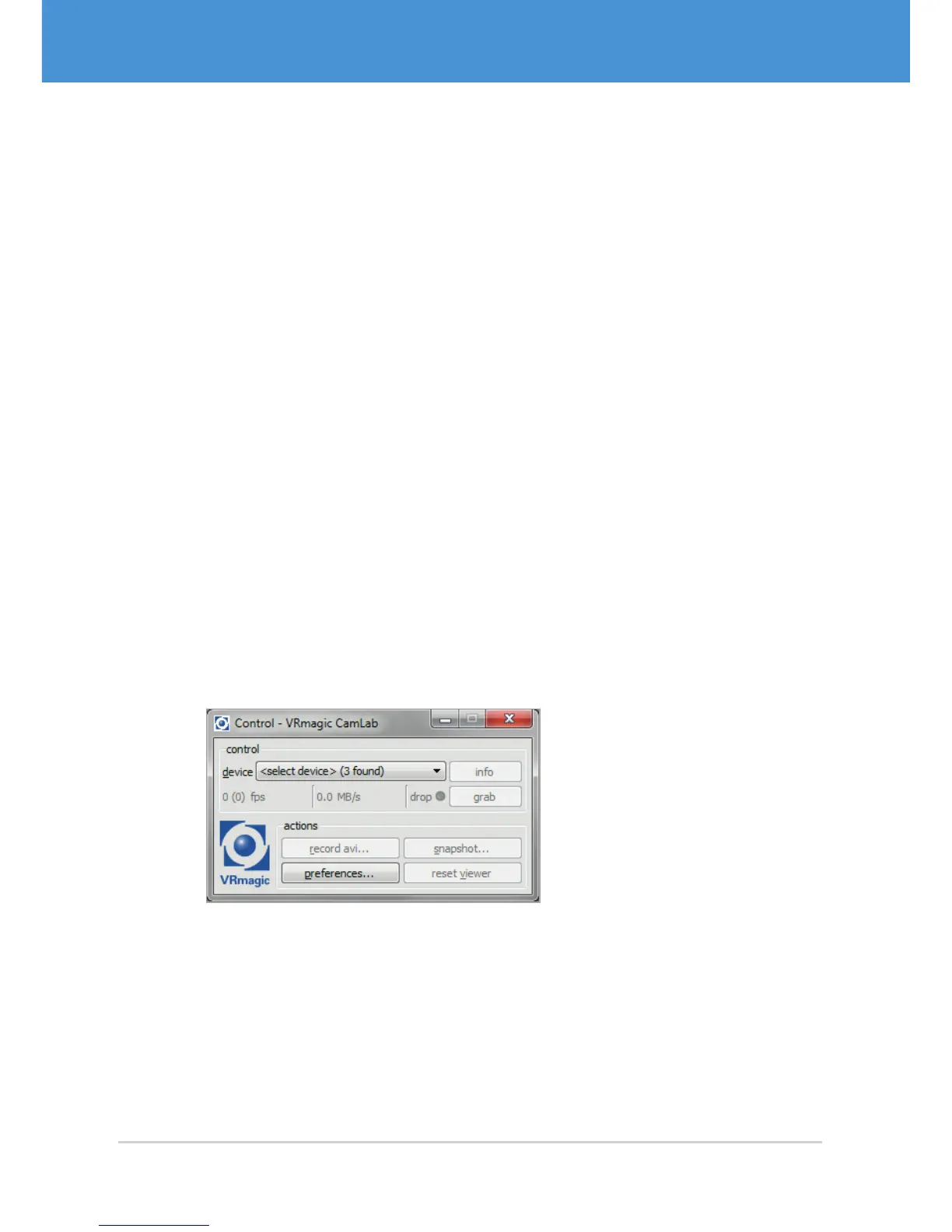
Start the CamLab application to test the functionality of your camera. CamLab allows
you to select the cameras connected to your host PC, view the image recorded by the
image sensor, and change all available camera parameters.
1. Start the CamLab application (Windows: Start > All programs > VRmagic >
CamLab).
f Your camera should be listed in the device list (model name and serial
number).
Fig. 15: CamLab with device list
2. Select your camera from the device list.
f The CamLab control window now displays additional information and camera
parameters. An additional viewer window is also displayed.
USB Cameras – User Guide26



 To Next Page