6 Firmware Update
You should update your camera’s firmware if a newer firmware version is available.
A firmware update might be necessary, for example after updating to the latest SDK.
Warning!
Possible damage to the device
If you unplug the device while the firmware update is in progress, the device will
no longer be functional and may even be physically damaged.
Do not disconnect any device until the update is finished.
Updating the camera firmware:
1. Visit www.vrmagic.com/imaging/downloads/ .
f The firmware for USB cameras can be found beneath the heading “Software
for USB Components”.
2. Download the .zip file VRmUsbCam Firmware Bundle X.Y.
3. Unpack the file.
4. Connect the camera you wish to update to your host PC and be certain it is de-
tected by using CamLab ( 5.2 on page 26).
5. Navigate into the directory created after unpacking the downloaded file in step 3.
6. Run vrmfwupd.exe by double-clicking on it.
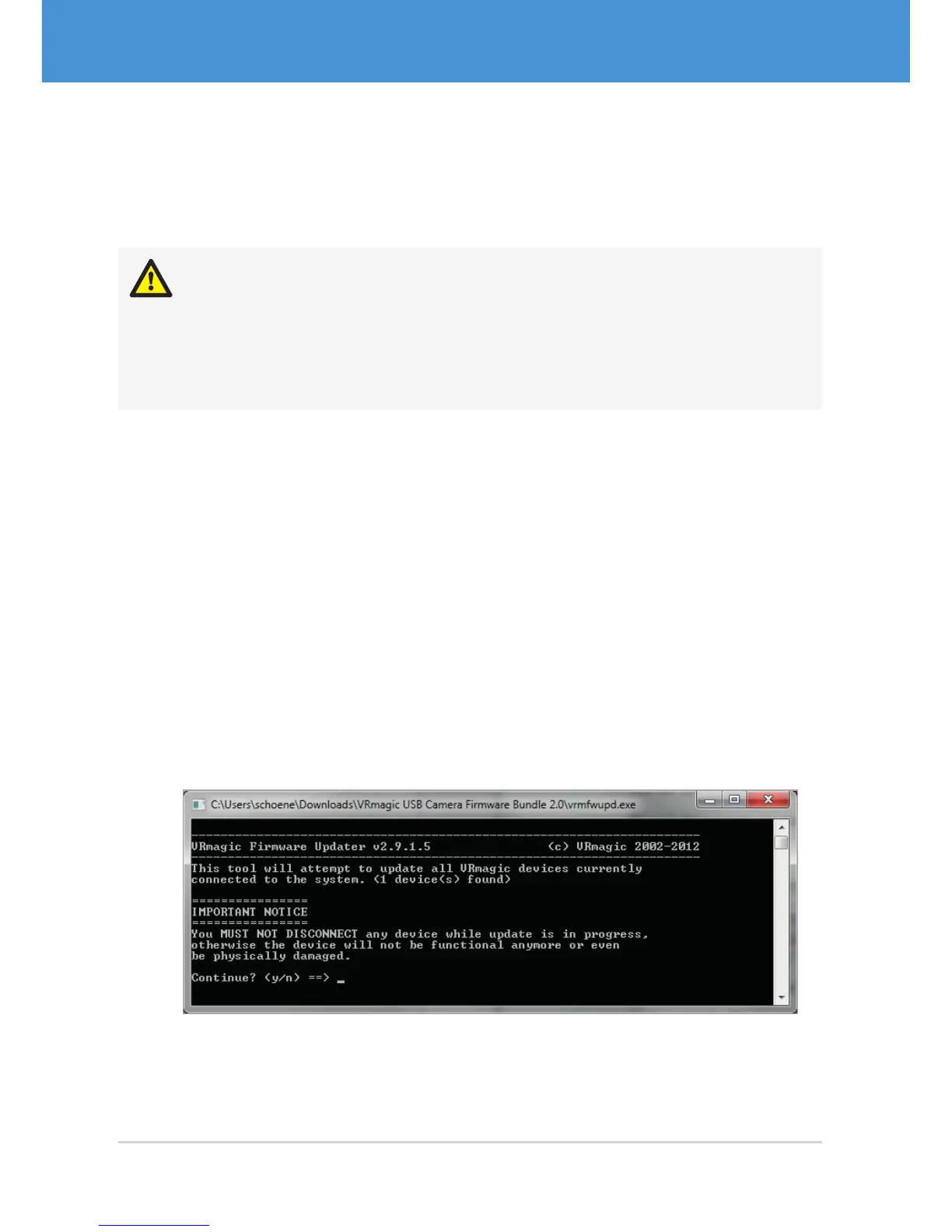
f The Windows command line is displayed.
Fig. 19: VRmagic firmware updater
USB Cameras – User Guide32



 To Next Page