
EasyManua.ls Logo

VTech DigiGo - User Manual

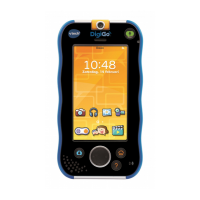
VTech DigiGo
23 pages
Print Icon
To Next Page IconTo Next Page
Loading...
User's Manual

Questions and Answers

  • N
    Nicole PrestonAug 17, 2025
    What to do if the VTech DigiGo screen displays with no sound?
    • V
      Victor PenaAug 17, 2025
      If your VTech Media Player screen displays but there's no sound, the volume might be turned down. Try adjusting the volume control. Alternatively, headphones might be connected; unplug them from the headphone jack.
  • M
    Matthew ReedAug 19, 2025
    Why won't my VTech DigiGo Media Player charge?
    • A
      Ashley HortonAug 19, 2025
      If your VTech Media Player won't charge, it might be because the power source isn't properly connected. Ensure the unit is plugged into a wall outlet using the supplied USB cable and AC adapter.
  • E
    Erica GrayAug 22, 2025
    What to do if the VTech DigiGo touch screen is inaccurate?
    • J
      Jeffrey WaltonAug 22, 2025
      If the touch screen on your VTech Media Player is inaccurate, it might need calibration. To calibrate, hold the Power button for 10 seconds until the device turns off. Then, hold the and Vol- buttons while turning the device back on, and follow the on-screen steps. Also, check for any small particles inside the LCD screen gap and gently remove them with a toothpick.
  • T
    Tyrone DominguezAug 26, 2025
    Why does my VTech DigiGo Media Player screen turn on and then immediately off?
    • C
      Chase HernandezAug 26, 2025
      If your VTech Media Player screen turns on and then immediately off, it's likely due to low battery power. Connect the unit to a wall outlet using the supplied USB cable and AC adapter. A green light will indicate charging, and it will turn off when fully charged.
  • K
    Kimberly HayesAug 28, 2025
    How to fix VTech DigiGo Media Player when there is no picture on screen?
    • H
      hunterwarrenAug 28, 2025
      If there's no picture (or an incorrect picture) on the screen and the Power button has no effect, the unit may need a restart. Locate the reset hole on the bottom and use a ballpoint pen or toothpick to press the button inside. Then, press the Power button for 3 seconds to restart.
  • M
    Megan MaloneAug 30, 2025
    How to fix USB connection issues with VTech DigiGo Media Player?
    • M
      Mark PollardAug 30, 2025
      If the USB connection window doesn't appear after connecting your VTech Media Player to the computer, check the USB cable connection. Ensure it's securely connected to both the device and the computer. Also, avoid connecting through a USB hub; connect the device directly to the computer.
  • L
    Leslie WellsSep 2, 2025
    Why can't my VTech DigiGo Media Player recognise the microSD card?
    • J
      Jonathan BernardSep 3, 2025
      If your VTech Media Player cannot recognize the inserted microSD memory card, the card's format might not be FAT32. Format the microSD memory card to FAT32 using your computer.
  • J
    Joshua MoralesSep 5, 2025
    Why won't my VTech DigiGo connect to Wi-Fi?
    • M
      Mike CarlsonSep 5, 2025
      If your VTech Media Player cannot connect to Wi-Fi, ensure that Wi-Fi is turned on. Go to Settings - Parent Settings to turn on Wi-Fi. Also, check that the device's firmware is up-to-date by registering on Learning Lodge™ and updating to the latest version.
  • J
    Julian JohnsonSep 8, 2025
    What to do if the VTech Media Player battery charging indicator light does not come on?
    • M
      michellerandallSep 8, 2025
      If the battery charging indicator light on your VTech Media Player does not come on, inspect the AC adapter. Ensure that it is securely plugged into the wall outlet and that the USB cable is securely connected between the device and the AC adapter.
  • P
    parkamandaSep 12, 2025
    What to do if Wi-Fi is on, but there is no Wi-Fi network available for VTech Media Player?
    • C
      Christopher FrenchSep 12, 2025
      If Wi-Fi is turned on, but there is no Wi-Fi network available for your VTech Media Player, it may be due to the absence of a Wi-Fi network in your current location or a weak network signal. Try moving to a location that has an available Wi-Fi network.

Summary

Getting Started: Introduction

Package Contents

Lists the items included in the DigiGo™™ package.

DigiGo Product Features Overview

Device Components and Layout

Identifies external components like buttons, cameras, and ports on the DigiGo™™.

Feature Button and Port Explanations

Explains the specific functions of various buttons, ports, and indicators on the device.

Basic Operations and Setup

Initial Setup and Learning Lodge Installation

Guides users through initial setup, computer connection, and software installation.

Profile Setup and Desktop Navigation

Covers personalizing the device profile and navigating the DigiGo™™ desktop interface.

DigiGo Device Functions

Understanding Common Interface Icons

Details the meaning and function of various common icons used within the DigiGo™™ interface.

How to Attach the Wrist Strap

Provides instructions on how to attach the wrist strap to the DigiGo™™ device.

Charging and Memory Management

Charging the DigiGo Device

Explains the process of charging the DigiGo™™ device using the provided adapter and cable.

Powering On;Off and microSD Card

Covers powering the device on/off and inserting a microSD card for expanded memory.

Connecting to Wi-Fi and Online Services

Setting Up a Wi-Fi Network

Details the steps required to connect the DigiGo™™ to a Wi-Fi network.

VTech Kid Connect Getting Started

Outlines the initial steps for setting up and using the VTech Kid Connect™™ service.

VTech Kid Connect Features

Managing Childs Contact List

Describes how to view, add, and remove contacts for your child's VTech Kid Connect™™ profile.

Sending and Receiving Friend Requests

Explains how to send, accept, or reject friend requests within the VTech Kid Connect™™ system.

Family Group Chat and Media Transfer

Covers family group chat functionality and transferring photos, videos, and songs.

File Transfer Guidelines and Learning Lodge

Provides guidelines for file formats and introduces the Learning Lodge™™ for content expansion.

Care & Maintenance of DigiGo

Touch Screen and Stylus Usage Tips

Offers advice on using the touch screen and stylus correctly to avoid damage.

Cleaning the Touch Screen and Cabinet

Provides instructions on how to clean the touch screen and the main cabinet of the DigiGo™™.

DigiGo Troubleshooting Guide

Troubleshooting Device and Display Issues

Addresses common problems like no sound, screen turning off, and display issues with their respective solutions.

Troubleshooting Connectivity and Input

Covers issues related to charging, USB connection, touch screen accuracy, and microSD card recognition.

Troubleshooting Wi-Fi and Charging

Addresses Wi-Fi connection problems and the battery charging indicator light not working.

System Management and Safety Precautions

Resetting the Device to Factory Settings

Explains the procedure for resetting the DigiGo™™ device to its original factory settings.

Battery and Charger Safety Guidelines

Provides crucial safety precautions for using the battery and charger with the DigiGo™™.

Product Guidelines and Disposal Information

Responsible Battery and Product Disposal

Offers guidance on the responsible disposal of batteries and the product according to environmental regulations.

Adapter Toy Safety Standards

Lists standard safety guidelines for using adapter toys and electrically operated products.

Device Support and Handling Procedures

Battery Removal and Technical Support

Details procedures for battery removal and how to obtain technical support for the DigiGo™™.

Important Product Information and Disclaimers

Licensing, Compliance, and Data Backup Advice

Contains notes on licensing, compliance, and advises on backing up important data to prevent loss.

Legal and Service Notices

VTech Kid Connect Service Terms and Use

Specifies the terms and requirements for the VTech Kid Connect™™ subscription service.

VTech DigiGo Specifications

General IconGeneral
Control typeButtons, Touch
Product typeChildren's multifunctional gadget
Product colorBlack, Blue
Recommended age (max)10 yr(s)
Recommended age (min)4 yr(s)
Display diagonal4.3 \
Front camera resolution (numeric)2 MP
Internal memory4096 MB
Compatible memory cardsMicroSD (TransFlash)
Maximum memory card size32 GB
Audio formats supportedMP3
Weight and Dimensions IconWeight and Dimensions
Depth165 mm
Width138 mm
Weight380 g