VuStream 150 – User Guide
© 2019 VuWall Technology, Inc. 5
Connecting to the device
There are two different ways to connect to the device, one over a network switch and a DHCP server,
one point-to-point using a computer.
Connecting to the device via network switch
This is the recommended way of connecting to the device if there is a DHCP server in place at the time
of setup, if many devices need to be configured, if they are pre-installed in hard-to-reach locations or if
there is no available power outlet close by.
The VuStream 150 device can be configured over a Web GUI with a browser. To configure the device via
an existing network switch you will need the following components:
✓ PC with available network port
✓ Network cable
✓ Layer-2 Network Switch
✓ DHCP Server
1) Connect the VuStream 150 and your PC with the network cable to the existing network switch.
2) The VuStream 150 will receive an IP address via the existing DHCP server.
If the VuStream 150 does not receive an IP address from the already existing DHCP server, the
VuStream 150 can be reached via the IP address 192.168.10.150.
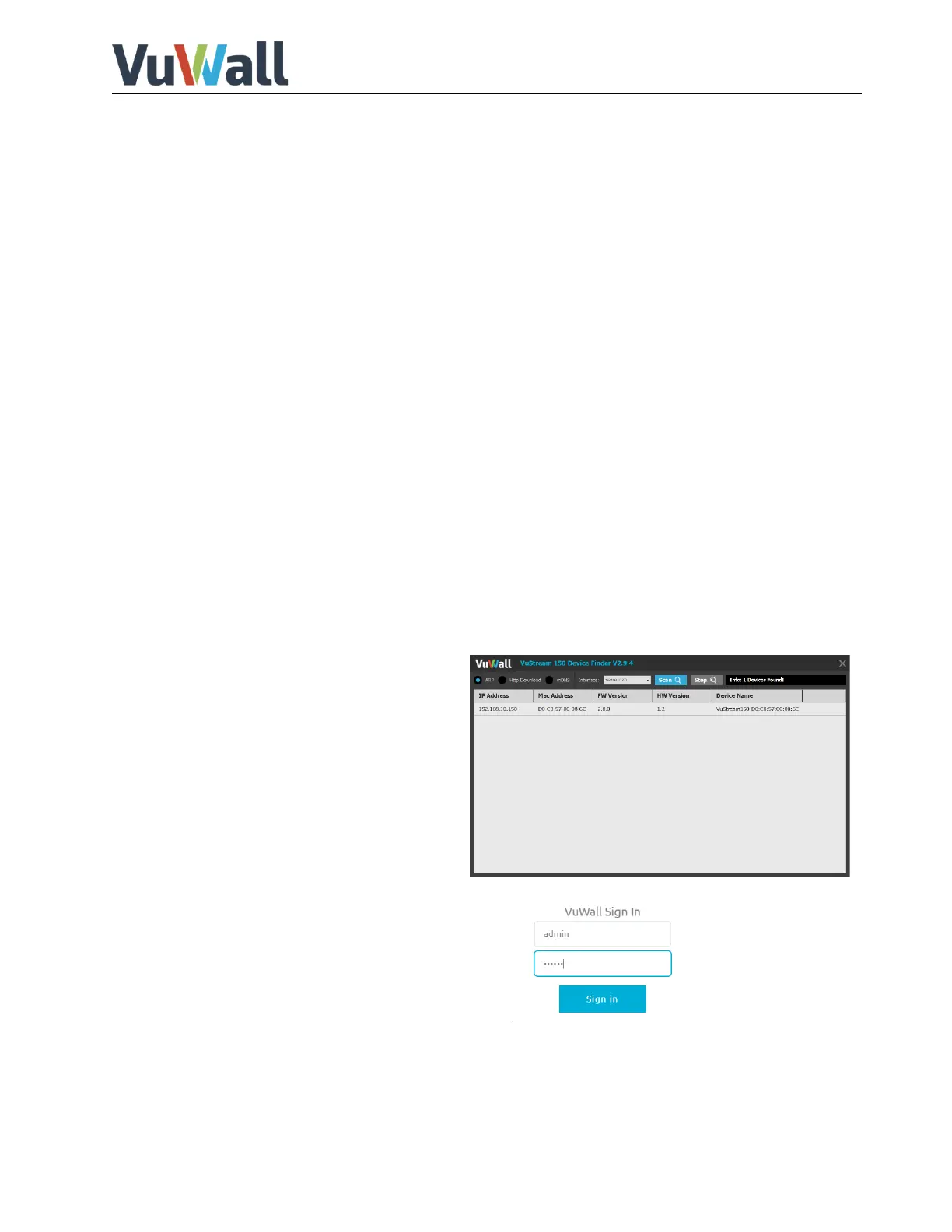
3) Use the VuStream 150 Device Finder
software to locate the device on the
network.
Please note, for firmware older than V2.8.0
use Device Finder 2.9.0. For firmware V2.8.0
and newer use Device Finder 2.9.4.
4) Enter the credentials to log in to manage
the device. Default login credentials are:
Username: admin
Password: vuwall
If you intend to use this encoder on your network, you will need to set a permanent IP address for the
device (Network section, User Guide page 6).


 To Next Page