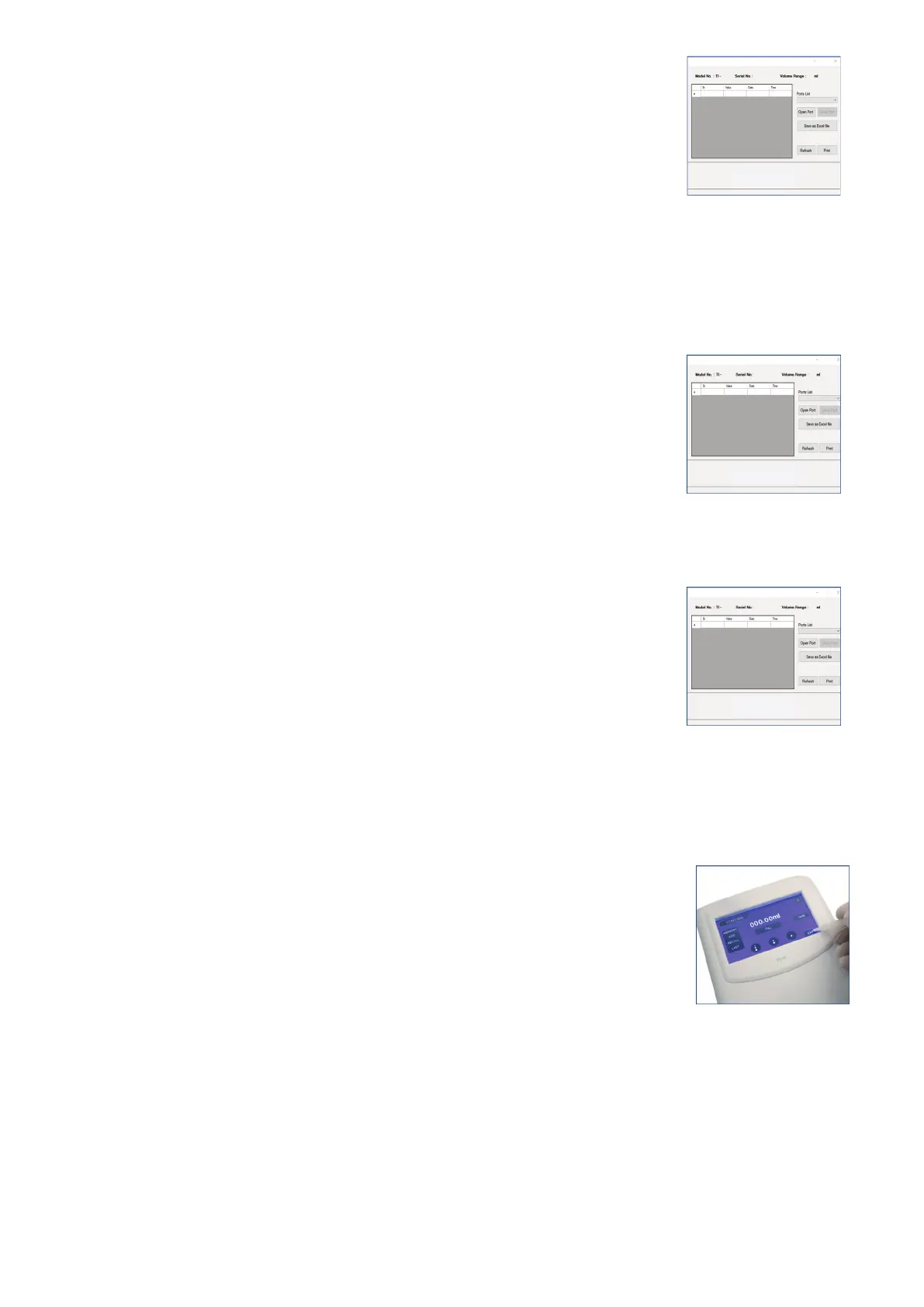
Creating a File Name
1. Select the port from the port list dropdown menu.
2. Click Open port.
3. The Software captures the Model No., Sr. no. and volume range.
4. After transferring the data from control panel to the software
window we can save the file by clicking the “Save as Excel File”.
(Fig. 56)
Printing the data
1. The data recorded while operating the E-BURETTE can be printed
directly from the software by clicking the PRINT tab.
(Fig. 57)
2. For this, select the printer and print the readings.
You can also access the saved .xls file to print.
Refresh
1. To start afresh for new readings on the software, click on the
REFRESH tab.
(Fig. 58)
2. The readings on the grid shall be deleted and new readings can
now be transferred in it.
Exit
1. To end working with the E-BURETTE, press the Exit button
(Fig. 59).
2. The panel will warn the user to turn the knob in the re-circulation
mode
3. Click on the tick (✓) button to proceed. The piston will empty the
barrel and go to the home position.
Press the ON/OFF button to switch OFF the control panel.
Fig. 56
Fig. 57
Fig. 58
Fig. 59
23 vwr.com I Instruction manual VWR
®
E-Burette




 To Next Page