52
52
Index
Contents
IndexContents
CREATING AN APPLICATION-SPECIFIC SETTING
First choose the tablet and tool for which you want to create an application-specific setting. Then click on the
A
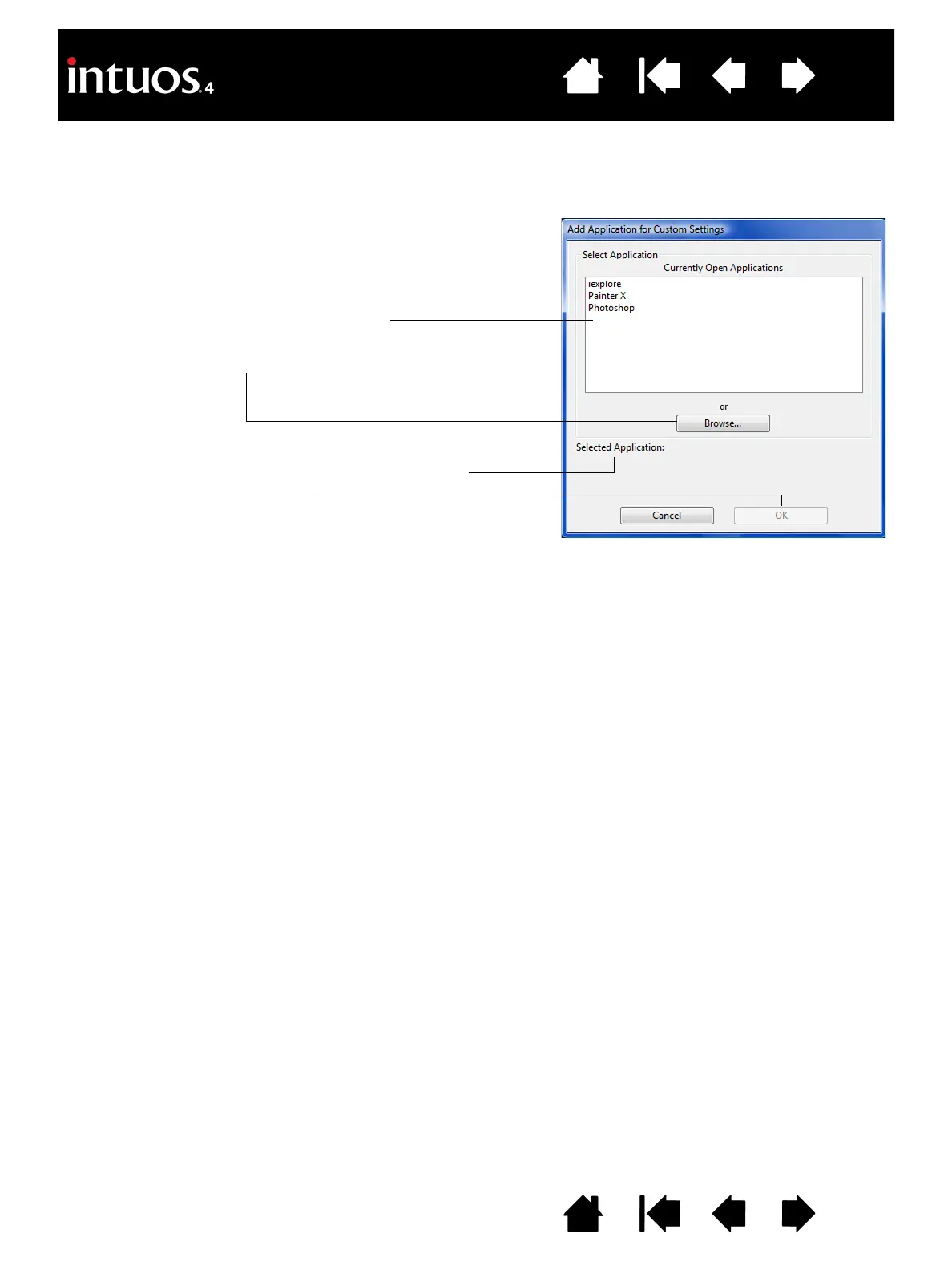
PPLICATION list’s [ + ] button to display the ADD APPLICATION FOR CUSTOM SETTINGS dialog box.
After adding an application, its icon appears in the A
PPLICATION list whenever the respective tool is selected
in the T
OOL list. Select the application and then customize the control panel tab settings for your tool and the
selected application.
Once you have created application-specific settings, applications that have not been customized in this
manner will use the tool settings for A
LL OTHER.
Tip: First customize settings for one application. When you feel comfortable with the process, you can
create more application-specific settings.
Choose from one of two methods to select an
application:
• Open the application for which you want to create
custom settings, and then select that application from
the C
URRENTLY OPEN APPLICATIONS box.
•B
ROWSE to select the executable file of any
application installed on your computer.
Your selection is added to the S
ELECTED APPLICATION box
where the name of the selected application is displayed.
Click OK to complete the process.
Note: If two programs have the same executable file
name, they will share the same customized settings.

 To Next Page
 Loading...