CHAPTER 5 COMMUNICATION 57
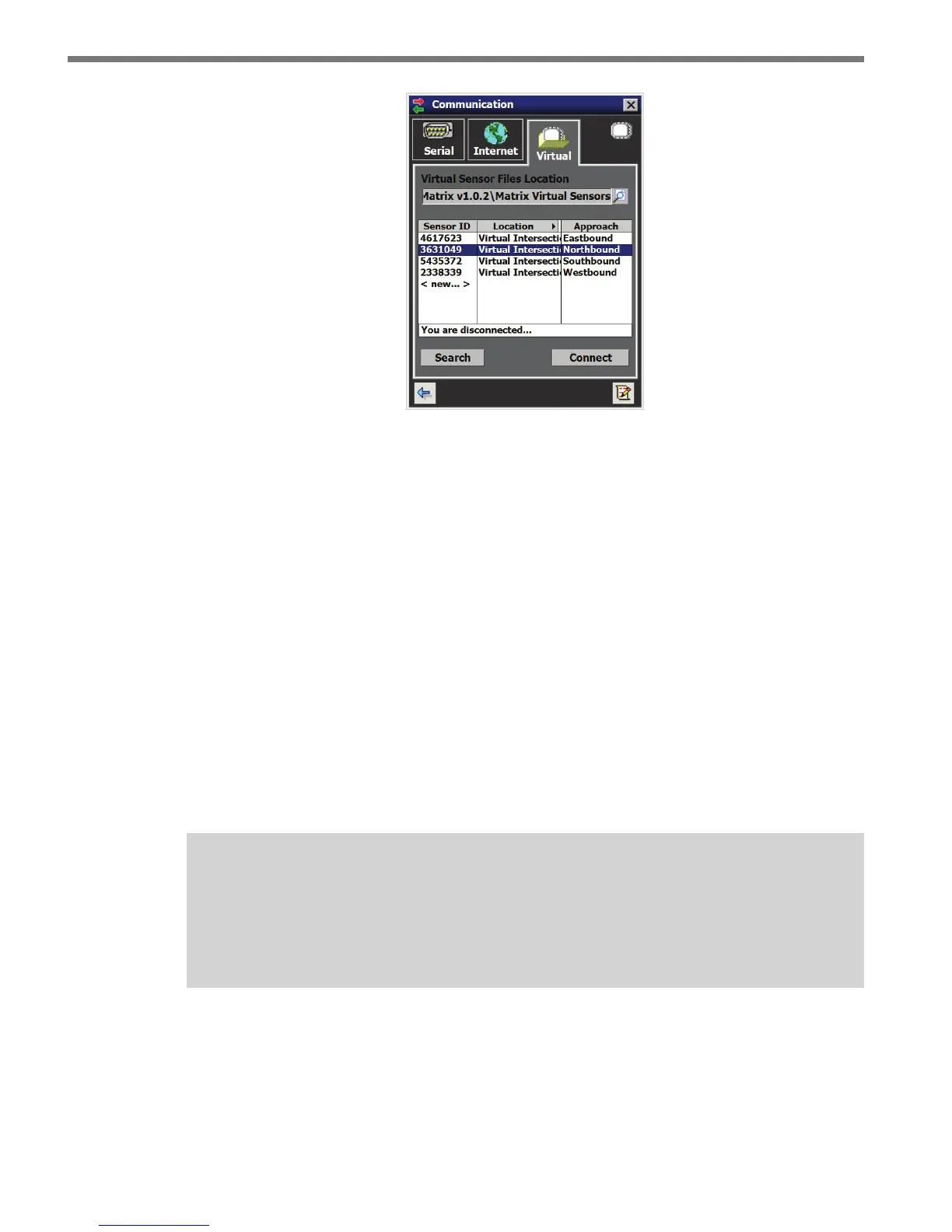
Figure 5.8 – Virtual Connection Screen
3 Select or create a virtual sensor le (.vsf) by clicking the magnifying glass icon.
4 Click the Search button. is may take up to 30 seconds while the sensors on your vir-
tual control bus are discovered and listed. (You can click Cancel if the sensor of interest
has already been listed.)
5 Click on the desired row from the list to select a sensor.
6 Click the Connect button. When a connection is established you will be directed back
to the home page.
Virtual Sensor File
Since a virtual connection is not made to an actual sensor, a virtual sensor le (.vsf) is used
to save the conguration settings much like an actual sensor’s ash memory. SSMM comes
with default virtual les that you can see once you click the Search button. If you create
your own virtual sensor le, you will have to nd it in the virtual les directory by clicking
the magnifying glass icon under the Virtual Sensor Files Location heading.
Note
When you are connected using a virtual sensor file, changes that would normally be
saved to a sensor’s flash memory will automatically be saved to the virtual sensor
file.
Virtual sensor les can be converted to sensor setup les and can be restored to an actual
sensor; sensor setup les that have been backed up from a sensor can also be converted to
virtual sensor les. To convert a sensor setup le to a virtual sensor le, make a virtual con-
nection and then use the Restore Sensor Setup tool in the To ols menu (See Chapter 10).
To convert a virtual sensor le to a sensor setup le, use the Back-up Sensor Setup tool.



 To Next Page