3-6
Operation Section 3
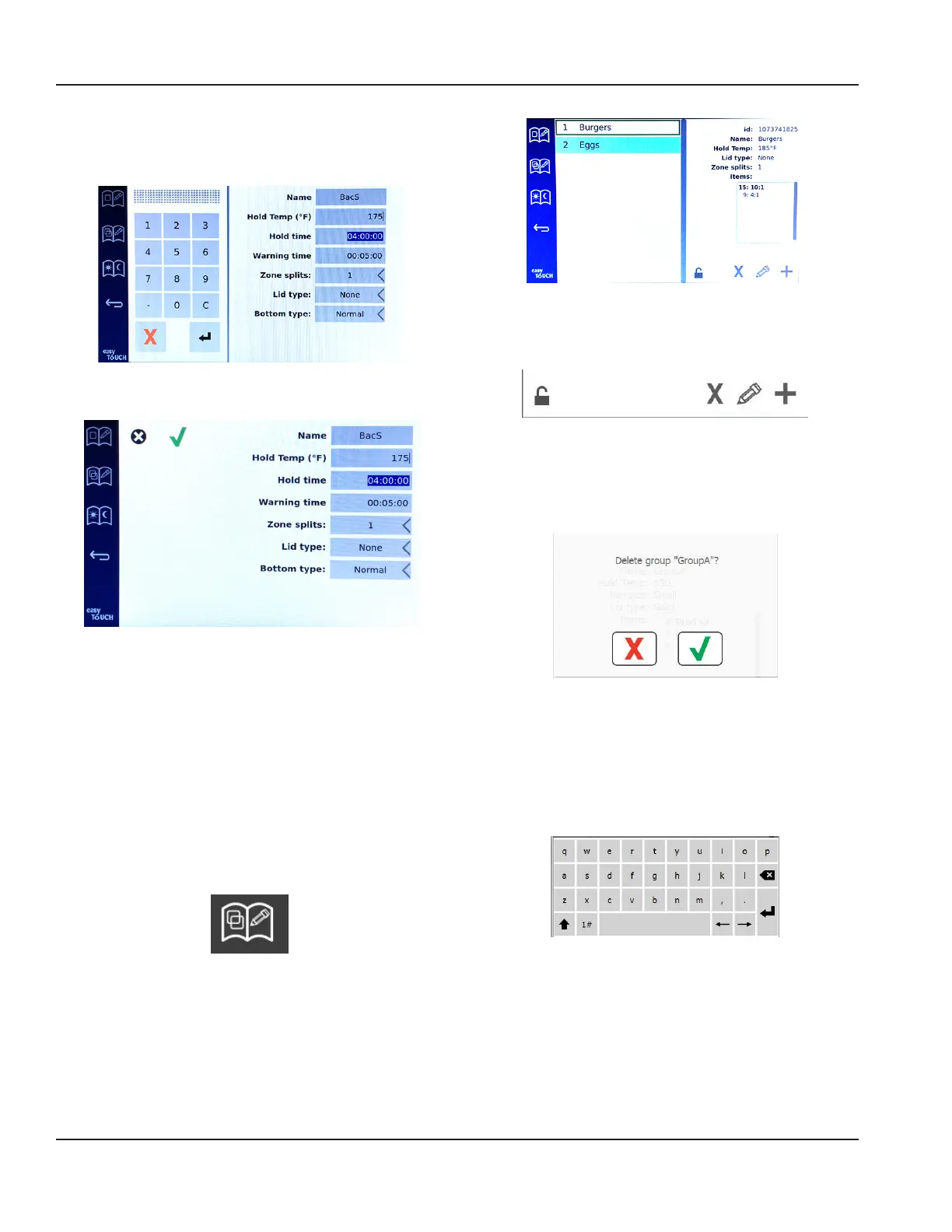
To edit a field select the field.
Editing temperatures and times uses the touchpad. When
finished press the return arrow to exit to last screen.
Save the edit or product addition by selecting the check.
Select the X to cancel edits and return to product list.
Product Edit or Addition Screen
Edit or Adding Groups
Groups of products can be defined. The products must
have the same lid type, zone split and hold temp. Hold
time, warning time and product temp and can vary within
a group.
From the menu screen, select the group icon. The group
page lists programmed groups. For the highlighted group,
group ID, group name, hold temperature, zone split, lid
type and products included in the group are listed.
Group Icon
Group Screen
If the group page is unlocked, the delete, edit and add
icons will display on the group screen.
Unlocked, Delete, Edit & Add Icons
Select the unwanted group and then the delete icon, X. A
confirmation widow will pop up. Select the green check to
delete the group. Select the red X to return to the group
screen.
Delete Group Confirmation Window
Select the group to be edited and the edit icon, a pencil. In
the pop up window the group will appear. The group name
can be edited and products can be added or removed.
Click inside the name box and a keyboard will appear.
When the group name is edited select the return key
(bottom right).
Pop Up Keyboard
Under the name are the group specifications. Only
products that match will be highlighted and available for
adding.
• Select a new product for the group and the green arrow
to add it.
• Select an existing product in the group and the red
arrow to remove it.



 To Next Page