WiDRIVE DX-325 User’s Guide
Copyright © 2010 EDSLAB Tech. Inc.
14
Search File
Type the keyword and then click on Search buon to nd the le you required.
Download a le or open a folder
Simply click on the icon or le name/folder name on the “
File Menu”
, if you click on the le, the le
download process begins; else if you click on the folder, the folder is opened.
Rename le or folder
Click on Rename icon on the “
File Menu”
, type the new name, and then click on “Rename“ buon.
Copy/Move le/folder
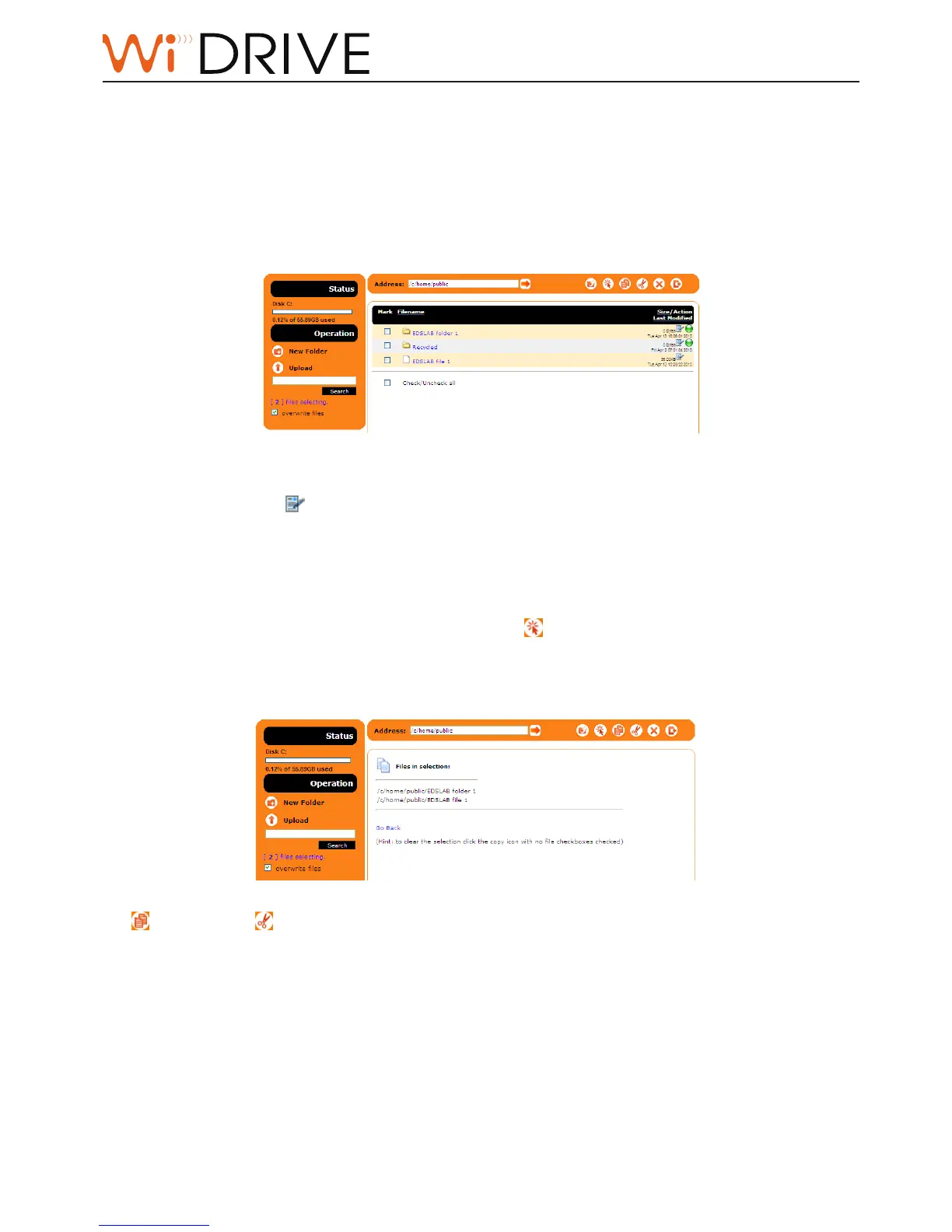
1. Navigate to the parent folder of the les/folders you want to copy or move.
2. Select the les/folders and then click on Select icon in “
Folder Operaon Bar
” to add the selected
les/folders to Selected File Pool (represented as [number of selected les] les selected) on “
Status
and Operaon
“. You can click on Selected File Pool to see les and folders selected. Click “Go back” to
return to the locaon you navigated.
3. Go to the locaon you want to paste the les/folders to in the Selected File Pool. Click Copy icon
or Move icon to place les to the current path.
Note!
“Copy” in this way duplicates the les/folders in the original locaon; “move” relocates their locaon.



 To Next Page