WiDRIVE DX-325 User’s Guide
Copyright © 2010 EDSLAB Tech. Inc.
21
• Advanced seng
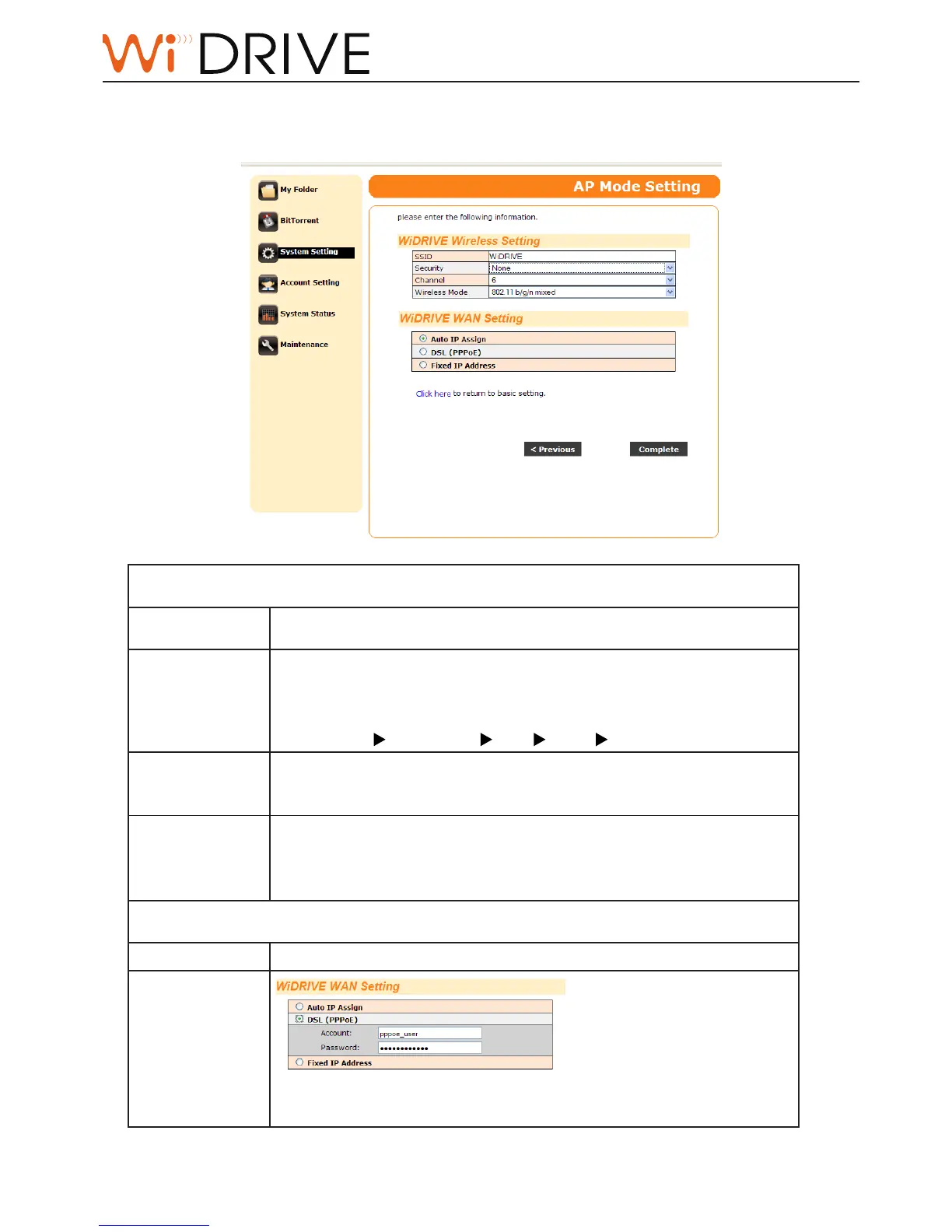
Click on “Click Here” for advanced sengs. The [WiDRIVE WAN Seng] pops up.
WiDRIVE Wireless Seng:
Congure your wireless network of WiDRIVE.
SSID
This is the wireless network name of your WiDRIVE. It must be idencal
on all points of the wireless network and cannot exceed 32 characters.
Security
• If you select “None” from the dropdown bar, your wireless network
transfers data without safety encrypon.
• Otherwise select a security rule and then enter the password to enable
the security protecon. The security capability from basic to strict:
WEP 64 bit WEP 128 bit WPA WPA2 WPA+WPA2
Channel
• Select Auto from dropdown bar, your WiDRIVE automacally switches
to the best channel available.
• Otherwise you can manually assign a channel to your WiDRIVE.
Wireless Mode
• 802.11 b/g mixed: select if your use 802.11 b and 802.11 g devices.
• 802.11 b/g/n mixed: select if your use 802.11 b, 802.11 g, and 802.11 n
devices.
• 802.11 n only: select if your devices are 802.11n.
WiDRIVE Internet Seng:
Congure how your WiDRIVE connect with the internet.
Auto IP Assign
This is the default seng. Your WiDRIVE obtains IP from a DHCP server.
DSL (PPPoE)
Choose PPPoE (Point to Point Protocol over Ethernet) if your ISP uses a
PPPoE connecon.



 To Next Page