WiDRIVE DX-325 User’s Guide
Copyright © 2010 EDSLAB Tech. Inc.
22
Fixed IP Address
Fill these three entries if a stac connecon method is used.
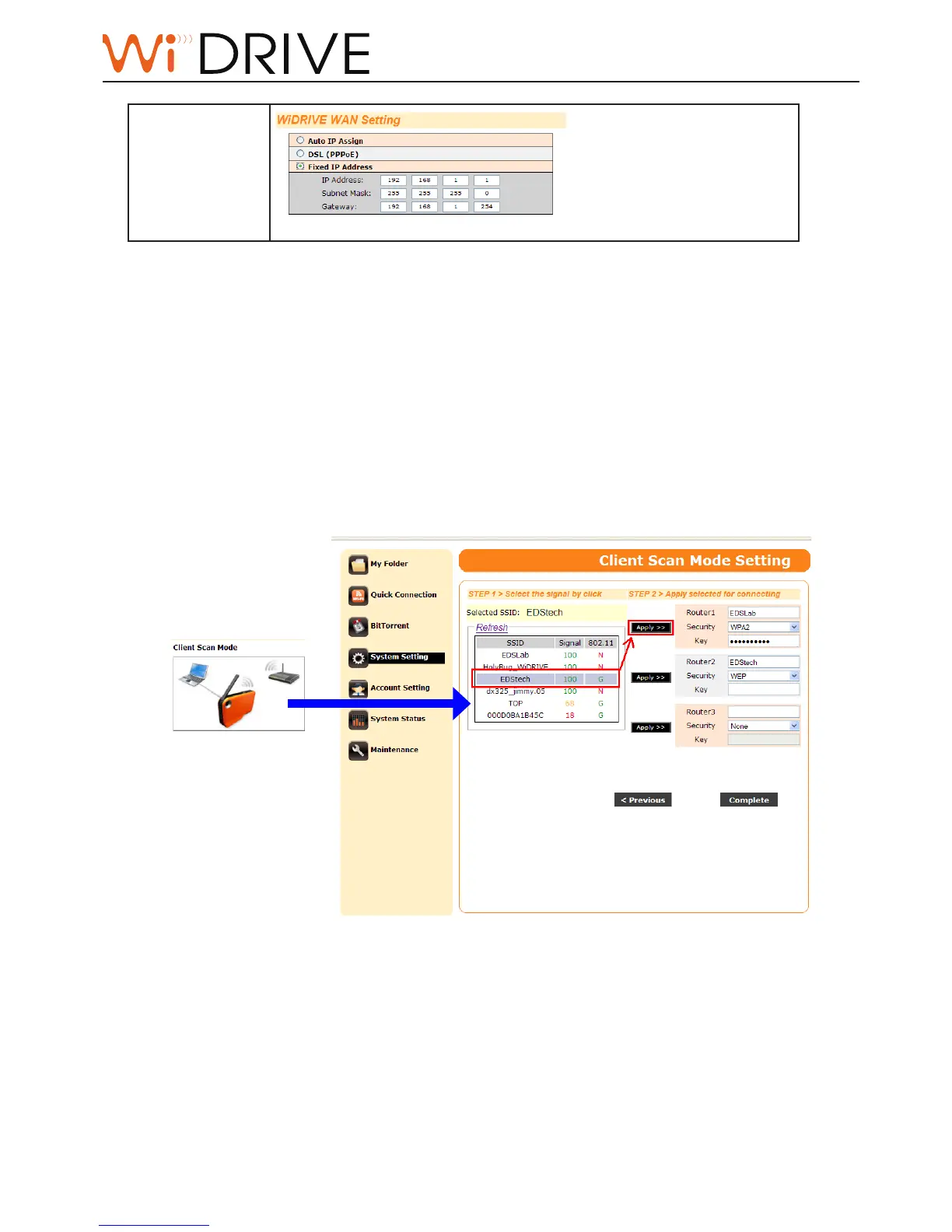
WiDRIVE Client Scan Mode Seng
Click on the Client Scan mode icon in the [Select Setup Mode] secon to enter the Client Scan Mode
Seng page.
You can setup up to 3 preferred wireless networks. When you connect your WiDRIVE in Client Scan
mode, it automacally connects to available networks in the order of your router seng.
1. If your WiDRVE is in Client Scan mode, it detects wireless signals around and list them down for
your selecon. Simply click on the selected wireless signal. If your WiDRIVE is in AP Mode, skip this
step.
2. If your WiDRVE is in Client Scan mode and a wireless signal has been selected, click on Apply
buon of the router, the informaon will be imported and all you have to do is to enter the security
key. Otherwise if your WiDRIVE is in AP Mode, type all required informaon for the setup.



 To Next Page