15
ALL: Demo Song
A11: Demo Song
d-9: Samba Time
002: Bright Piano
018: Reed Organ
Layer Level 12
021: Slap Bass
Lower Level 14
004: BroadWay
023: Slow Swing
Tempo 120
Metronome 3/4
Afterthreesecondsthedisplaywillreverttothe
selected main voice.
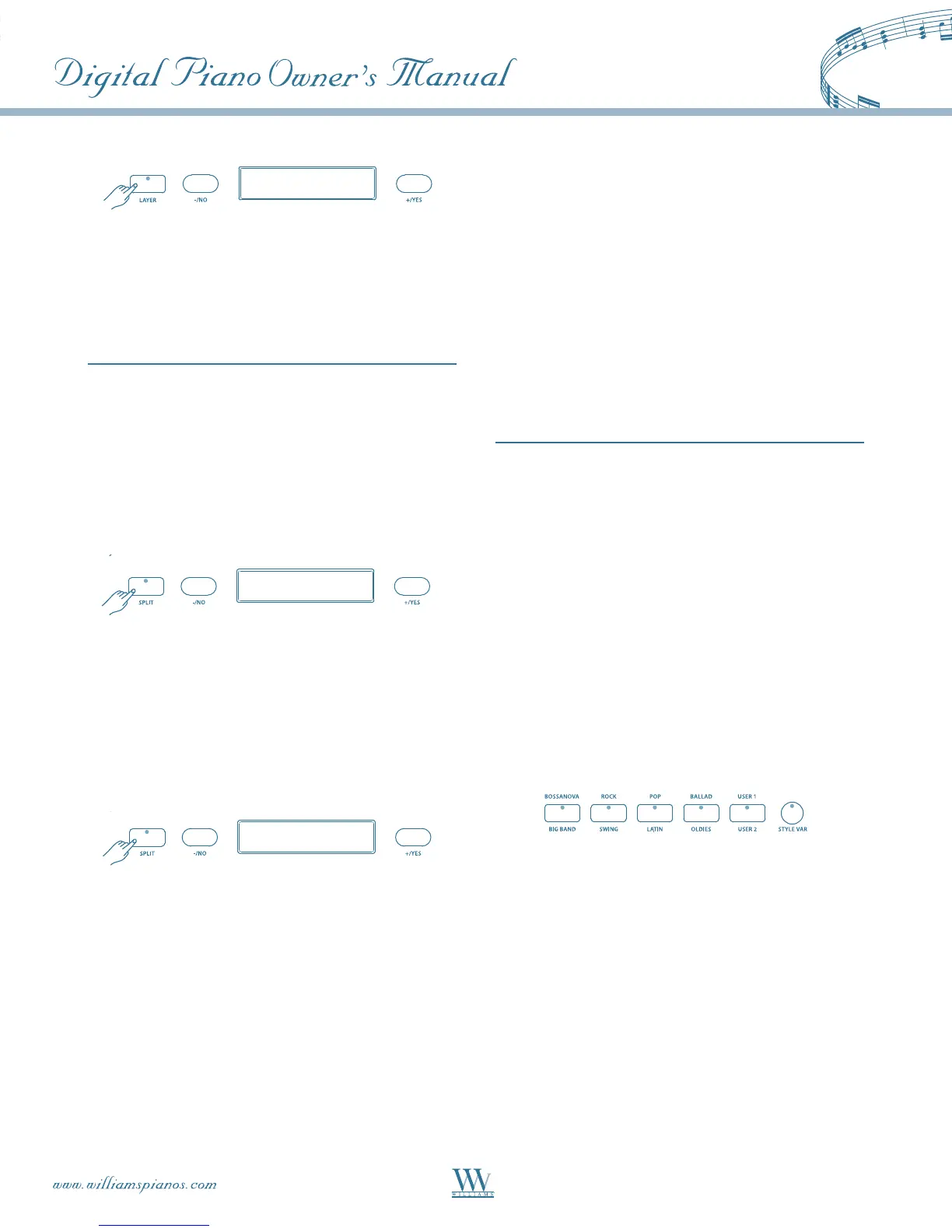
4.PresstheLAYERbuttonagaintoturnthefeatureoff.
Split Voice
The keyboard is divided into two sections. To the
right of the Split Point is the currently selected main
voice. The keys to the left of the Split Point can play a
different instrument voice.
1. Press the SPLIT button, the currently assigned
lower voice will be shown on the display, and the LED
indicator will turn on.
ALL: Demo Song
A11: Demo Song
d-9: Samba Time
002: Bright Piano
018: Reed Organ
Layer Level 12
021: Slap Bass
Lower Level 14
004: BroadWay
023: Slow Swing
Tempo 120
Metronome 3/4
2. Use the +/YES, –/NO buttons to select the desired
lower voice. The display will show the lower voice
number and name.
3. Press the SPLIT button a second time within 3
seconds and the current lower volume level will show
on the display. Use the +/YES, –/NO buttons to adjust
the lower volume level ranged 0 -24. Otherwise, this
procedure will be skipped.
ALL: Demo Song
A11: Demo Song
d-9: Samba Time
002: Bright Piano
018: Reed Organ
Layer Level 12
021: Slap Bass
Lower Level 14
004: BroadWay
023: Slow Swing
Tempo 120
Metronome 3/4
Afterthreesecondsthedisplaywillreverttothe
selected main voice.
4. Press the SPLIT button again to turn the feature off.
Assigning The Split Point For Voice
ThedefaultsplitpointforvoiceistheC3key.A
different voice split point can be assigned in the
Setup menu. Please see the Setup section for more
information.
RHYTHYM STYLES
The Serenade features 100 accompaniment rhythm
styles. Each rhythm style includes 6 patterns:
Introduction,Main,Fill-in,Variation,andEnding.
In addition to the Drum part, the rhythm styles can
provide a fully orchestrated accompaniment with
bass,chordsandadditionalinstruments.Acomplete
list of all 100 styles can be found in the back of this
manual.
Rhythm Style Selection
Quick Select – Each Style button (pg. 12) controls
twostyles,oneintheAbank(printedabovethestyle
button) and one in the B bank (printed below the
stylebutton)foratotalof10QuickSelectstyles(8
Presets and 2 User-defined).
To recall a Quick Select style:
1.PresstheSTYLEVARbuttontoselectabank.
SelectionalternatesbetweenAandBbanksevery
timetheSTYLEVARbuttonispressed.TheSTYLE
VARbuttonislitwhentheBbankisselected.
2. Now press one of the five Quick Select style buttons
to select the desired style. The style name and number
will be shown on the display.



 To Next Page