24
Williams Serenade Piano
Split Point for Auto Accompaniment
The split point that defines the accompaniment
section of the keyboard can also be changed in the
Setup menu.
Equalization
Reverb Type
Reverb Level
Chorus Type
Chorus Level
Split Point
Auto A.Splt
Accomp Type
Harmony
Harmony Type
Touch
Transpose
Octave
Master Tune
Vocal Grade
Local
Reset
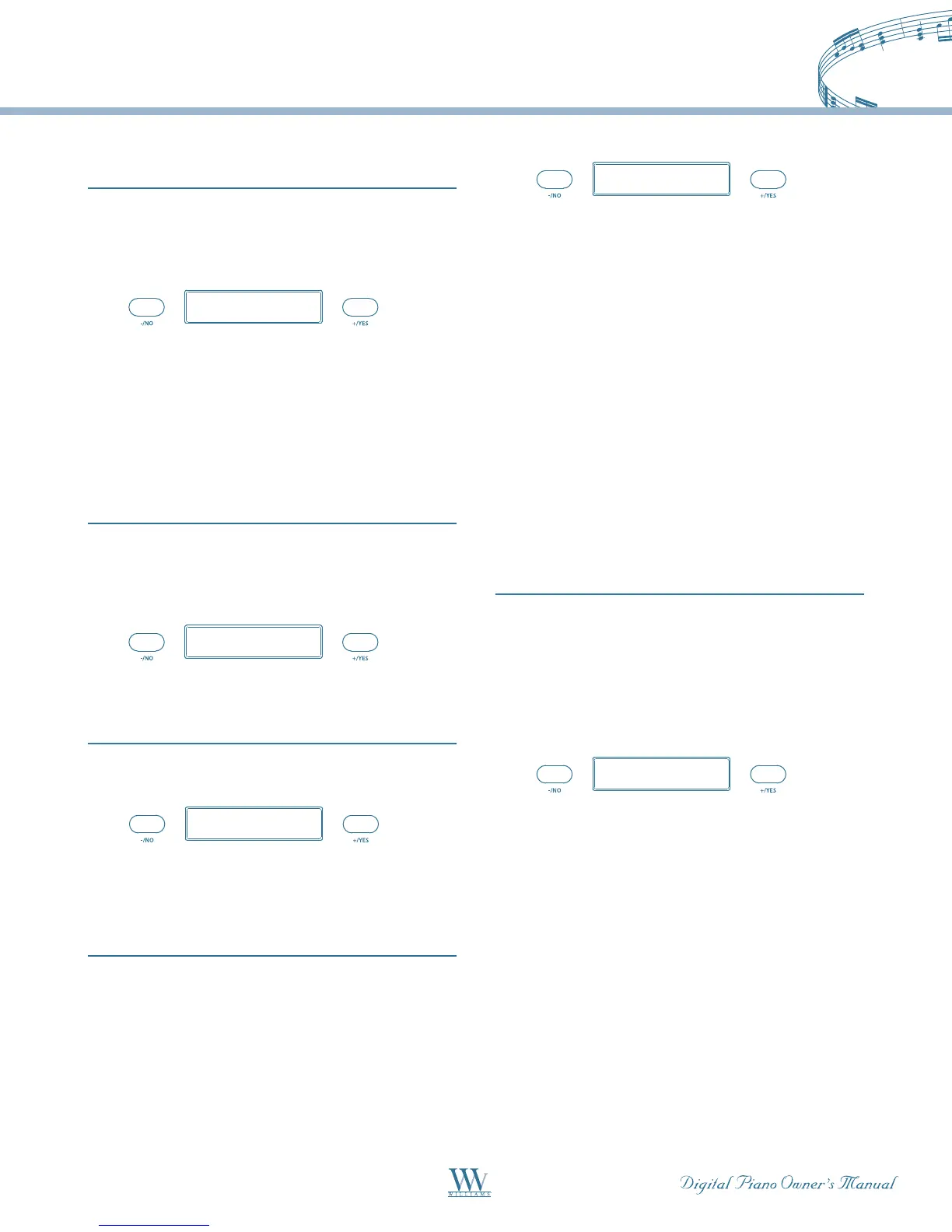
Use the +/YES button to shift the split point up
the keyboard to the right, and the -/NO button
to shift the split point down the keyboard to the
left,fromA0-C3.Pressthe+/YES,-/NObuttons
simultaneouslytorecoverthedefaultsettingofG1.
Auto Accompaniment Fingering Mode
This piano has three auto accompaniment fingering
modes: single, fingered, and piano. Use the +/YES, -/
NO buttons to select an accompaniment type.
Equalization
Reverb Type
Reverb Level
Chorus Type
Chorus Level
Split Point
Auto A.Splt
Accomp Type
Harmony
Harmony Type
Touch
Transpose
Octave
Master Tune
Vocal Grade
Local
Reset
Auto Harmony
UsethisfunctiontoturnAutoHarmonyOnorOff.
Equalization
Reverb Type
Reverb Level
Chorus Type
Chorus Level
Split Point
Auto A.Splt
Accomp Type
Harmony
Harmony Type
Touch
Transpose
Octave
Master Tune
Vocal Grade
Local
Reset
Use the +/YES, -/NO buttons to select On or Off.
Auto Harmony Type
WhentheHARMONYbuttonisengaged,asingle
note on the right-hand section of the keyboard will
be heard with additional auto harmony notes when
the auto accompaniment is playing. There are four
types of harmonies that can be selected.
Equalization
Reverb Type
Reverb Level
Chorus Type
Chorus Level
Split Point
Auto A.Splt
Accomp Type
Harmony
Harmony Type
Touch
Transpose
Octave
Master Tune
Vocal Grade
Local
Reset
Duet –Addsaharmonizingnotebelowthesingle
right-hand note that you play when the chord
accompaniment is engaged.
Close harmony –Addstwoharmonizingnotesbelow
the single right-hand melody note that you play when
the chord accompaniment is engaged.
Open harmony –Addsseveralharmonizingnotes
when the chord accompaniment is engaged.
Octave –Addsanoteoneoctavebelowthenotein
the right-hand section of the keyboard when the
chord accompaniment is engaged.
Use the +/YES, -/NO buttons to select a type.
Touch Response
The Serenade offers four types of keyboard touch
sensitivity settings, soft, normal, hard, and fixed.
These are also known as velocity settings and are
designed to suit your style of playing. The Normal
setting is selected automatically when the piano is
turned on.
Equalization
Reverb Type
Reverb Level
Chorus Type
Chorus Level
Split Point
Auto A.Splt
Accomp Type
Harmony
Harmony Type
Touch
Transpose
Octave
Master Tune
Vocal Grade
Local
Reset
Soft – The most sensitive keyboard response which
permits maximum sound levels with a light touch.
Normal –Anintermediateresponsesuitableformost
styles of music. Normal is the default setting.
Hard –Alesssensitivekeyboardresponsewhich
requires a heavier touch to obtain maximum sound
levels.
Fixed – Does not offer any touch sensitivity. Each key
plays at full volume no matter how hard the piano
key is hit. It is commonly used on Harpsichord and
Organ voices.
Use the +/YES, -/NO buttons to select a sensitivity type.



 To Next Page