16
Williams Serenade Piano
User Defined Quick Select Button – Style
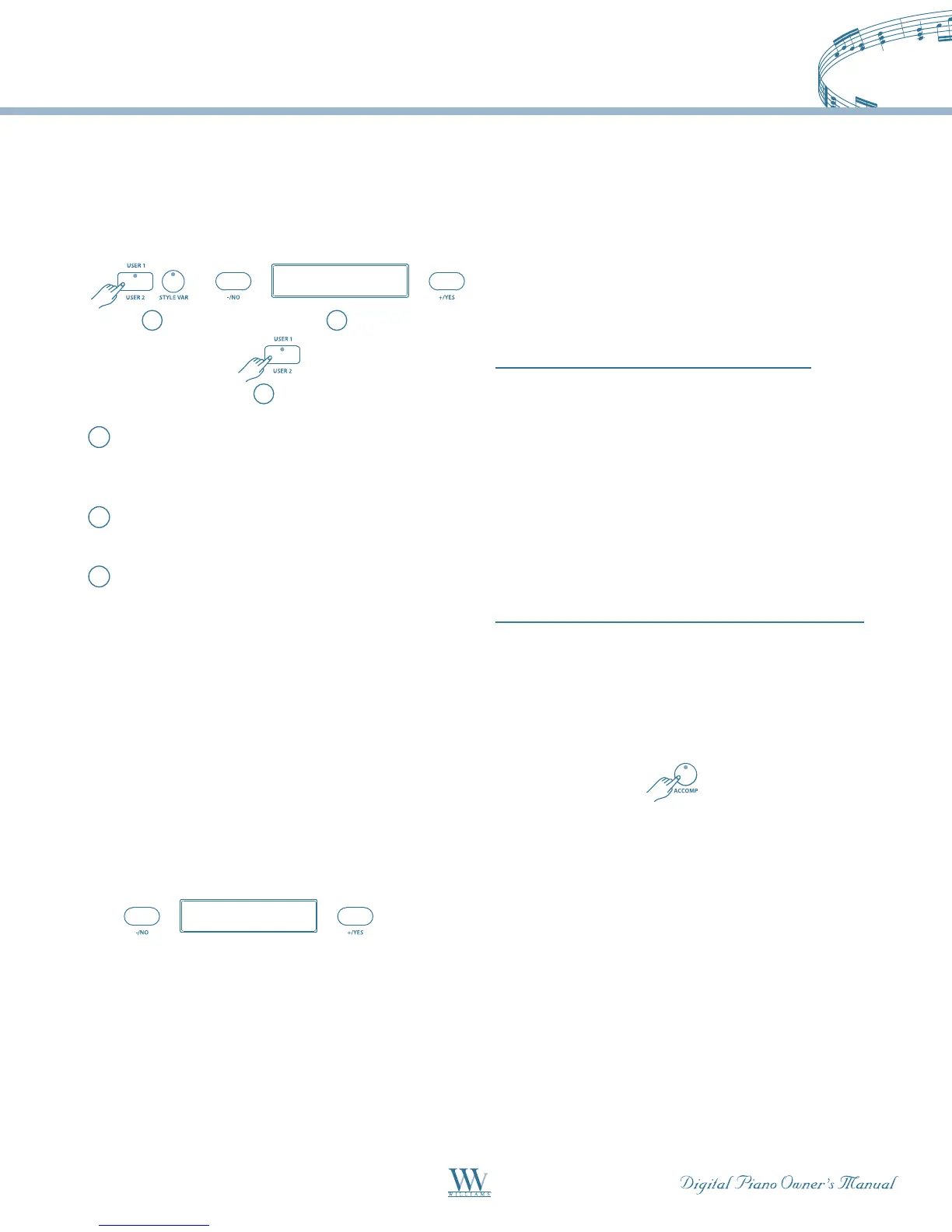
You can assign your 2 favorite styles to the style User
1/User 2 Quick Select button in the folowing manner:
1
2
ALL: Demo Song
A11: Demo Song
d-9: Samba Time
002: Bright Piano
018: Reed Organ
Layer Level 12
021: Slap Bass
Lower Level 14
004: BroadWay
023: Slow Swing
Tempo 120
Metronome 3/4
3
ALL: Demo Song
A11: Demo Song
d-9: Samba Time
002: Bright Piano
018: Reed Organ
Layer Level 12
021: Slap Bass
Lower Level 14
004: BroadWay
023: Slow Swing
Tempo 120
Metronome 3/4
1
Press and hold the style USER button (selects
USER1forbankA,orUSER2forbankB)until
its indicator flashes.
2
Select the desired style by using the
+/YES -/NO buttons.
3
Press the USER button again, the selected style
will be assigned to the USER button and available
for quick selection.
Note: The USER button will keep your new setting and
revert to the default setting when the power is turned
off. The default setting is: USER 1= 035: shuffle Blues,
USER2 = 046: Unplugged 1.
Selecting One Of The 100 Styles
1. If the Style button indicator is not already lit, press
the Style Quick Select button to engage the style
selection mode. The indicator will light up.
ALL: Demo Song
A11: Demo Song
d-9: Samba Time
002: Bright Piano
018: Reed Organ
Layer Level 12
021: Slap Bass
Lower Level 14
004: BroadWay
023: Slow Swing
2. Use the +/YES, -/NO buttons to select a style
number. The style name and its number will be
shown on the display.
AUTO ACCOMPANIMENT
In addition to the Drum part, the rhythm styles can
provide a fully orchestrated accompaniment with
bass and additional instruments, following the chords
played on the keyboard.
Auto-Accompaniment Split Point
For auto-accompaniment, the keyboard is divided
intotwosectionsatthe“AutoA.Split”point.The
keys to the left of this point are defined as the
accompaniment section of the keyboard. The default
keyforthispointisG1.Adifferentsplitpointforthe
auto-accompaniment can be assigned in the Setup
menu. Please see the Setup section of this manual for
more information.
Auto-Accompaniment Chord Fingering
PresstheACCOMPbuttonandtheindicatorwill
light. This piano has three auto accompaniment
fingering modes, Single Finger, Fingered and Piano
mode. The mode can be selected in the Setup menu.
The default accompaniment mode is Fingered.
Single Mode
Single mode makes it easy to produce four types
of orchestrated accompaniment chords using a
minimum number of fingers (one, two, or three
fingers at the most). In this mode, playing keys in the
accompaniment section of the keyboard can generate:
Major Chord – Press any key in the auto-
accompaniment section of the keyboard. The key you
press determines the root note of the major chord.
Minor Chord – Press the root key and any black key
to its left simultaneously.



 To Next Page