17
Seventh Chord – Press the root key and any white key
to its left simultaneously.
Minor-Seventh Chord – Press the root key and any
pair of black and white keys to its left simultaneously.
Fingered Mode
The fingered mode is ideal if you already know how
to play chords on the keyboard. It allows you to
play the chords in the auto-accompaniment section
of the keyboard to produce the selected auto-
accompanimentpattern.TheFingeringGuidetableat
the back of this manual lists all of the 31 recognizable
chords of this mode.
Note: If a chord played cannot be recognized, the
previous chord will keep playing.
Piano Mode
When the Piano Chord Fingering mode is engaged,
you may enter chords anywhere on the keyboard.
You are not limited to the auto-accompaniment
section. In this mode, there is no keyboard split point
function for chord recognition.
Using the Auto-Accompaniment
Each rhythm style includes 5 patterns: Introduction,
MainPattern,VariationPattern,Fill-inandEnding.
Variation
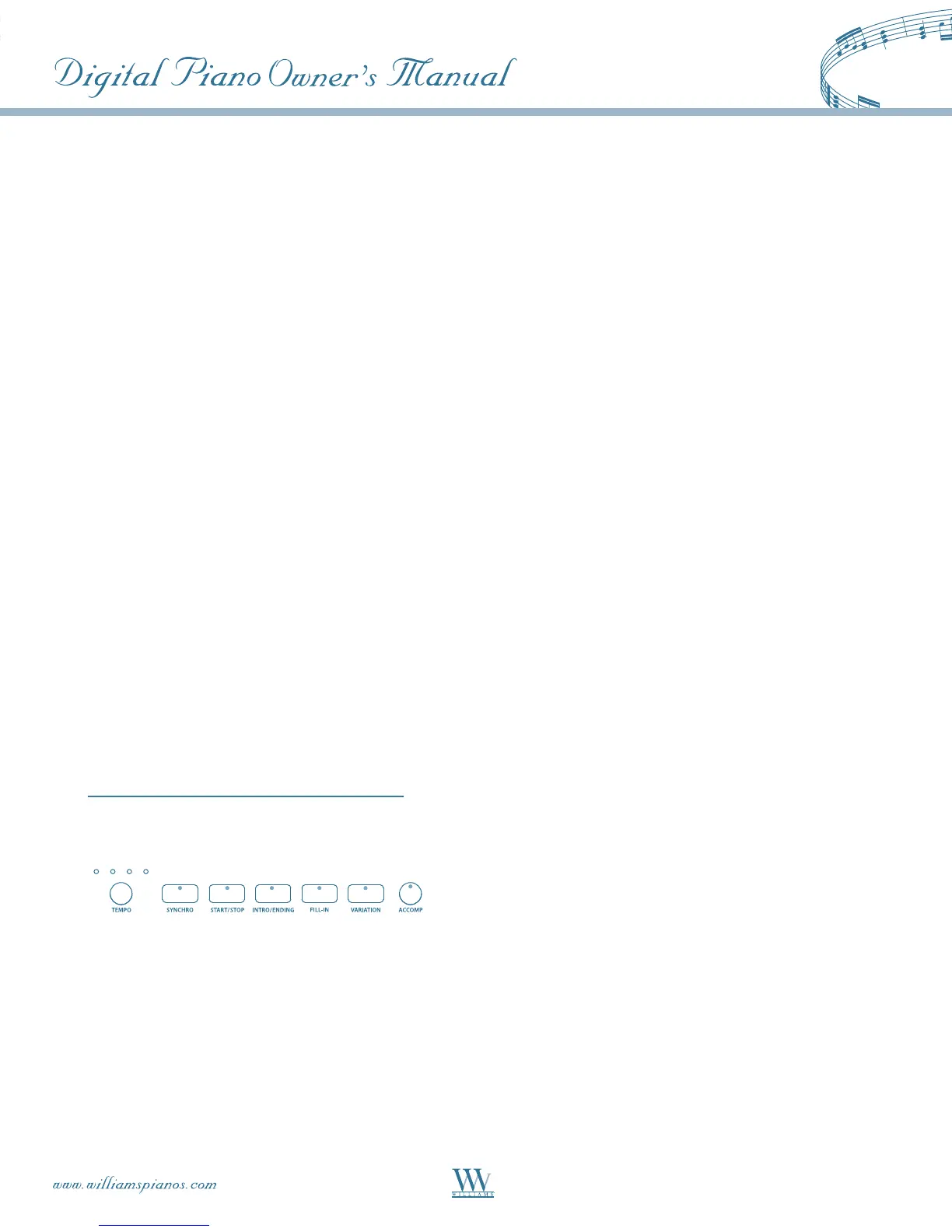
PresstheVARIATIONbuttontotogglebetweenthe
main and variation patterns. The indicator will light
upwhenVariationisselected.
There are several ways to start the rhythm style:
Straight Start – PressingtheSTART/STOPbutton
immediately starts the Drum part of the main or
variation pattern, depending on the status of the
VARIATIONbutton.Ifoneofthechordngering
modesisengagedwhiletheACCOMPindicatorlights
up, the additional parts of the auto acompaniment
will start as soon as a chord is recognized, according
to the selected chord fingering mode.
Note: Styles marked with a "
*
" in front of their names
have no drum part. Even if you press the START/STOP
button, they do not play any sound until a recognized
chord is pressed in the Auto Accompaniment zone of the
keyboard, depending on fingering mode selected.
Starting with An Introduction – Allofthe100styles
can be started with an introduction pattern. Pressing
theINTRO/ENDINGbuttonimmediatelystartsthe
Drum part of the introduction pattern, followed by
either the main or variation pattern (depending on the
statusoftheVARIATIONbutton).Ifoneofthechord
fingering modes is engaged, the additional parts of the
auto-accompaniment will start as soon as a chord is
recognized, according to the selected chord fingering
mode.
Synchronized Start – Synchronized Start mode
makes the auto accompaniment go to "standby." Press
theSYNCSTARTbutton,thebeatindicatordots
abovetheTEMPObuttonswillblinkatthecurrent
tempo, indicating that the synchronized start mode
is ready. You may add an introduction by pressing
theINTRO/ENDINGbuttonafterpressingthe
SYNCHSTARTbutton.Theautoaccompaniment
will start as soon as you play a recognized chord in
the auto accompaniment section of the keyboard.
If the auto accompaniment is disengaged, (the auto
accompaniment indicator is off ), then this feature
will not be available.
Fill -In
The fill feature will insert a short rhythmic pattern
of one to two measures in length, depending on the
rhythm style selected and the variation. Holding down
the FILL IN button will extend the fill indefinitely.
Note: The FILL-IN button can also be used in place of
the INTRO/ENDING button to start playing with a
fill-in pattern instead of the introduction.



 To Next Page