pg | 60
KOR Software
Data Menu
e Data menu is used to transfer les from the sonde or handheld and manage data les on a local computer.
e Transfer function will only work when connected to a sonde.
Transfer
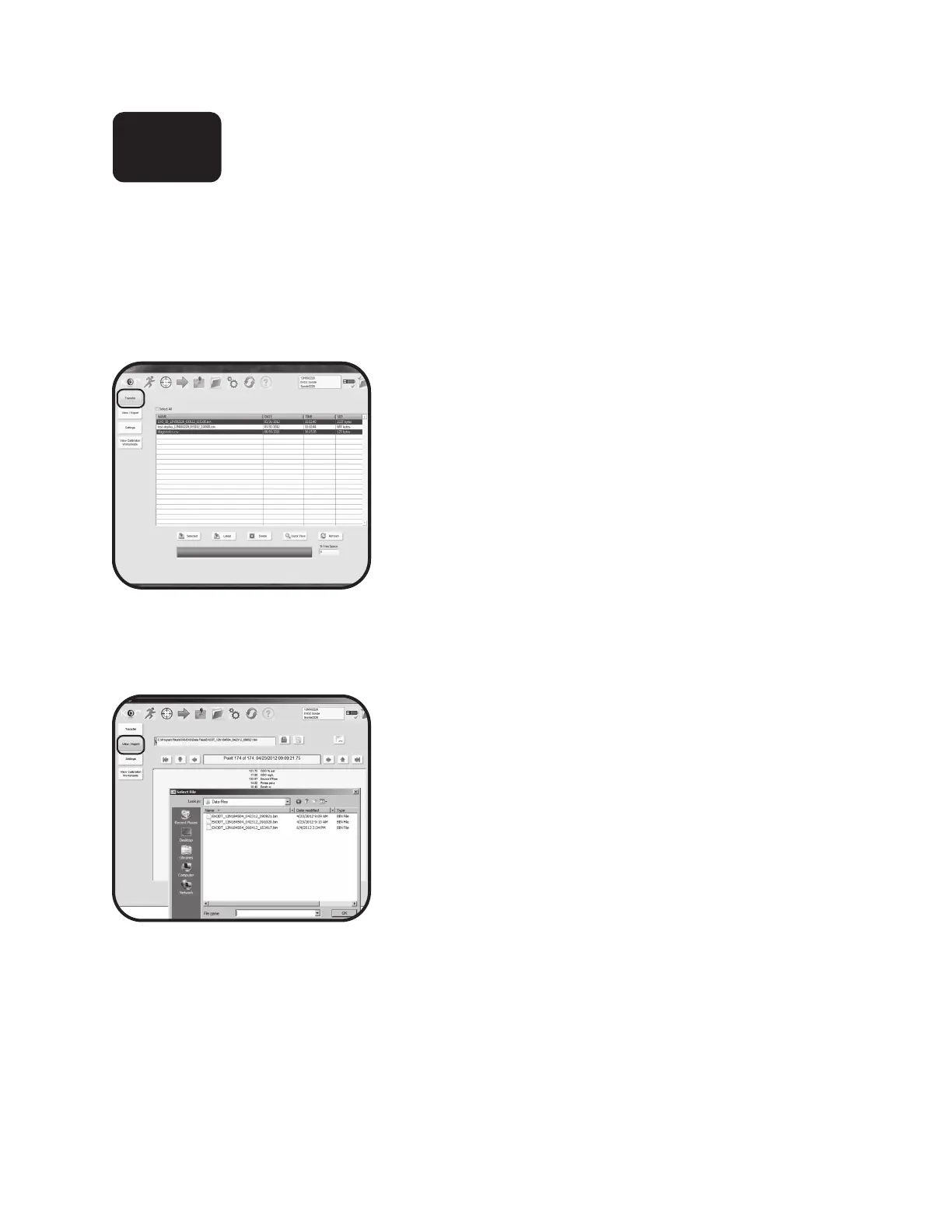
Clicking the Transfer submenu button initiates a scan of the
attached EXO and lists all les on the sonde.
Upload/copy les: Select les to upload by clicking a le name
in the list, clicking the Select All button, or clicking multiple les
by holding down the Control key. Selected les are highlighted in
blue. Aer les are selected, use the Selected button to copy the
le to the PC. Click the Latest button to copy the most recent le.
e uploaded le(s) are in binary format and are stored in the
Program Files\KOR-EXO\Data Files folder on the computer. See
Data Files & File Locations section 4.10 for more detail.
Delete les:
Aer les have been copied to the PC, users can delete
selected les. Select the les to be removed and use the Delete
Selected button to remove them permanently from the sonde.
Quick View: Click a le in the list, and then click the Quick View
button to view the last 50 data points of the le.
Storage space:
e progress bar on the bottom will indicate
memory usage on the sonde. We recommend users keep a back-up
copy of the binary les on the sonde, unless storage space is needed.
View/export
Use this submenu to review binary les transferred from the
sonde and export the binary data to dierent format.
View: Select and open a saved le from the Data Files pop-up
menu. Alternatively, click the Select File button to manually
open a le. When a le is loaded in KOR, you can view it one
point at a time using the arrow buttons or change to a graph
view using the Change View button.
Export: Click the Export Data button to export les to Excel
format or delimited text le. For Excel format, an Excel
spreadsheet automatically opens with the data. Save other
open les in Excel rst, or the export will not work.
Settings
is submenu allows the user to set the default le location,
export format, and data display formatting.
View calibration worksheets
is submenu allows the user to open and view saved Calibration
Worksheets from the Calibration Files folder on the computer.
4.6


 To Next Page
 Loading...