pg | 54
KOR Software
Calibrate Menu
is menu is the main interface for calibrating EXO sensors. Calibration and verication settings will vary
by sensor. A device must be connected to access the Calibrate menu.
For detailed calibration procedures for individual sensors, reference Section 5 Calibration.
Calibration menu overview
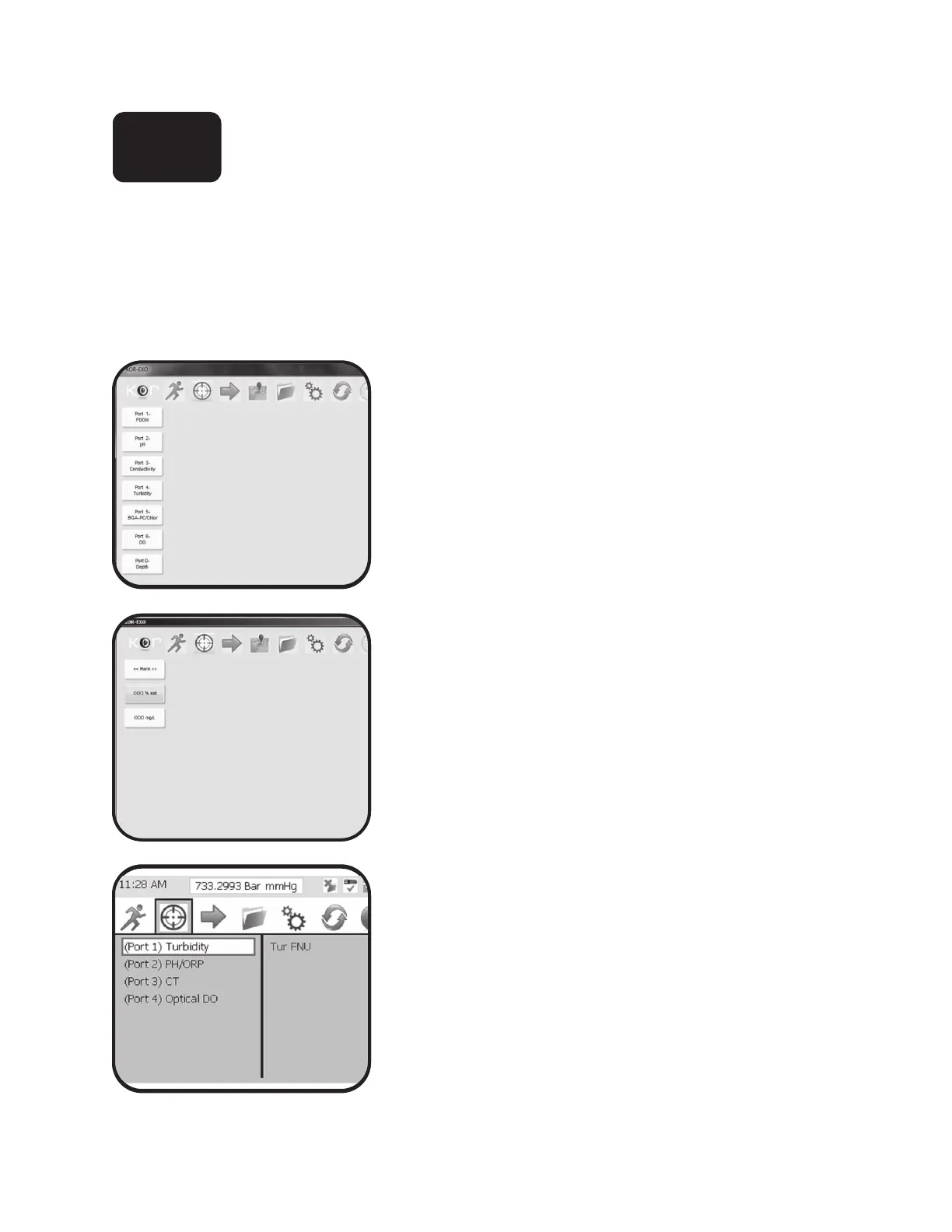
In the Calibrate menu, the list of installed sensors is shown
on the le side of the window. If your sonde is congured
with a depth sensor, Port D depth also appears in the list.
Sensor calibration menu
Select a sensor from the list to bring up a sensor-specic
menu of parameters. For example, selecting ODO (optical
dissolved oxygen) from the list, brings up a menu for
the enabled parameters ODO % sat and ODO mg/L. (To
change the enabled parameters, go to the Options | Units
menu.)
Click on a parameter to bring up the sensor-specic
calibration menu. e manufacturer recommended default
calibration parameters are in bold.
A typical calibration window shows 1, 2, or 3 calibration
points, depending on the sensor. If the sensor supports
only a single calibration point, then the other calibration
points are not active (grayed out).
Temperature: is eld displays current temperature, if a
conductivity/temperature sensor is installed. If no sensor is
installed, user can input data into this eld.
Barometer: Displays for DO calibrations only.
Standard Value: User-input eld for the calibration
setpoint based on the value of the standard being used.
4.3


 To Next Page
 Loading...