En 13
4
Press (Play).
The indicator appears on the information display and
playback starts.
• The disc slot indicator for the currently-playing or selected CD lights
up as follows:
• During data CD playback, the playback media indicator corresponding
to the file format lights up.
CAUTION
• Do not insert your hand or finger into the disc tray slots. Doing so might
cause injury.
• After you place a CD on the disc tray, press (Play) to retract the disc
tray and start playback.
• You can configure this product so that playback automatically starts when
power to the unit is turned on or when you switch to Disc or USB mode
(page 22).
(Default: Automatic Playback On)
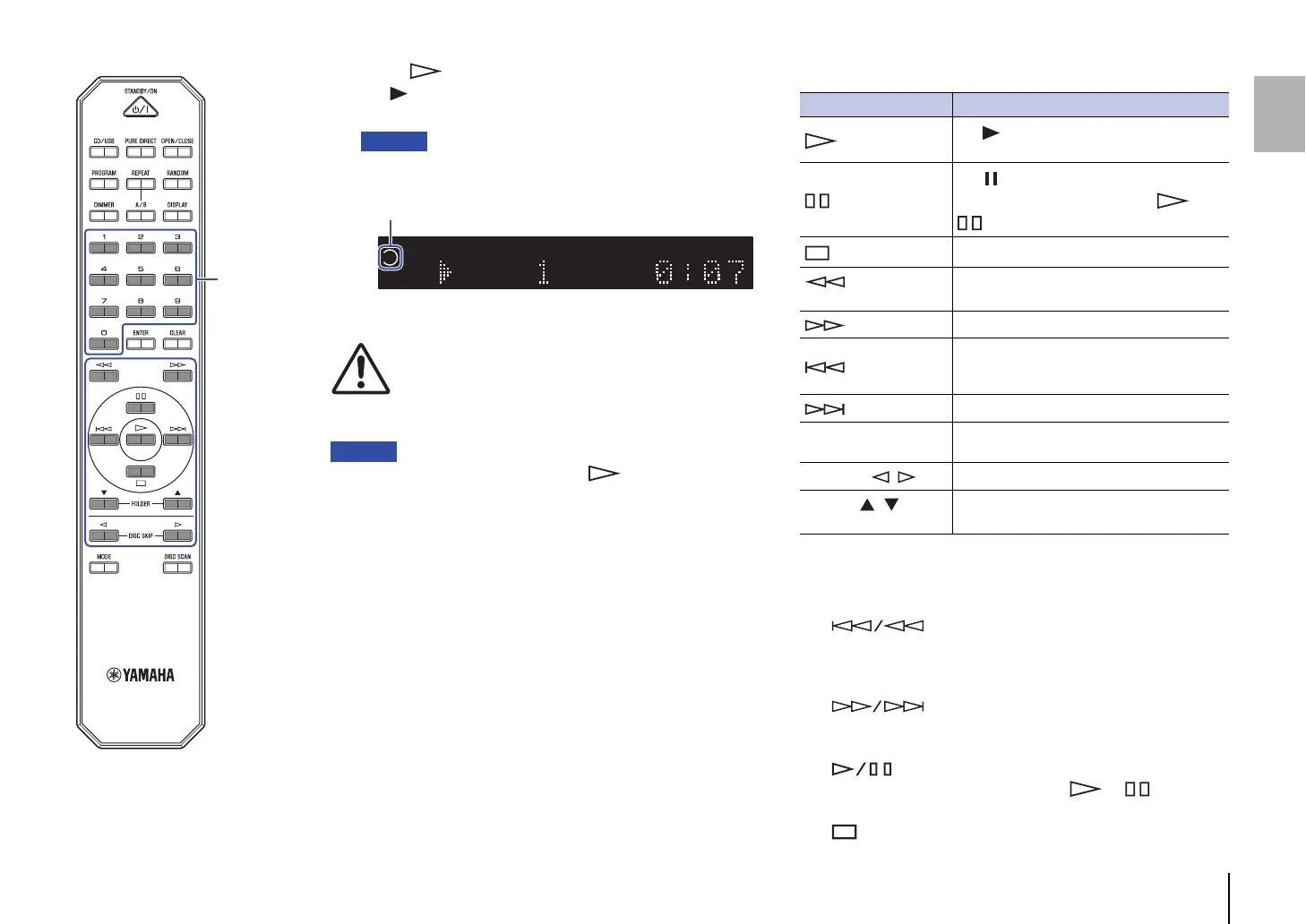
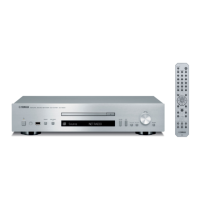
Use the following remote control keys to navigate the operation.
The control buttons on the front panel function as follows:
DISC 1-5:
Selects and plays the CD in disc slots 1-5.
(Skip backward/Search backward):
Skips back to the previous track. Skips back to the top of the
current track if pressed during playback. It also searches
tracks backward if you press and hold the button.
(Skip forward/Search forward):
Skips to the next track. It also searches tracks forward if you
press and hold the button.
(Play/Pause):
Resumes or pauses playback. Press or to resume
playback.
(Stop):
Stops playback.
TRACK
2
1
3
45
Lit
(For example, the CD in disc slot 1 is playing)
Available keys Function
(Play)
The indicator appears on the information
display and playback starts.
(Pause)
The indicator appears on the information
display and playback pauses. Press or
to resume playback.
(Stop)
Stops playback.
(Search backward)
Searches tracks backward.
(Search forward)
Searches tracks forward.
(Skip backward)
Skips back to the previous track. Skips back to
the top of the current track if pressed during
playback.
(Skip forward)
Skips to the next track.
Numeric keys
Enter a track number to directly select the
corresponding track.
DISC SKIP ,
Selects the next or previous CD.
FOLDER ,
(Data CD only)
Selects the next or previous folder.
Numeric keys


 To Next Page