En 67
Connecting the unit to a wireless network
There are several methods to connect the unit to a wireless network.
Select a connection method according to your environment.
• Using MusicCast CONTROLLER (p.72)
• Sharing the iOS device setting (p.67)
• Using the WPS push button configuration (p.68)
• Using other connection methods (p.69)
■ Sharing the iOS device setting
You can easily set up a wireless connection by applying the connection
settings on iOS devices (iPhone/iPad/iPod touch).
Before proceeding, confirm that your iOS device is connected to a
wireless router.
Y
If you set up a wireless connection with this method, the following settings will be
initialized.
– Network settings
– Bluetooth settings
– USB and network items registered as shortcuts
– Internet radio stations register to “Favorites”
– Account information for the network services
X
• You need iOS device with iOS 7 or later. (The following procedure is a setup example
for iOS 8.)
• This configuration does not work if the security method of your wireless router
(access point) is WEP. In this case, use other connection method.
1
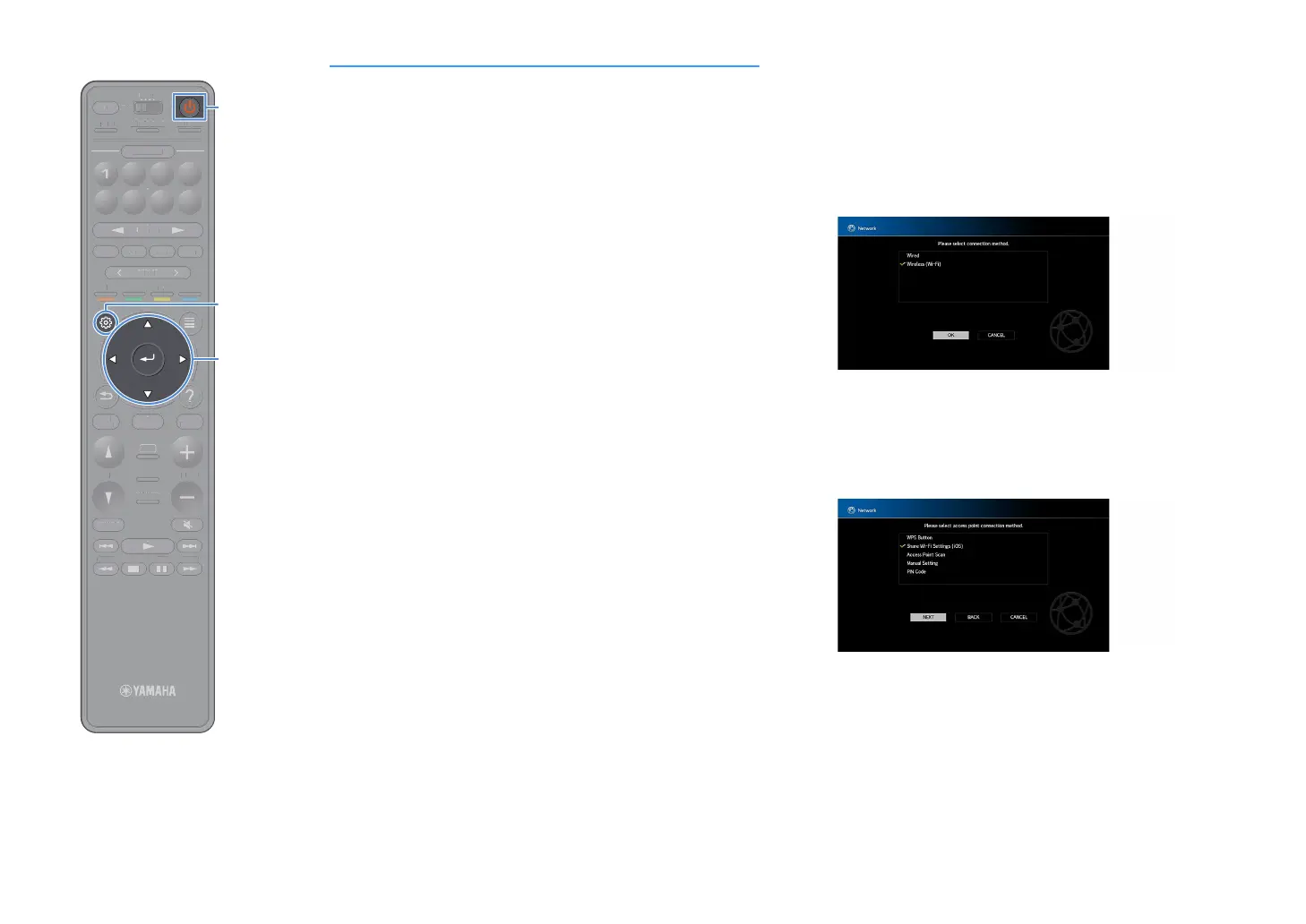
Press z (receiver power) to turn on the unit.
2
Turn on the TV and switch the TV input to display video
from the unit (HDMI OUT jack).
Y
Operations with TV screen are available only when your TV is connected to the
unit via HDMI.
3
Press SETUP.
4
Use the cursor keys to select “Network”.
5
Use the cursor keys to select “Network Connection” and
press ENTER.
6
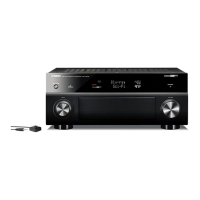
Use the cursor keys and ENTER to check “Wireless (Wi-Fi)”
and select “OK”.
X
The checkmark indicates the current setting.
7
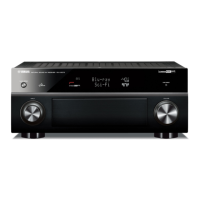
Use the cursor keys and ENTER to check “Share Wi-Fi
Settings (iOS)” and select “NEXT”.
TUNINGBANDTUNING
MEMORY
STRAIGHT
VOLUME
ENHANCER
SUR. DECODE
AI
PROGRAM
POP-UP
/MENU
HOME
TOP
MENU
BLUE
YELLOW
GREENRED
PRESET
BLUETOOTH
NET USBTUNER
INPUT
8765
4321
SCENE
HDMI OUTPURE DIRECT
PARTY
MAIN 2 3 4
ZONE
SLEEP
TUNIN
AN
TUNIN
EM
RY
TRAI
HT
L
ME
NHAN
E
UR. DE
D
RA
P
P-
P
HOM
T
P
LUET
T
PUT
ENE
E
NE
L
EP


 To Next Page