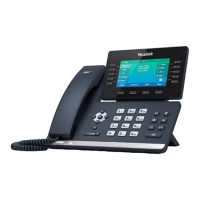
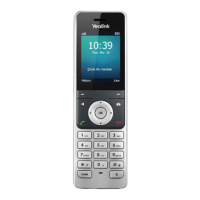
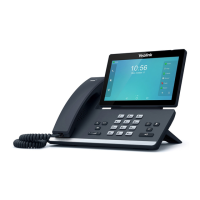
Smart Media Phone – SIP-T56A
VOICE MESSAGE
Message waiting indicator on the idle screen indicates that one or more voicemail messages are waiting at
the message center. The power indicator LED slowly flashes red.
To listen to voice messages:
1. Do one of the following:
• Press .
• Swipe down from the top of the screen to enter the notification center, tap Voice Mail and then select the
desired item.
2. Follow the voice prompts to listen to your voicemail messages.
CUSTOMIZING YOUR PHONE
CALL HISTORY
1. Tap , and then select the desired call list on the left.
2. Drag up and down to scroll.
3. Tap after the desired entry, and then you can do the following:
• Tap Send to place a call.
• Tap Add to add the entry to the local directory.
• Tap Edit to edit the phone number of the entry before placing a call.
• Tap Blacklist to add the entry to the blacklist.
• Tap Delete to delete the entry from the list.
CONTACT DIRECTORY
To add a contact:
1. Tap , and then select the desired group on the left.
2. Tap to add a contact.
3. Enter a unique contact name in the Name field and contact numbers in the corresponding fields.
4. Tap to accept the change.
To edit a contact:
1. Tap , and then select the desired group on the left.
2. Tap after the desired contact.
3. Edit the contact information.
4. Tap to accept the change.
To delete a contact:
1. Tap , and then select the desired group on the left.
2. Tap after the desired contact and then tap Delete.
3. Press OK when the LCD screen prompts “Delete selected item?”.
VOLUME ADJUSTMENT
• Press during a call to adjust the receiver volume of the handset/speakerphone/headset.
• Press when the phone is idle or ringing to adjust the ringer volume.
• Press to adjust the media volume on the corresponding screen.
Note:
• You can add contacts from call history easily. For more information, refer to
above.


 To Next Page
 Loading...