Welcome back object: enables or disables the “Welcome back” tab in the
tree on the left. See section 2.1.6.2 for details.
2.1.6.1 TOUCH LOCKING
The touch panel of Flat / Flat 55 can be optionally locked and unlocked anytime by
writing a configurable one-bit value to a specific object provided for this purpose. It can
also be done through scene values.
While locked, pressing on the buttons will be ignored: no actions will be performed (and
no LEDs will change their states) when the user touches on any of the controls.
ETS PARAMETERISATION
After enabling Touch Locking in “ADVANCED” tab, a new tab will be incorporated into
the tree on the left.
Figure 7. Touch Locking.
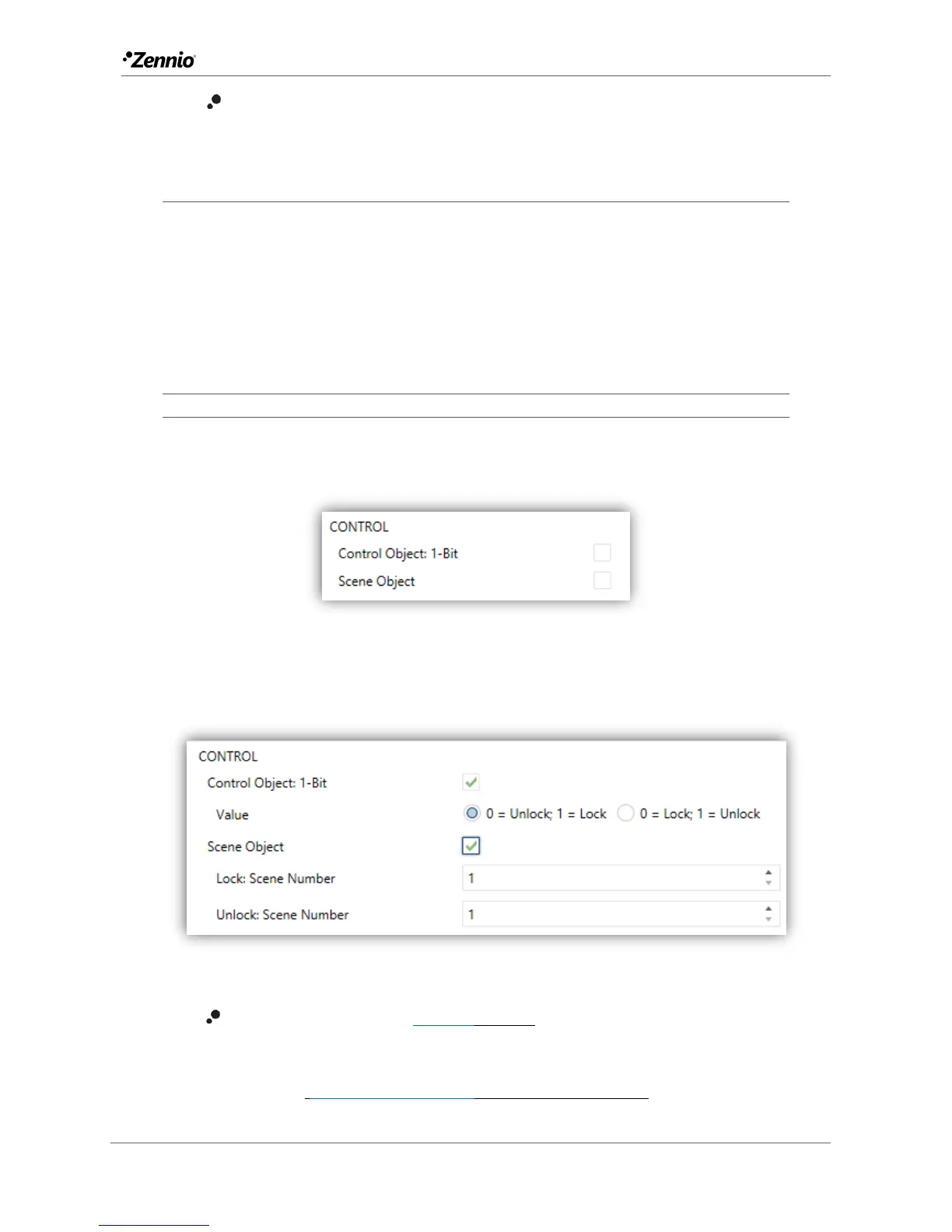
Control of this function comprises two non-exclusive checkboxes to select how the
touch panel lock/unlock should be performed:
Figure 8. Touch Locking: Control.
Control Object: 1-Bit [disabled/enabled]: when marked, a specific drop-
down list will show up to select which value should trigger which action.
Value [0 = Unlock; 1 = Lock/0 = Lock; 1 = Unlock]: these values are
received through the object “[General] Touch Locking”.


 To Next Page