Note: this parameter does not depend on the option selected for LED
Illumination Control (All Buttons) (see section 2.2.1).
After assigning this function to the button, object “[Btn] [In] LED On/Off” is included in
the project topology, so that the values that determine the state of the LED at a given
time can be received from the bus.
Room State
When this function is assigned to the button, the object for the control ““[Btn][In] Room
State” is enabled. This object will also be a status indicator.
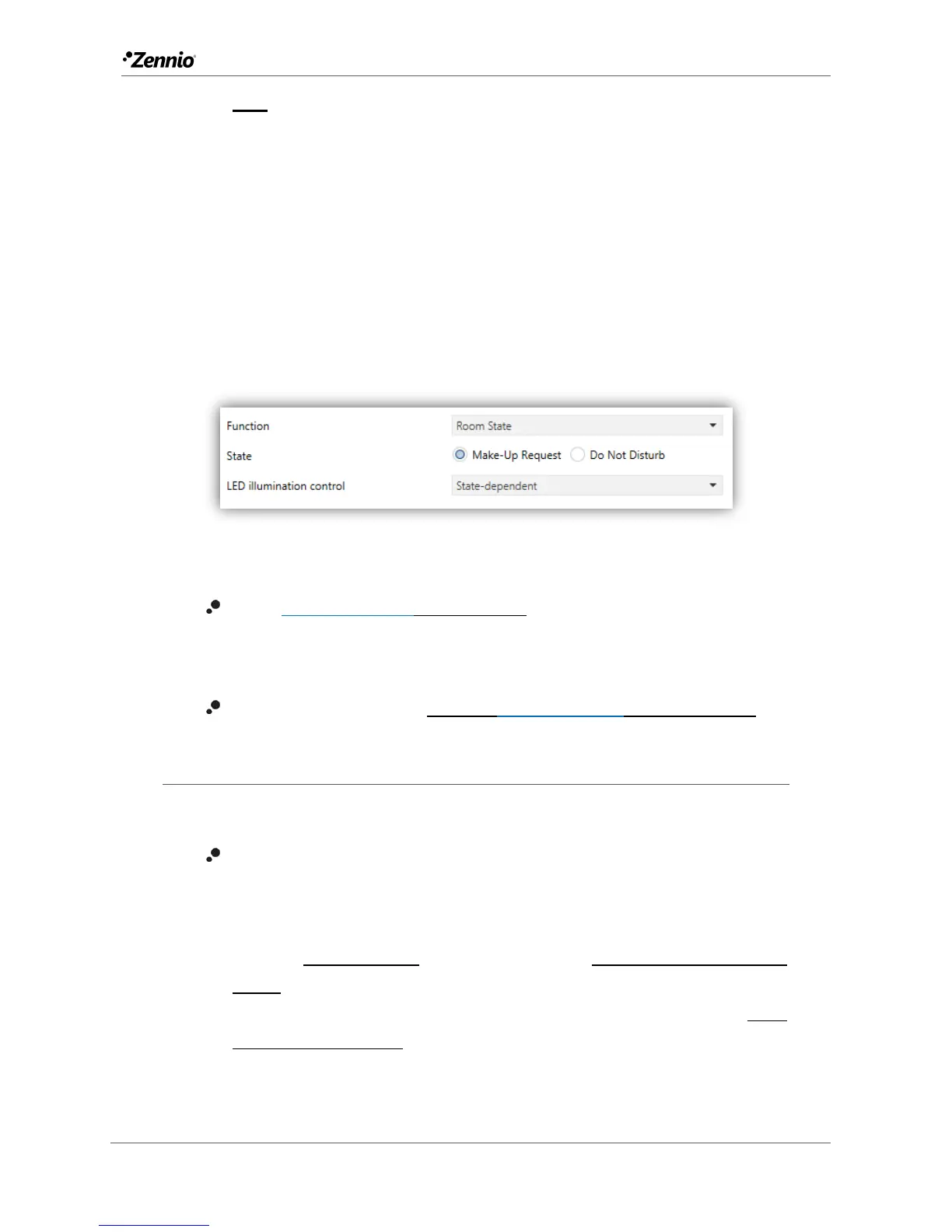
Figure 26 Individual Button – Room state.
State [Make-up Request / Do not Disturb]: sets the state that is activated with
this button. Commutes between Normal (“0”) and the selected state: Make-up
room (“1”) and Do not disturb (“2”).
LED illumination control [Regular / State-Dependant / Dedicated Object].
2.2.4 PAIR
Buttons configured to work as a joint control can be assigned the following functions:
Switch: pressing one of the two buttons will make Flat / Flat 55 send a binary
value to the bus, while pressing on the other will make it send the inverse
binary value. It is possible to configure which one does what.
Under a “state-dependent” LED illumination (see ANNEX I. LED Illumination
Modes), the LED of the corresponding button will remain on/off according to
the current state (on/off) of the switch. On the other hand, under a “state-
dependent (both LEDs)” LED illumination, both of them will remain on while
the switch is in the “on” state, and off while in the “off” state.


 To Next Page