Configuring Your Computer
6212-A2-ZB83-20 6212-I3 4-Port Router User’s Guide
19
If the LEDs are illuminated as expected, the router is working properly.
Configuring Your Computer
Before you can access the router over the LAN you have to configure your
PC's TCP/IP address to be 192.168.1.x (where x is any number between 3 and
254), with a subnet mask of 255.255.255.0. Your router's default IP address is
192.168.1.1.
If you know the version of Windows that you use, go to the appropriate
section below to learn how to set the IP address of your PC. To determine the
version of Windows running on your PC, click on the Windows Start button,
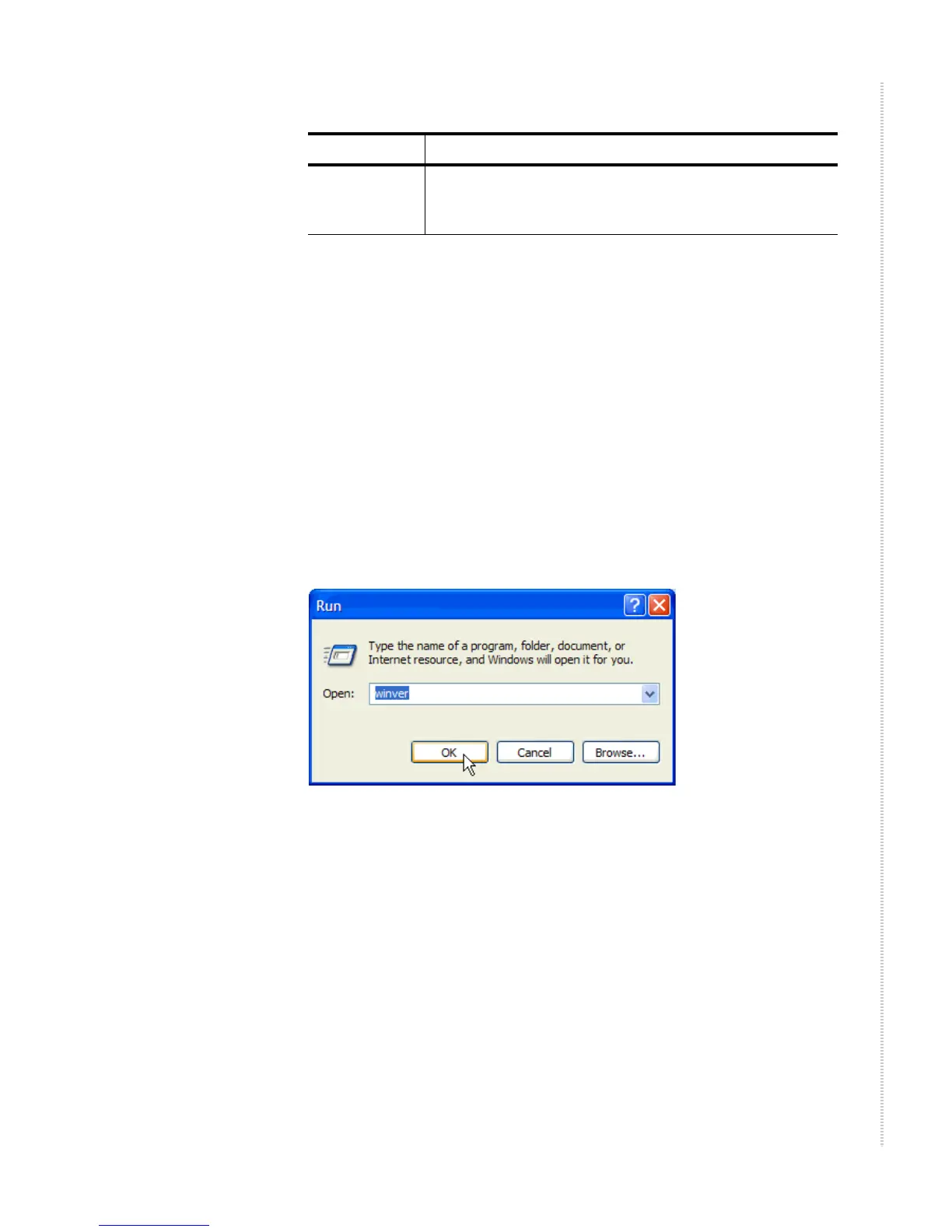
then click on Run... in the Start menu. Type winver in the Open selection box
and click on OK.
Figure 4: Windows Run Dialog
The Windows version is displayed.
LAN 1–4 Solid green to indicate that the device can communicate
with your PC via Ethernet, or flashing when the router is
sending or receiving data over Ethernet.
Table 3: LED Indicators (Sheet 2 of 2)
This LED . . . Should be:


 To Next Page