EasyManua.ls Logo

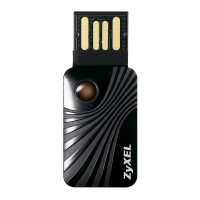
ZyXEL Communications AG-225H - User Manual

ZyXEL Communications AG-225H
102 pages
Print Icon
To Next Page IconTo Next Page
Loading...
ZyXEL AG-225H v2
802.11a/g Wi-Fi Finder & Wireless USB Adapter
Users Guide
Version 1.00
Edition 1
6/2006

Table of Contents

Other manuals for ZyXEL Communications AG-225H

Questions and Answers

  • M
    Michele RiveraAug 12, 2025
    Why is the link quality of my ZyXEL Communications Adapter poor?
    • J
      Jonathan FloresAug 12, 2025
      If the link quality or signal strength of your ZyXEL Communications Adapter is consistently poor, it could be due to radio interference from devices like microwaves or other access points using the same channel. To improve this, try the following: * Use the Site Survey screen to find and connect to an access point with better link quality. * Move your computer closer to the access point or other computers within the network. * Lower the output power of each access point. * Ensure that not too many wireless stations are connected to the network.
  • P
    Philip RuizAug 16, 2025
    What to do if ZyXEL Communications AG-225H cannot communicate with other computers in wireless station mode?
    • M
      Makayla WilliamsAug 16, 2025
      If your computer with the ZyXEL Communications Adapter cannot communicate with other computers in wireless station mode, here are a few things to check: * **In Infrastructure Mode:** Ensure the access point and associated computers are on and working; verify that the adapter and access point use the same SSID; change the radio channel if there's interference; confirm that the computer and access point share the same security options and key. If using WPA(2) or WPA(2)-PSK, try switching the encryption type between TKIP and AES. * **In Ad-Hoc (IBSS) Mode:** Verify that the other computers are on; ensure the adapter and other computers use the same SSID and channel; confirm that all computers share the same security settings; change the radio channel if interference is high.
  • M
    mendeznicoleAug 19, 2025
    Why wireless station cannot associate to the ZyXEL Communications AG-225H Adapter?
    • R
      Rebecca CarterAug 19, 2025
      If wireless stations can't connect to the ZyXEL Communications Adapter in access point mode, make sure the computer with the adapter is turned on. Also, verify that the wireless stations are using the same SSID and security settings as the adapter. Finally, check the MAC Filter screen to ensure the wireless stations aren't blocked.
  • P
    Patricia ConwayAug 23, 2025
    What to do if ZyXEL Communications AG-225H cannot scan for access points?
    • M
      michelle48Aug 25, 2025
      If the ZyXEL Communications Adapter cannot scan or connect to any access points when using the Windows XP configuration tool, it might be operating in access point mode. To resolve this, ensure you set the adapter to station mode before closing the ZyXEL utility.
  • E
    Erica SteeleAug 27, 2025
    How to fix ZyXEL Communications AG-225H if it cannot start?
    • A
      Ashley BowmanAug 27, 2025
      If you cannot start the ZyXEL Communications Wireless LAN utility, ensure the adapter is properly inserted and the LED is on. Check the Device Manager for hardware conflicts (Start > Settings > Control Panel > System > Hardware > Device Manager) and verify the adapter's status under Network Adapters. If the error continues on another computer, it may be a hardware problem, and you should contact your local vendor.
  • T
    teresa53Aug 30, 2025
    What to do if ZyXEL Communications AG-225H Adapter utility icon does not display?
    • T
      Tricia FernandezAug 31, 2025
      If the ZyXEL Communications utility icon does not display, and you have Funk Odyssey Client software installed, uninstall both the Funk Odyssey Client software and the ZyXEL utility. After restarting your computer, reinstall the ZyXEL utility.
  • C
    Colleen GlassSep 3, 2025
    What to do if Windows does not auto-detect the ZyXEL Communications Adapter AG-225H?
    • A
      Ashley CarterSep 3, 2025
      First, ensure the ZyXEL AG-225H is correctly connected to the USB port, and then restart your computer. After the restart, check the LEDs on the AG-225H. If the issue continues, perform a hardware scan by going to Start, Settings, Control Panel, and then double-clicking Add/Remove Hardware. Follow the instructions on your screen to find the AG-225H and install the driver. As a final step, try installing the ZyXEL AG-225H on an alternate computer to check for hardware issues.
  • C
    Colleen MatthewsSep 7, 2025
    What to do if Windows does not auto-detect the ZyXEL Communications AG-225H Adapter?
    • M
      mathisamySep 7, 2025
      If Windows doesn't automatically detect your ZyXEL Communications AG-225H Adapter, first ensure it's properly connected to the USB port and restart your computer, then check the adapter's LEDs. If that doesn't work, try a hardware scan via the Control Panel (steps may vary based on your Windows version). Check for hardware conflicts in the Device Manager. If problems persist, test the ZyXEL AG-225H on another computer to rule out a hardware issue; if the error continues, contact your vendor.

Summary

ZyXEL Product Warranty and Support

Preface and Getting Started

Hardware and Utility Installation

Step-by-step instructions for installing the wireless adapter and its associated software.

Core Operations: Tutorials and Configuration

Connecting to Wireless Networks

Guide to manually connecting to available wireless networks using the utility.

Profile Management for Network Connections

Explains how to create, save, and activate network profiles for automatic connections.

Configuring Station Mode

Details on setting up the device to function as a wireless client.

Configuring Access Point Mode

Instructions for setting up the device to function as a wireless access point.

Wireless Networking Fundamentals and Security

Maintenance and Troubleshooting

ZyXEL Communications AG-225H Specifications

Frequency and Data Rate IconFrequency and Data Rate
frequency range (802.11a)5.15 ~ 5.25GHz
frequency range (5.25 ~ 5.35GHz)5.25 ~ 5.35GHz
frequency range (5.470 ~ 5.725GHz)5.470 ~ 5.725GHz (CE only)
frequency range (5.725 ~ 5.825GHz)5.725 ~ 5.825GHz (FCC only)
data rate (802.11b)11M/5.5M/2M/1Mbps
data rate (802.11g)54M/48M/36M/24M/18M/12M/9M/6M
data rate (802.11a)54M/48M/36M/24M/18M/12M/9M/6M
RF Output Power IconRF Output Power
RF output power (802.11b)18dBm @11Mbps
RF output power (802.11g)15dBm @54Mbps
RF output power (802.11a)14dBm @54Mbps
Physical Specifications IconPhysical Specifications
dimensions247(W) x 61(D) x 155(H) mm
weight35g
temperature range0ºC ~ 40ºC
humidity range10% ~ 70%

Related product manuals