B-4 APPENDIX B: CONFIGURING SOFTWARE SETTINGS
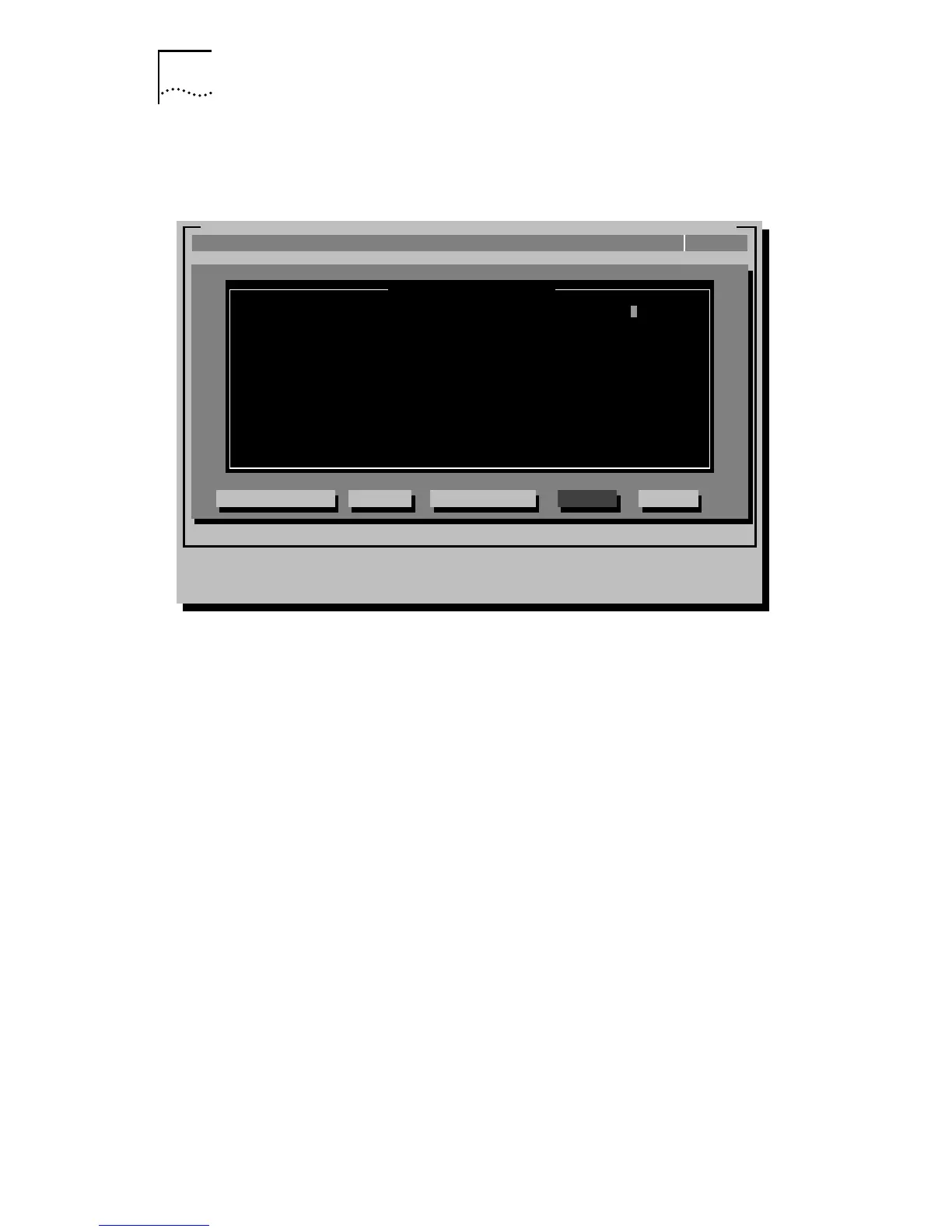
In both cases, a screen similar to the one shown in Figure B-2
appears, showing the parameters for the selected adapter.
Figure B-2 Changing Adapter Options
9 Press [Tab] to highlight the main dialog box, and use the
arrow keys to highlight one of the parameter options.
Press [Enter].
A second dialog box appears.
10 Use the arrow keys to scroll through the list of settings for
that option. Select a setting and press [Enter].
11 Continue this procedure with any of the other options.
Refer to the on-line help (using [F1] when the option is
highlighted) for more information about each of the settings.
12 Press [Tab] to highlight <OK>. Press [Enter].
[ENTER]=<Auto Configure> Automatically Configures the Adapter
[Alt]+<Highlighted Key>=Execute Function
[TAB]=Next Field [SHIFT+TAB]=Previous Field [F1]=Help [ESC]=Cancel
EtherDisk-3C59X Fast EtherLink/EtherLink III Bus Master Adapter Family v.X.X
InstallQuit View Select F1=HelpTest
CancelOKAuto Configure Modify File Options
Adapter Configuration
Adapter Configuration
Boot PROM
Media Type
Network Driver Optimization
Full Duplex
I/O Port Address
Interrupt Request Level
Disabled
Auto Select
Normal
Disabled
(PCI EFE0h)
(PCI 15)
(C) Copyright 1995, 3Com Corporation. All Rights Reserved


 To Next Page