Pannoramic DESK 1.18.1 User’s Guide 4 Software Description
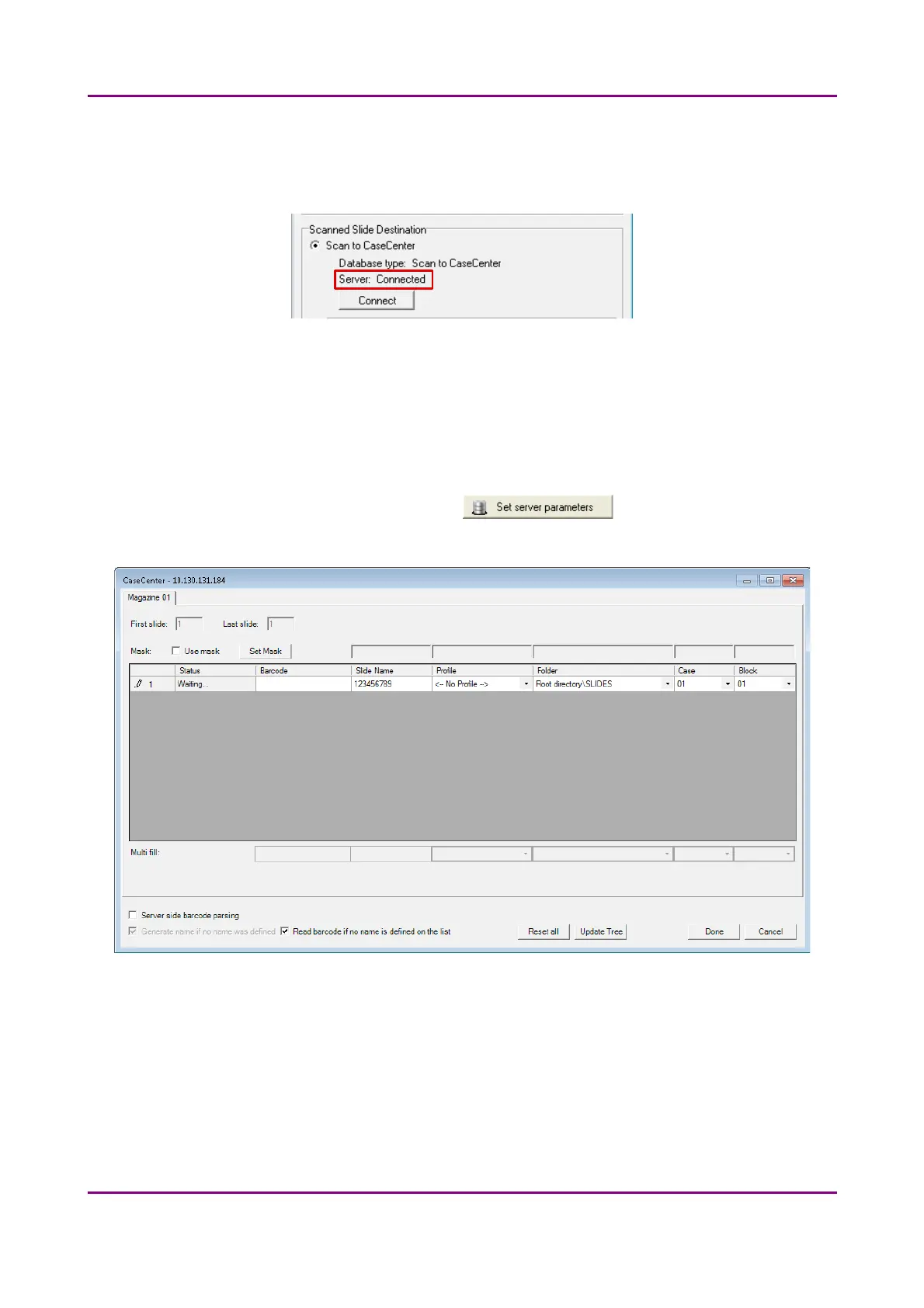
4. Click the Connect button in the Scan Options window to connect to the server. If the
connection is established the server status will be modified from Not connected to
Connected.
Figure 41 – Server connection established
5. Click OK to close the Scan Options window.
Slide settings in the Scan To Server window
1. In the Routine work tab panel, click the button.
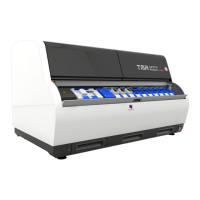
2. The Scan To Server window opens.
Figure 42 – Scan To Server window
• Slide data is displayed in a form.
• Upon activating the Read barcode if no name is defined on the list option, the slide
barcode will be read and set in the Barcode field. If you do not want to use this
option, you can type a character string in the Barcode or the Slide Name field.
May 29, 2014 - Rev. 1 3DHISTECH Ltd.
59(77)



 To Next Page