User’s Manual
WHG Controller / HSG Gateway ENGLISH
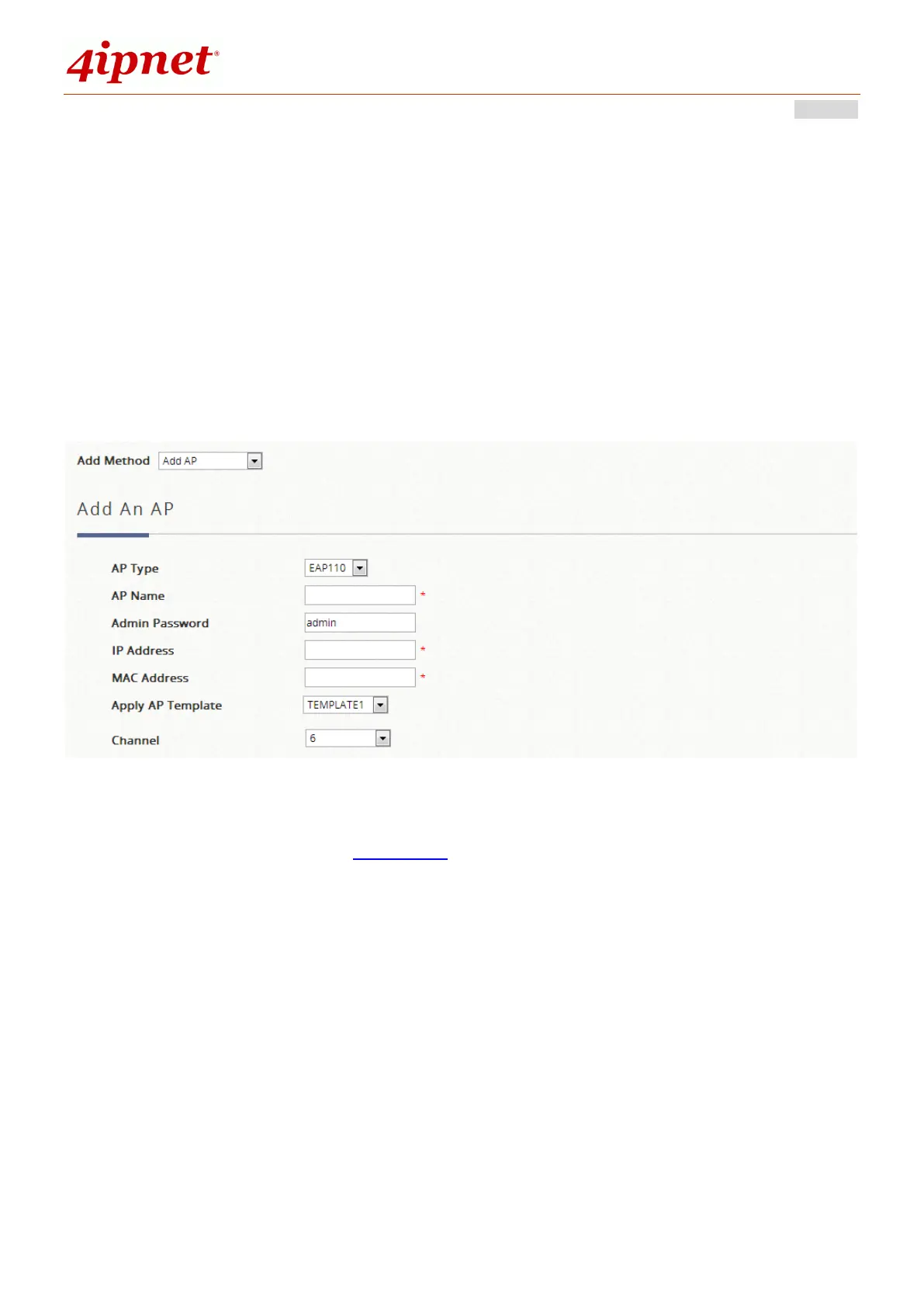
can be added individually or in batches. This is determined by the “Add Method”;
Select “Add AP” from the drop-down list to add APs individually, or select “Find
Multiple APs” to add in batches.
To add an AP, specify an AP Name and enter its IP and MAC address. These rows
with red asterisks are mandatory information that needs to be provided. After filling
in all the fields, click Apply at the bottom of the page to add the AP (to add an AP,
it doesn’t necessarily have to be online). Check the AP List to confirm the adding.
Subsequent modifications to AP configurations are possible via the hyperlink under
the AP Name. Click one of the AP Names to access its settings page, including
General Settings, LAN Interface Settings and Wireless Interface Settings.
There is also a row of buttons indicating Reboot, Enable, Disable, Delete, and
Apply template, which are quite intuitive in terms of the names for changing the
content of the AP list. Choose one or more AP’s in advance and perform one of the
functions.


 To Next Page