US | 17
Conguration
General settings
Touch
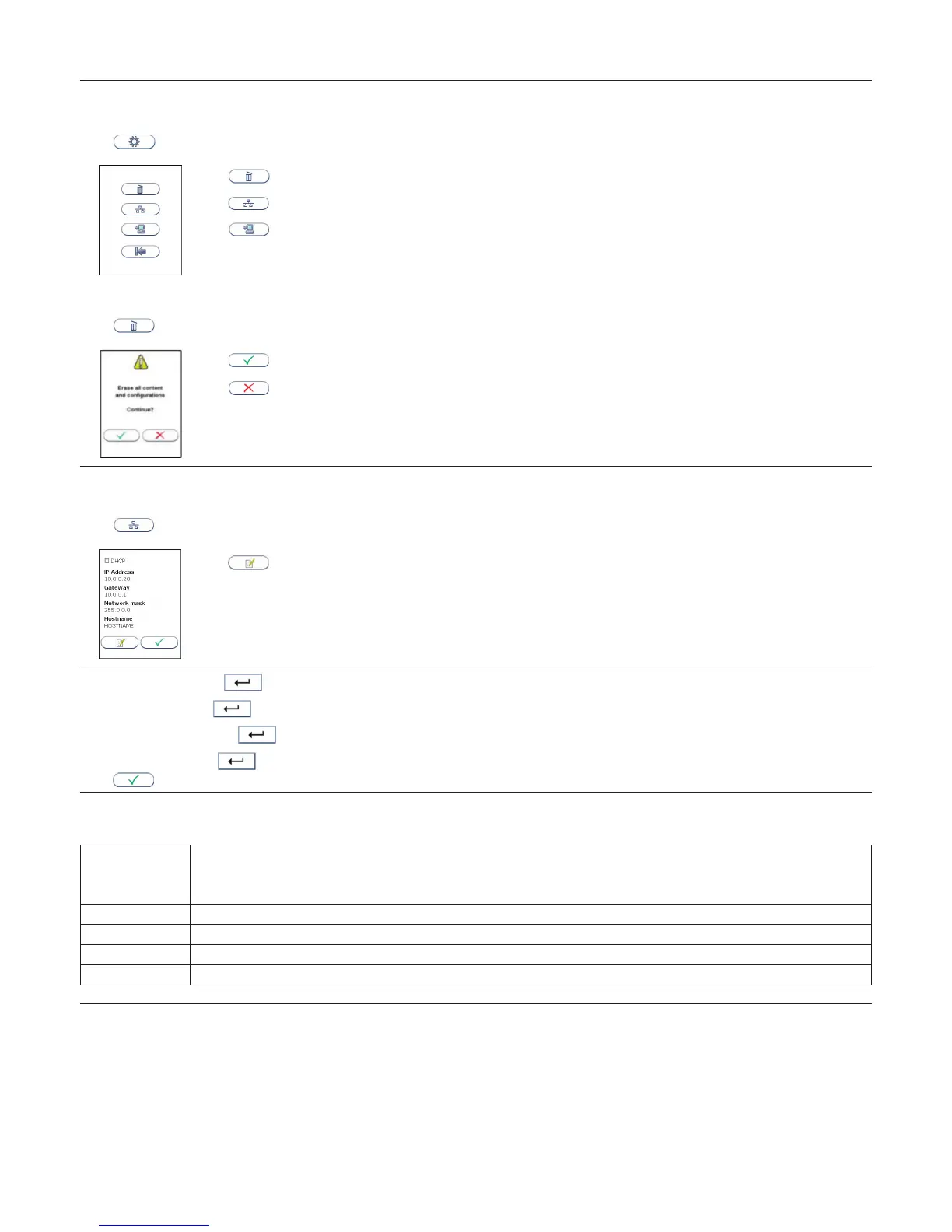
in the Conguration menu to enter the General settings menu.
Touch
to erase all content and congurations.
Touch
to enter Instrument network settings.
Touch
to enter Connectivity settings.
Erase all contents and congurations
Touch
in General settings menu to erase all contents and congurations.
Touch
to erase all content and congurations.
Touch
to cancel and return to General settings menu.
Analyzer network settings
See Table 1 for description of the available analyzer network settings.
Touch
to enter Instrument network settings view.
Touch
to congure the network.
Enter the IP Address. Touch
to conrm and continue to Gateway.
Enter the Gateway. Touch
to conrm and continue to Network mask.
Enter the Network mask. Touch
to conrm and return to Hostname.
Enter the Hostname. Touch to conrm and return to Instrument network settings view.
Touch
to accept and return to the General settings menu.
Table 1 Description of the available analyzer network settings
Consult your network administrator and LIS/HIS/EMR administrator for required network settings.
DHCP DHCP is turned on/off by selecting “DHCP”.
When using DHCP the instrument’s IP address will be assigned by the DHCP Server.
No other network settings are necessary.
NB! If DHCP is activated, only the hostname setting can be edited.
IP address Insert xed IP address [0-255/0-255/0-255/1-254]
Gateway Insert Gateway [0-255/0-255/0-255/1-254]
Network Mask Insert Network mask [0-255/0-255/0-255/0-255]
Host name Insert Host name. Valid characters are [A-Z], [0-9], [-]. The length can be from 1-16 characters


 To Next Page