3: Management & Configuration
3 Management &
Configuration
C
About the management web interface
The web-based management web interface provides secure access, via an SSL client, to all EtherNID control,
management, and monitoring functions.
The management station is the computer that you use to connect to the management web interface. To act as a
management station, a computer must:
• have a JavaScript-enabled Web browser installed (Firefox 1.0 or higher, or Internet Explorer 6.0 or higher).
• be able to establish an IP connection with the EtherNID
Starting the management web interface
To start the management interface, do the following:
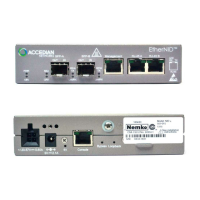
1. Use an Ethernet cable to connect the LAN port on a computer to the management port on the front of the
EtherNID.
2. Configure the computer with the static IP address 192.168.1.2.
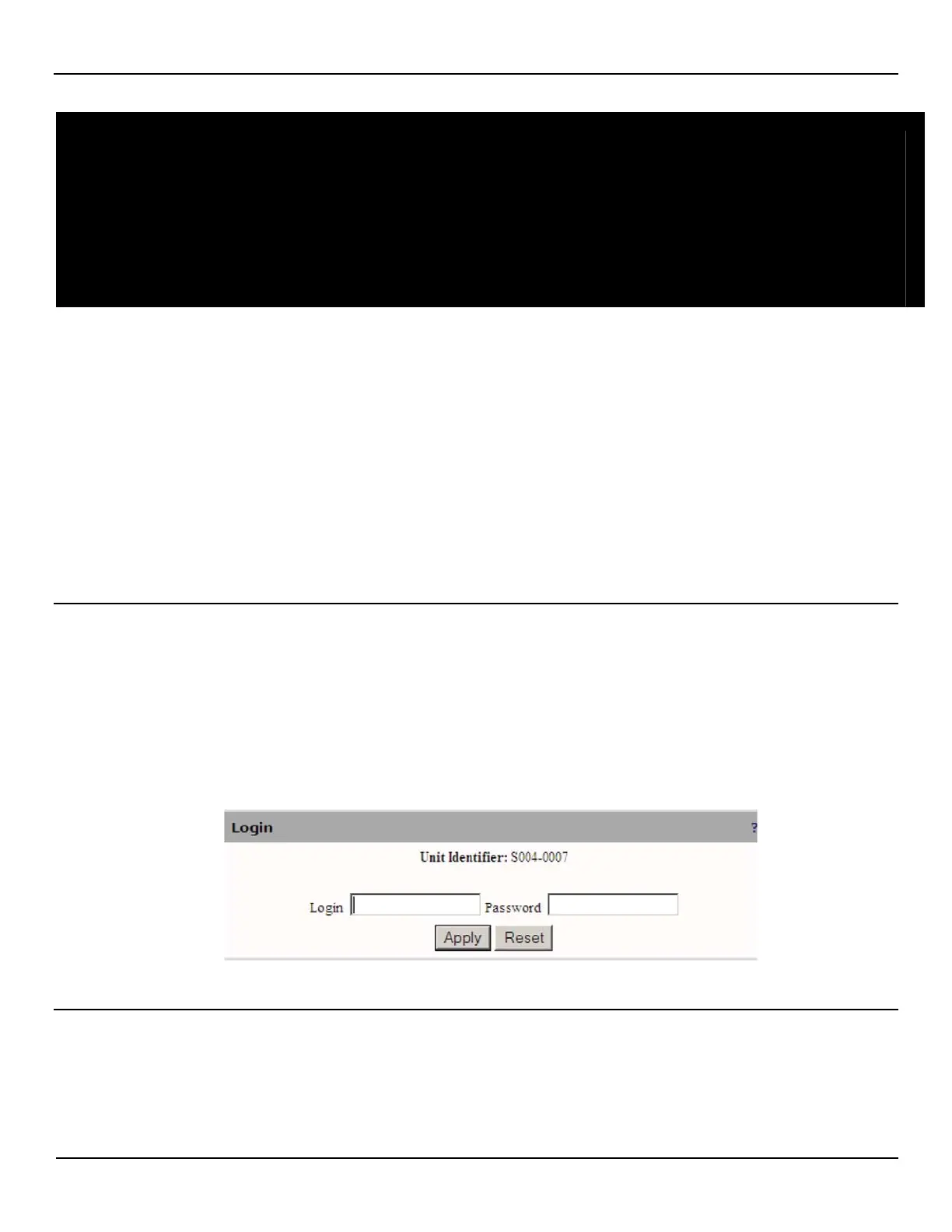
3. Start your Web browser and specify the following in the address box: https://192.168.1.254 and press Enter.
4. The EtherNID login page opens. Login as admin with the Password admin.
Managing web interface accounts
One administrator account is created by default with username and password both set to admin. The username and
password are case-sensitive. It is recommended that you change the default password immediately after installation to
safeguard the system. The administrator account provides access to all EtherNID features.



 To Next Page