User Manual The Accutech Software 6-
Clearing alarm events
How an alarm event is displayed in the Accutech 7.0 software is
determined by the Event Response setting for that alarm event type
under Event Groups.
The most common Event Response settings are Manual Clear, Allow
Clear by Zone Reset, and Automatically Clear.
Always go to the alarm location and take appropriate action to address
the causing condition. An alarm event will continue to display on the
software unless the causing condition is remedied.
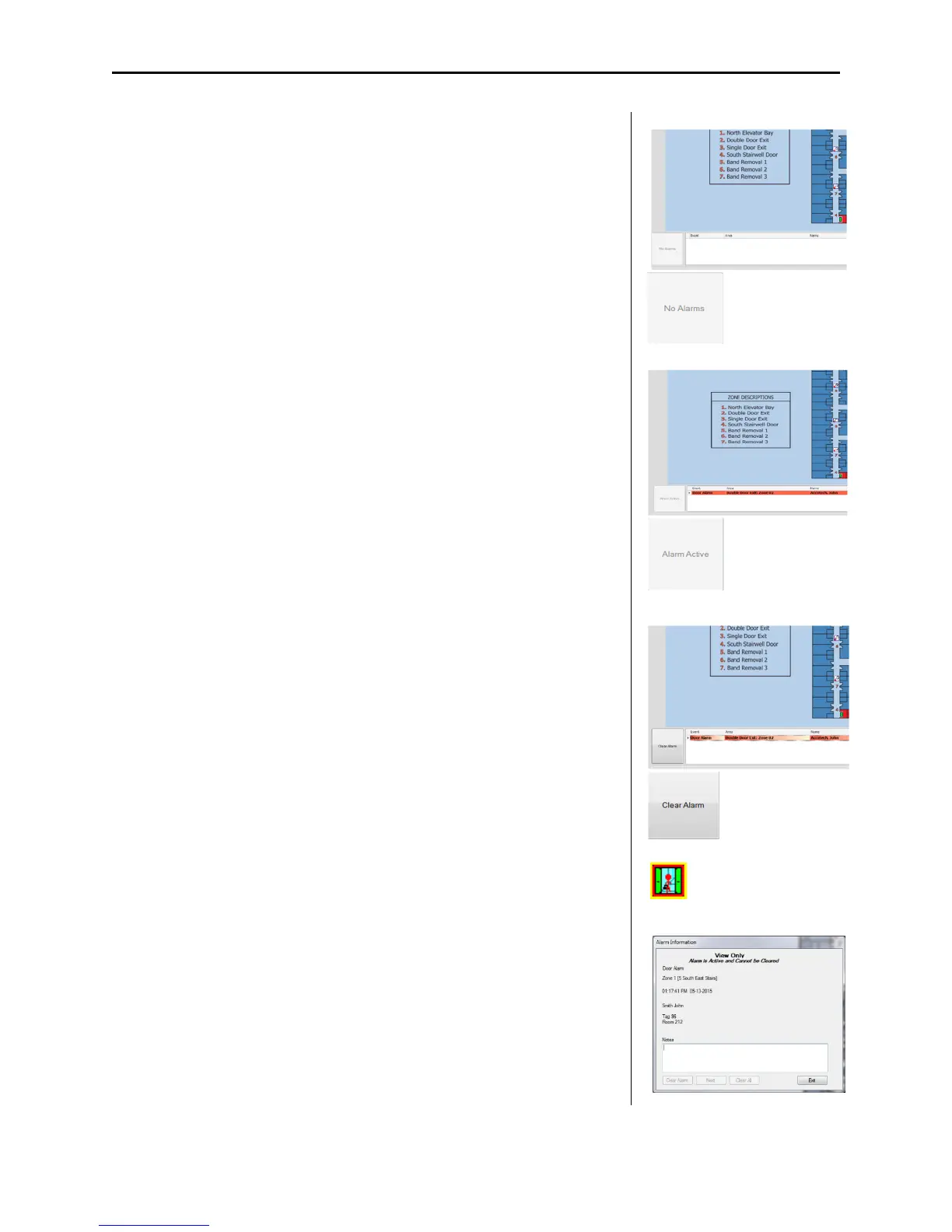
If the alarm event is set to, Manual Clear, select the alarm event in the
Event Dialog box (3) and select Clear Alarm button (note: the alarm
event must be red/white). Alternatively, you may select the active
flashing icon location (4) (which will allow for notes (4) to be associated
with the alarm event in Reports) and then select the Clear Alarm button
(3). If the Alarm event is solid red (2), you cannot clear the alarm event
on the computer screen until the alarm is cleared at the exit point or the
band alarm is addressed.
If the alarm event is set to Allow Clear by Zone Reset, the alarm will
automatically clear when a valid Keypad reset code is entered into the
zone’s Keypad.
If the alarm event is set to Automatically Clear, the alarm will
automatically clear when the user-selected time duration expires.
1
2
3
4
5



 To Next Page